


Kbirch
Participant
October 15, 2018
Answered

Scaling Images with shift no longer works after update (20.0)

  • October 15, 2018
  • 75 replies
  • 264286 views

After updating to CC 2019, I am not longer able to scale images evenly simply by holding shift.

I went to keyboard shortcuts and found a "scale" shortcut that was unassigned, so i assigned it to "S" as it simply wouldn't let me assign shift:
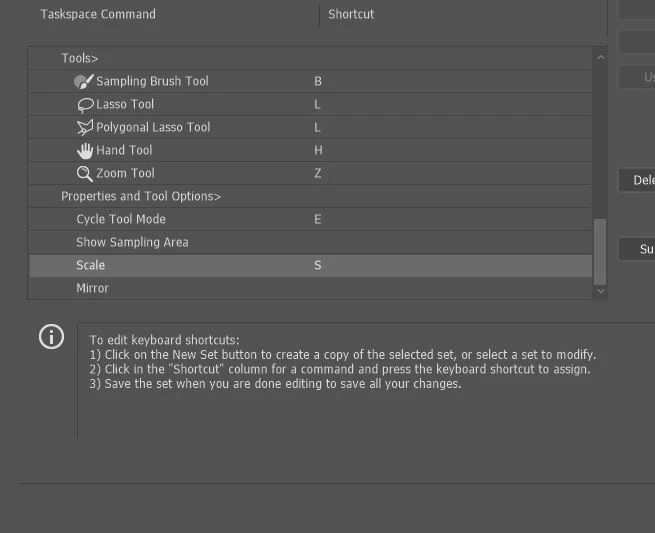
Now it seems to only want to scale evenly and won't let me scale however I want simply by dragging the corner of the image. Sometimes it doesn't go evenly when I transform with Ctrl+T and scales evenly after I press S, but wont let me go back to scaling unevenly.

Any Ideas?

Correct answer John Waller

It's a new feature. The old behaviour has been reversed. Default = proportional (constrain). Shift for non-proportional. Few people see any logic in this change.

Plenty of forum posts on this

Scaling Images with shift no longer works after update (20.0)

CC20 transform tool: Shift doesn't keep Aspect ratio

The new behaviour can be disabled.

To revert to the legacy transform behavior, do the following:

  1. Use Notepad (Windows) or a text editor on Mac OS to create a plain text file (.txt).
  2. Type the text below in the text file:

    TransformProportionalScale 0

  3. Save the file as "PSUserConfig.txt" to your Photoshop settings folder:
    • Windows: [Installation Drive]:\Users\[User Name]\AppData\Roaming\Adobe\Adobe Photoshop CC 2019\Adobe Photoshop CC 2019 Settings\
    • macOS: //Users/[User Name]/Library/Preferences/Adobe Photoshop CC 2019 Settings/

75 replies

Participating Frequently
October 17, 2018

If it wasn't broke, why did they fix it?!

xsherry
Participating Frequently
October 16, 2018

The SCALE feature does NOT work!  It is locked in proportion and does not allow flexibility.  HELP!

Known Participant
October 17, 2018

I  hate it too, I use non-proportional just as much for what I do. Also no other apps work like this - so now have to remember Photoshop is different than Illustrator and Indesign. I'm always hoping they get more consistent rather than less, oh well.

John Waller
Community Expert
Community Expert
October 17, 2018

You're aware that you can disable the new behavior?

To revert to the legacy transform behavior, do the following:

  1. Use Notepad (Windows) or a text editor on Mac OS to create a plain text file (.txt).
  2. Type the text below in the text file:

    TransformProportionalScale 0

  3. Save the file as "PSUserConfig.txt" to your Photoshop settings folder:
    • Windows: [Installation Drive]:\Users\[User Name]\AppData\Roaming\Adobe\Adobe Photoshop CC 2019\Adobe Photoshop CC 2019 Settings\
    • macOS: //Users/[User Name]/Library/Preferences/Adobe Photoshop CC 2019 Settings/
Anna Lander
Inspiring
October 16, 2018

Hi,

did anyone face this trouble? When I use a Free Transform (Ctrl+T or by Edit menu), holding the Shift button doesn't keep aspect ratio. I have to make sure that Lock Aspect Ratio in the Control Panel is On, itit takes some more attention than I'm ready to pay for this operation )

Muqqarib Hassan
Inspiring
October 16, 2018

Hi, Go to Edit>Preferences>Performance and enable Legacy Composting then reboot your photoshop.

John Waller
Community Expert
Community Expert
October 16, 2018

That's for compositing issues, not issues using the Transform tool.

PS 2019 – Color Blend Mode Buggy

Participating Frequently
October 16, 2018

This is so STUPID and ANNOYING that i don't understand who could get that idea.

EVERY iteration of Adobe programs brings more and more STUPID ideas that make work harder and less intuitive than before.

Not only this is less intuitive, but the tool itself doesn't scale object from center as it used to be with shift.

Known Participant
October 15, 2018

Proportional scaling (without holding Shift) is now a default. Holding Shift while scaling now behaves in precisely the opposite manner, despite decades of precedent and the fact that every other application uses Shift-drag for proportional scaling.

Why? Who knows. This is easily one of the most unnecessary and counterintuitive changes Adobe has ever made.

Details and instructions for how to disable it are at the link below.

New and enhanced features | Latest release of Photoshop CC

Kbirch
KbirchAuthor
Participant
October 15, 2018

Thanks so much. I followed the instructions and got it fixed. Still seems silly its not a simple check box somewhere

The "AppData" folder was a hidden folder so I had to make is show up by going to "View" and checking "Hidden Items"