
Inspiring
June 12, 2021

P: Scaling issue in Photoshop but only when exporting from Lightroom Classic

  • June 12, 2021
  • 20 replies
  • 1547 views

Basically when I use Edit in Photoshop 2021 I get scaling issues like this - i.e. the mouse pointer appears in one place but affects the image in another.
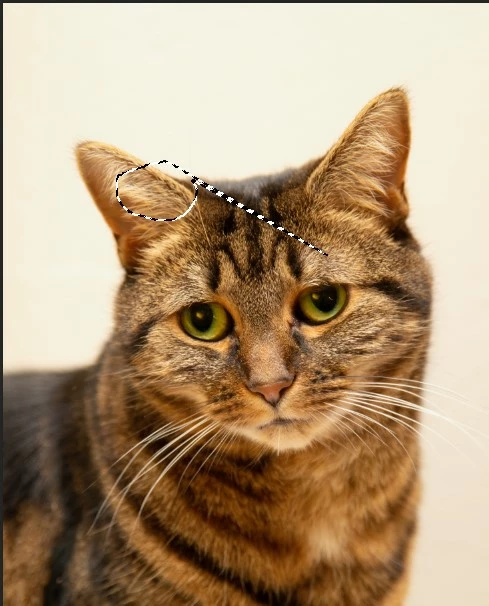
So when I try and draw around the eye on the right the effect is as above.

If I export the image to the desktop and open manually in Photoshop this doesn't happen - only when exporting from Lightroon Classic.

Both Lightroom and Photoshop individually work fine on different monitors at different resolution, but like most people, I like to use the Edit in Photoshop function as it is a fundamental part of my workflow.

I thought to start with this was a Photoshop problem but now I am not sure.

I have tried uninstalling and reinstalling without plugins but nothing has changed. I've even tried reinstalling the OS.

You can read the full thread here under the Photoshop section.

https://community.adobe.com/t5/photoshop-ecosystem-discussions/scaling-issue-in-photoshop-2021-v22-5-1-but-only-when-editing-from-lightroom-classic/m-p/12459284 

Many Thanks

Ian

This topic has been closed for replies.

20 replies

Participant
June 4, 2023

Sorry to post something that probably adds nothing, but this is EXACTLY my issue too. Thank you very much indeed for the workaround.

iwattsAuthor
Inspiring
November 2, 2021

Well after two weeks on chat with Adobe technical support I finally got to chat with an excellent Senior technician last night who has acknowledged this is a bug between Lightroom and Photoshop that happens in relatively unique situations. Nothing to do with the multiple monitor set up as it happens when the laptop is operating by itself. It has been referred to the Dev Team but if anyone else happens to come across this, until there is a fix, the workaround is to open Photoshop first, then Lightroom, and then the Edit IN Photoshop 2021 (or 2022 - the bug is in the updated version) will work as normal. It is not a scaling issue and at least now I can get on with editing. Many Thanks

Rikk Flohr_Photography
Community Manager
October 21, 2021

Setting status to acknowledged

Rikk Flohr: Adobe Photography Org
Rikk Flohr_Photography
Community Manager
October 21, 2021

Thank you for the additional information.  I was hoping you could expand the Font Pulldown but we can move on without it.


At this point there are several open threads in this and our former support forum with a feature request for more granular UI control in Lightroom Classic. The original feature request did not get migrated in our previous forum so I will be taking this existing post and marking it as Primary.


Right now your best workaround is to choose from 100, 150, or 200% in the Windows dialog.  Adjusting the Font size in the Lightroom Preferences>Interface dialog will be the only option you have to improve readability. 

There is a related open issue that causes inaccurate placement of Map pins in the 125% Scaling. I will be merging this into that open bug with engineering. 


Thank you for the additional informtion. 

Rikk Flohr: Adobe Photography Org
iwattsAuthor
Inspiring
October 21, 2021

Ok. If you look in the picture above you will see that the font drop down  is set to default (Auto). 
As I stated in the thread linked in my original post I have already stated that changing the screen resolution to 100% solves the problem but makes the UI small not just in photoshop and Lightroom but in windows and everything else. When I ultimately do want to connect to the 4K monitor it would be even worse as that has a recommended scale of 150%, so setting that to 100% would make everything way too small to be usable. But that's down the line. At the moment I need a solution that works just on the laptop and reducing the scaling on the laptop display is not a solution when the only app that has a problem with 125% is Photoshop. But it's even more specific than that. It isn't a problem in photoshop because if I open an image in photoshop directly everything works. It's only when I use Edut in Photoshop in Lightroom. Both programs work perfectly independently but not together in the way they are designed. 
I don't know what more information I can give than I have given in this thread and the other thread referenced at the top. 

iwattsAuthor
Inspiring
October 12, 2021

OK - this is a weird one. I have read I think most of the scaling discussions on here going back years - manifest files / no manifest files etc, and have tried everything. I've just done a clean install and installed Photoshop - no problem - it works fine on all my three monitors (125% - 1920x1080 15" laptop, 150% 4k 28" monitor and 100% 1920x1080 24" monitor)

However, when I install lightroom and right click an image to edit in photoshop, I get an issue like in the image - I tried to draw a selection around the right hand eye of the cat and got the selection shown (it starts at the right place then jumps, hence the line). The only monitor that it works OK on when exporting from lightroom is the one set to 100% scaling. The other issue is that I cannot click on menu items on the 125% and 150% screen as it always opens a menu one or two to the left.

If I export from lightroom to the Desktop and open in Photoshop directly everything works perfectly again, even if lightroom is open.

These are my External Editing settings in lightroom to edit in Photoshop (default settings). I have even tried exporting an image with exactly these settings and it still won't fix it.

 Like I say I have tried a clean install. My laptop is running WIndows 11 (though it also did it under Windows 10 so that isn't the issue) and the two external monitors are connected via a DisplayLink dock (Wavlink). My laptop has an Intel Graphics Chip as well as an Nvidia RTX 3080 (All drivers up to date).

I'm really not sure what to do. I'll post my System Info from the Photoshop Help menu in the hopes that someone more knowledgeable than me can maybe decipher something in that?

Many Thanks

Ian

PECourtejoie
Community Expert
Community Expert
October 19, 2021

Hi

I have tried that, and it accentuated the problem. In short, I have tried:

  1. Doing a clean install of Windows, including upgrading from 10 to 11 to see if that fixed the issue
  2. Done a fresh install of Photoshop and Lightroom, making sure all plugins were uninstalled
  3. Disconnected the laptop from the dock and tested just with the laptop on
  4. Tried disabling the Intel Graphics Driver, just leaving the RTX3080 active

None of this has fixed the issue, which means I cannot go from lightroom to Photoshop and back again. But if I export the image from Lightroom with exactly the same settings as I have in the Export to Photoshop setting, and then open the image in Photoshop manually, either by double clicking the image or opening photoshop and opening the image, it works perfectly.

So I am completely stumped. I could start exporting images to a folder then reimporting back to lightroom once edited but that is such a hassle and something I shouldn't have to do - it breaks the workflow completely.

If anyone has any other suggestions I am all ears?


Hi, I would try also posting in the Lr forum, there migth be more users there using this workflow. You might want to cross-reference both threads.

Rikk Flohr_Photography
Community Manager
October 21, 2021

I understand the problem has nothing to do with Font Size. However, I still need to know the value in that pulldown. 


As a test, set your laptop screen to 100 % instead 125% in the Windows dialog. Restart the laptop. Test the file again. 

Do you still see the offset on the masking tool. 

Rikk Flohr: Adobe Photography Org
iwattsAuthor
Inspiring
October 21, 2021

I think we must be at crossed purposes here. There is nothing wrong with the font size, it's the location of the cursor compared to the selection drawn that is the issue. Plus I've already said there is only one monitor and given you the resolution and scaling of that. There were three monitors but as I said for troubleshooting I disconnected the laptop from the external displays. The laptop is again, a 15 inch display, 1920x1080 at125% scaling. The problem occurs as demonstrated while using the lasso select tool, but also the brush tool etc. where the cursor is and where the selection happens are displaced. But photoshop works fine if I open an image manually - the only issue is with edit in Photoshop from Lightroom. 

Rikk Flohr_Photography
Community Manager
October 21, 2021

It is under Font Size:


The Windows Values are in the image below: 


We need the value for each monitor. 

Rikk Flohr: Adobe Photography Org
iwattsAuthor
Inspiring
October 21, 2021

There are no scaling settings on the latest version of lightroom classic under preferences - interface

This is lightroom classic 10.4 which is the most recent release - which explains why I couldn't tell you what the scaling settings were. In Photoshop UI scaling is set to Auto, but, bear in mind that Photoshop works fine when opening an image manually - just not when opening from Lightroom.

Thanks for your help


iwattsAuthor
Inspiring
October 21, 2021

As I say I can't get that information as someone from adobe is currently controlling my computer trying to fix the issue (she can't so is escalating it to someone more senior). 
At the moment there is only one monitor as to troubleshoot I decided to detach the laptop from everything external. My laptop display - 15inch - is set to it's recommended settings of  1920x1080 at 125%.

I wasn't trying to be unhelpful - I presumed that you knew as an Adobe Employee what the default scaling settings were in Lightroom as I couldn't check at the time and I knew I hadn't changed them. 
the technician working on it currently has reinstalled and cleaned all the settings and that hasn't solved it. I will update when she has finished.