New Participant
December 18, 2016
Answered

Scaling proportionally with shift doesn't work in CC

  • December 18, 2016
  • 20 replies
  • 40291 views

Normally holding the shift key down to resize an image or object constrains its proportions. But in my recently installed Photoshop CC on my brand new iMac , the shift key doesn't work to resize proportionally.  Is there a way to fix this problem or is there a new tool that replaces the shift key shortcut?

Please help me, I already tried resetting preferences and restarting.. Nothing works. It's a new iMac and Photoshop is also just installed.

I always work with photoshop, so I know how to use the shortcuts, never had problems with it, this never happened before.
This topic has been closed for replies.
Correct answer Trevor.Dennis

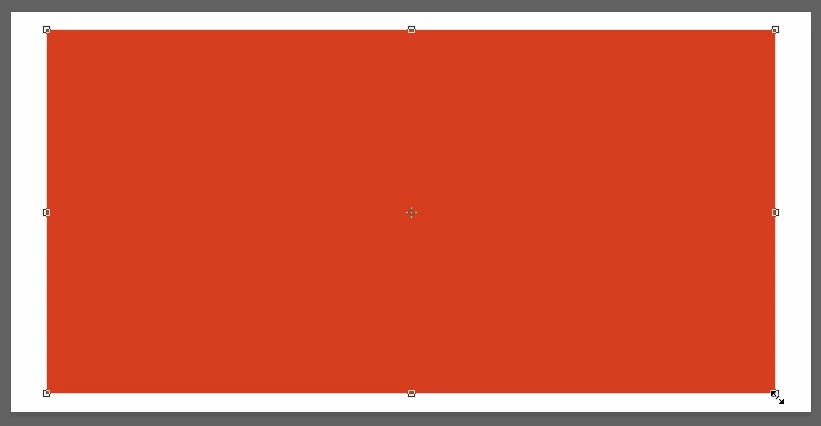
What is the aspect ratio of the object you are Transforming?  Holding down the Shift key forces height and width to change as a percentage of the initial value, so with a stretched out object like below, you do not get an equal linear reduction.

There any number of ways to get an equal gap top and sides.

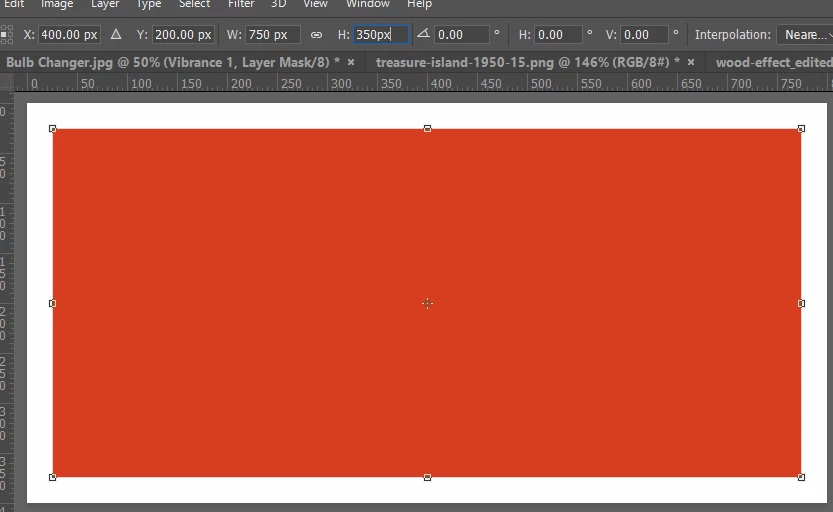
Enter values in the Options bar adding the Px to change from percentage to pixels:

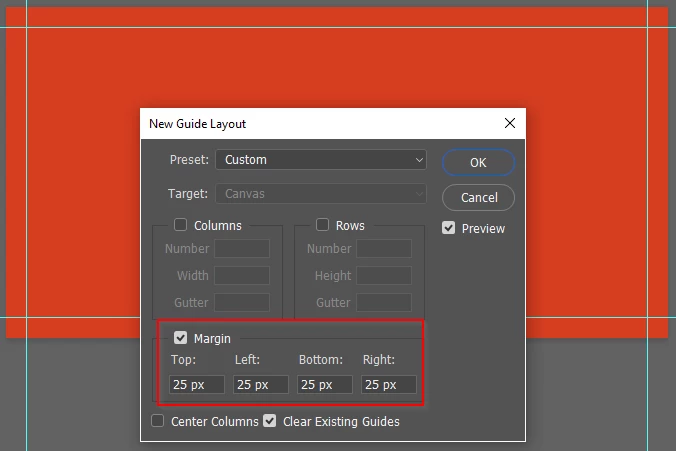
But I think my preferred method would to use View > New Guide Layout and with the upper fields empty, add margins as below.  This only works when the object fills the layer.

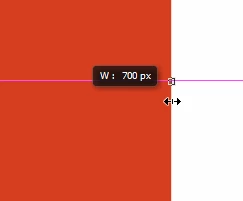
If the object does not fill the layer, zoom way way in, and use the heads up as below.  You will need to know the starting value, and you will need a steady hand and a half decent mouse, but if you are zoomed way in it is not hard to do.  Don't use the shift key, of course, but hold down the Alt key to force equal changes to the opposite edge.  It is actually pretty easy to do.

20 replies

New Participant
October 15, 2018

same problem with me. with every new update with adobes many software there are more and more new bugs.

what????

davescm
Community Expert
October 15, 2018

pmadabhushi

Todays update made an intentional change to transform constraint keys. See the details here:

New and enhanced features | Latest release of Photoshop CC

Dave

Inspiring
October 16, 2018

WTF Adobe! Why changing a feature that everybody is used to work for more than 10 years! Shame on you!!! Worst thing u changed in Photoshop, useless!!! Everybody is used to press SHIFT and scale, and you just changed!! I'm freakin nervous here!

New Participant
September 21, 2018

To be clear, yes it works as it always has-not at all. It works properly in Lightroom and ON1, but NOT in Photoshop using the transform tool. As others have said, the only way is to lock it in the task bar EVERY time the tool is invoked. This date, current Windows 10, current Photoshop CC. Clearly implying that others are incompetent because it "works for me" is NOT helpful.

gener7
Community Expert
September 22, 2018

I don't know if you have Webroot, but it can trap the Shift key.

Shift key won't constrain proportions

While this appears to affect Macs running 10.7 and above, Windows users can experience problems. If pausing Secure Keyboard Entry does not work, disable it and see if that works: (right-click Webroot icon in system tray - select "shutdown protection", enter captcha, if needed) and check to see if indeed it is Webroot causing your keyboard problems.

If you do not have Webroot, shut down system tray apps to see if they are the cause.

New Participant
September 22, 2018

...mmm...no Webroot here, but I do have Logitech kybd/mouse. Seems as though a long time ago I had an issue that was traced back to that. On the other hand, using a Wacom Intuos, including a function key programmed to shift results in the same non-action. No change with the Wacom turned off. I also have a ShuttlePro that is plugged in all the time. Impossible to know how all those drivers are routed and/or interact.

Not sure about the system tray thing. Most of those are just notifications, and shortcuts, but I suppose there could be some background stuff happening. This seems to be such a specific failure though. Everything else works as it should. Will cogitate some more....

Thanks for the response. Food for thought.

D Fosse
Community Expert
August 14, 2018

To be clear, shift-scaling in Photoshop works as it always has. I use it all the time without issue.

Those having problems should look at other, external causes.

New Participant
August 14, 2018

Quite right re Photoshop! I was diverted by the issue mentioned above re InDesign. (Which has changed since the original simple click, shift and drag.) Photoshop has never been an issue for me, either.

New Participant
August 14, 2018

The following has solved the issue for me. Using selection tool, double click on the image you want to resize. (For me, doing this turns object frame edge turquoise.) To enlarge, use only shift (shift and command will move the image within the frame.) Drag the corner to enlarge.

Known Participant
July 14, 2018

plus one here!

It went a couple of days ago. I wonder if its because I give Adobe s**t about their increasingly unreliable product and their rip-off subscription model every time their customer research survey pops-up when I open ID? Do something petty to those calling them out on issues rather than fix it? I wouldn't be surprised Adobe!

Nathan D.
New Participant
August 9, 2017

I am surprised this is still an issue. After recently purchasing a new MBP 2017 with Sierra pre-installed, I am having this same issue across all adobe products. Photoshop, Illustrator and After Effects. I use to be able to hold shift + command and proportionately scale from the set anchor point or center of the selection. Holding only command will allow me to scale from the center/set anchor point, but when I add shift to lock proportions, it breaks the action and only scales proportionately to a specific corner.

Going crazy here as this has been a problem for 2+ months now. Any new suggestions?

New Participant
January 17, 2017

I am having the exact same problem. Yes, grabbing the corner. But shift doesn't scale, just crops. Mac OS Sierra - Indesign CC2017. 

D Fosse
Community Expert
January 17, 2017

kleewink wrote:

I am having the exact same problem. Yes, grabbing the corner. But shift doesn't scale, just crops. Mac OS Sierra - Indesign CC2017.

InDesign or Photoshop?

InDesign is supposed to crop with shift+drag corner. To scale, use ctrl+drag.

New Participant
September 26, 2017

I am on this forum because I am having the exact same issues!! It was there yesterday but gone with a new iMac & CCloud update. BOO BOO, Adobe. I have been trained to use this for years!! How could they take this away. It works with the SCALE tool, but who wants to go get a new tool everytime?! Bring it back...pleeeeeeeeeeeeez

Known Participant
December 28, 2016

i have to go up to the top and click the lock on the proportions EVERY TIME now, there is no way to set it as a default. i use the clipboard from illustrator to photoshop a lot and THIS once simple thing, scale using shift to keep proportions is gone. I think the script in the program is missing or error that allows you to use shift to keep proportions and should be fixed by adobe

davescm
Community Expert
December 28, 2016

Scale using Shift (to apply the same % scale to width and height)  works perfectly here on CC2017.0.1* provided you drag the corner handles (as stated my mytaxsite in post 1)

Also went back and tried CC2015.5 and CS6 and both work perfectly.

However I'm on Windows 10. Hopefully someone on a Mac can confirm.

Dave

Trevor.Dennis
Trevor.DennisCorrect answer
Community Expert
December 18, 2016

What is the aspect ratio of the object you are Transforming?  Holding down the Shift key forces height and width to change as a percentage of the initial value, so with a stretched out object like below, you do not get an equal linear reduction.

There any number of ways to get an equal gap top and sides.

Enter values in the Options bar adding the Px to change from percentage to pixels:

But I think my preferred method would to use View > New Guide Layout and with the upper fields empty, add margins as below.  This only works when the object fills the layer.

If the object does not fill the layer, zoom way way in, and use the heads up as below.  You will need to know the starting value, and you will need a steady hand and a half decent mouse, but if you are zoomed way in it is not hard to do.  Don't use the shift key, of course, but hold down the Alt key to force equal changes to the opposite edge.  It is actually pretty easy to do.

mytaxsite
Inspiring
December 18, 2016

Are you clicking on the corners of the handles?  It only works when you are dragging the handles of the corners (NOT the SIDES).

Good luck.