


Known Participant
December 26, 2016
Answered

Script for resize to 1000x1000px and save as .jpg in 300dpi

  • December 26, 2016
  • 3 replies
  • 14731 views

Hello,

I am trying to do that

take a folder of images, bring into Photoshop, adjust to 1000 x 1000 pixels in size, then export and save as a high quality .jpg image into another folder (to keep it neat).

But when go to Image -> Image Size-> and change width and height in 1000 pixel if i select width to 1000x than height automatically change and dont let me change to 1000 px.... is there anything wrong am i doing? 

Actually I am trhying to record an action to do that take all images from a folder changed size and save to another folder in 1000x1000px

This topic has been closed for replies.
Correct answer JJMack

mirzaa26404547 wrote:


When I go to image size and change to pixel in 1000x1000 with 300dpi than one of the height or width will not same if i select width to 1000px than height automatically change to 750px?

You did not record the Canvas size step or steps correctly if you want a square image.

The canvas size steps prior to the Image size step should made the canvas size 1000x1000 pixels so there is nothing that need be done about the number of pixels the canvas has. So in the images size step you uncheck RESAMPLE the current number of pixels in the canvas will not changed,  The Width and High will linked so it you change one side the other side will change to keep the aspect ration the same as it currently is.  All you want to do is set resolution to 300dpi you do bot care if the width is shown in pixels, inches, cm, percent. With resample NOT checked the current number of pixels are not going to change.  If you enter 1in in the width the hight will change to 1in and the resolution will change 1000dpi.  

3 replies

JJMack
Community Expert
Community Expert
January 2, 2017

Then all you need to do is use one of the image processors you just need to use the resize option and set width and height to 1000.  If you use the Image Processor Pro  Plug-in script you can also specify the interpolation method to use, No Action is required.

JJMack
Stephen Marsh
Community Expert
Community Expert
December 27, 2016

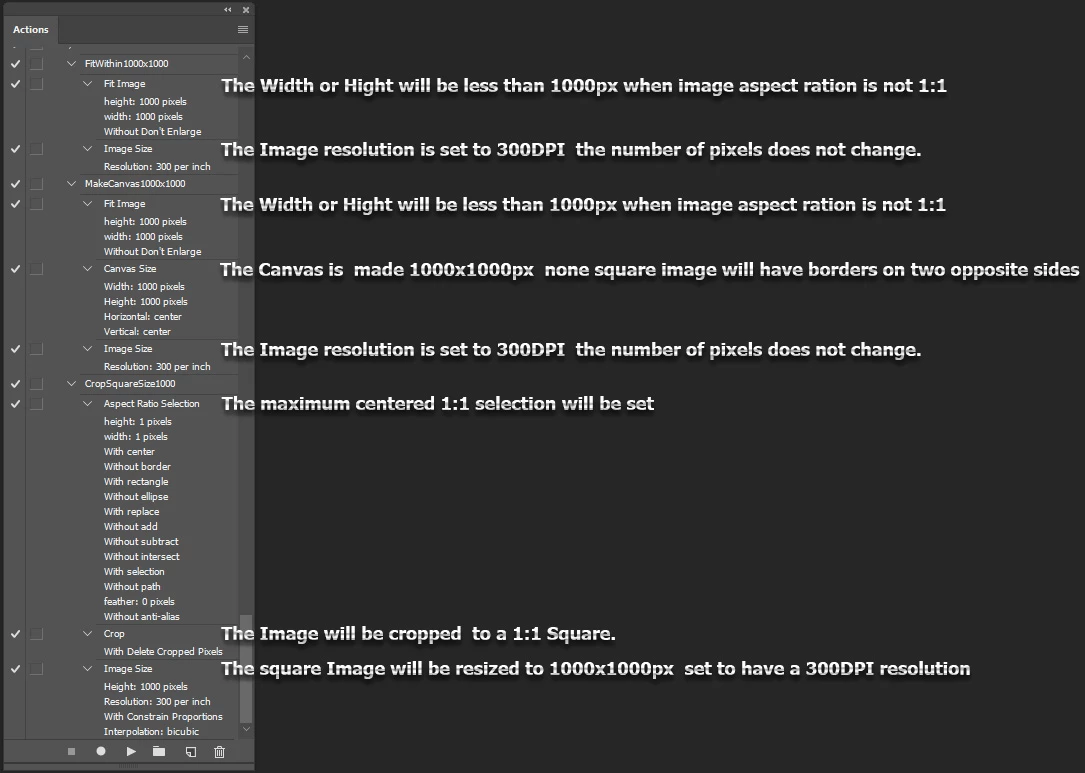
The Fit Image command will fit the longest edge to 1000px, however if you require a square output of 1000x1000px from a rectangular original, then you will need to add two steps to your action to resize both canvas edges to 1000px. This will “letterbox” or “pillarbox” the original rectangular content into a square. In this example, the current colour picker background colour is used to letterbox, however you could preset white, black etc into the action. A final step to resize the image with resampling OFF (no pixels added or removed) to 300ppi/118.11pcm is also added to set the pixels per inch metadata value (which may or may not be retained depending on the save method).

The save to JPEG could be included in the action as a 5th step, or as JJ mentions the file format output could be handled via Image Processor/Image Processor Pro and then you don’t need the JPEG save recorded into the action (which would then require the use of “override” options in the batch command).

This of course presumes that you are OK with having the images “letterboxed” – otherwise you would need them to be cropped to a square first. This can be automated, however you would likely wish to decide which pixels are included rather than have this automated.

JJMack
Community Expert
Community Expert
December 27, 2016

I think the three action would be more like these. You would want images smaller then 1000px enlarged,

JJMack
Known Participant
December 27, 2016

Can these three action's step make in one action? if possible can you please upload this action for preview?

JJMack
Community Expert
Community Expert
December 26, 2016

Are you image square to begin with.  If not you if you do not use restrain in images size you will be able to set 1000px by 1000px in Image size and all you none square images will be distorted into a 1000px by 1000px square image.  I do not think this is actually what you really want to do.  If you want 1000px by 1000px image files you have two other choices. Crop you image to square then resize to 1000px by 1000px or, Add extra canvas to make your  resized image square 1000px by 1000px.  Images that were not square to begin with will have borders on the width or height.

Which of the three do you want to do. The is a Forth option the results will be your image will fit within 1000px by 1000px however none square imags will be smaller the height or width will be less than 1000px.

In your screen capture Imags Size Constrain is on Width and Height are linked setting one will change the  other to constrain the resize to the current aspect ratio.

To do option 4 Fit Image all you need do is use photoshop menu File>Scripts>Image Processor....

Or Frome Bridge use menu Tools>Photoshop>Images Precessor....

JJMack
Known Participant
December 26, 2016

Thanks JJMackactually I have different sizes images including psd tiff, eps etc.... Images are all different sizes but I want to make sure that at least one side is 1000 pixels

Known Participant
December 31, 2016

If You want to save the same File type simply batching a single step action can  do that. You need to set menu File>Automate>Batch... dialogs settings correctly.   All the Action needs is a single step reciord Photoshop menu File>Automate>Fit Image... in the fit image dialog record 1000px Width and Height.  That is option 4.....

It you just want to save flat jpeg imags for all imput file types you would use menu  File>Scripts>Image Prpcessor....  Also option 4....

Not sure if PDF and EPS files would be done the way you want they open differently then normal image files in Photoshop. Photoshop SVG support is also not good.


Now I have some difficulties i want to be able to make one side for example 1000 pixels and the other side stays in proportion, its makes everythig 1000 x 1000 and the images are distorted. I want to make one size proportion? How can i achieve this?