



heroleam
Known Participant
March 16, 2023
Answered

Script that copies the selected number of pixels

  • March 16, 2023
  • 5 replies
  • 8781 views

Hi guys, I've been trying to make this script for a while and I can't get the result I need.

I'm trying to make a script that copies the amount of selected pixels to the clipboard, but it doesn't give the same value that appears in the histogram, can anyone help me?
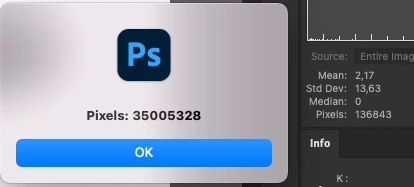
#target photoshop

// Get the current Photoshop document
var doc = app.activeDocument;

// Get the brightness (Y) channel of the image
var channel = doc.activeChannels[0];

// Get the histogram of the luminosity channel
var histogram = channel.histogram;

// Get the total sum of histogram values
var totalPixelCount = 0;
for (var i = 0; i < histogram.length; i++) {
  totalPixelCount += histogram[i];
}

// Get the selected pixel amount value from the histogram
var pixelCount = totalPixelCount - histogram[0];

// Copy the value to the clipboard
var d = new ActionDescriptor();
d.putString(stringIDToTypeID("textData"), totalPixelCount);
executeAction(stringIDToTypeID("textToClipboard"), d, DialogModes.NO);

// Show an alert
alert("Pixels: " + totalPixelCount);
 

This topic has been closed for replies.
Correct answer jazz-y

I re-read this thread over and over again. It seems to me that we have not come close to understanding the @heroleam's task.


1 cm2 at a resolution of 600 pixels/cm contains 360,000 pixels. This is an objective reality. In the table, we see approximately the same value - 359400, perhaps this is due to the fact that for a printing device 1 pixel is not equal to 1 point (that is, the resolution of the printing device is slightly less than the resolution of the file).


Why do we need to know how many pixels Photoshop shows in 1 cm2, taking into account caching, if we can accurately calculate the number of pixels using the original script!?


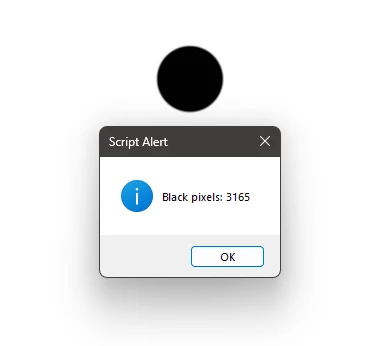
Perhaps @heroleam needs to know not the TOTAL number of pixels in the selection, but only the number of BLACK pixels? In this case, it is enough to modify the script as follows:


#target photoshop

// Get the current Photoshop document
var doc = app.activeDocument;

// Get the brightness (Y) channel of the image
var channel = doc.activeChannels[0];

// Get the histogram of the luminosity channel
var histogram = channel.histogram;

// Copy the value to the clipboard
var d = new ActionDescriptor();
d.putString(stringIDToTypeID("textData"), histogram[0]);
executeAction(stringIDToTypeID("textToClipboard"), d, DialogModes.NO);

// Show an alert
alert("Black pixels: " + histogram[0]);

(the original script that the author generated via chatGPT calculates the sum of ALL pixels, both black and non-black)


5 replies

heroleam
heroleamAuthor
Known Participant
March 25, 2023

@jugenjury @jazz-y 

Just confirm one thing, I must take the total number of pixels and divide by the number of pixels in a centimeter, then take this value and multiply it by the number of grams used in 1 square centimeter, that would be it, right?

total pixel / pixel² = x
x * grams paste = consumption in grams

Inspiring
March 25, 2023

So, after spending a lot of time trying different methods to arrive at the value shown in the histogram dialog for Cache Level 4, I have come to the conclusion that there is no real way to get the number mathmatically without knowing the exact algorithm they use to get this value.


The Pixels count shown in any cache level other than 1 is NOT representative of the number of pixels in the selection. At least not an exact representation. Cache levels other than Level 1 use a combined pixels algorithm to arrive at the pixel count shown and this isn't a simple ratio such as 4 to 1 or 8 to 1. If the selection is a rectangle, it works out to a simple ratio but with the selection being a shape, the combination of the pixels along the edge are not predictable without knowing their algorithm.


So with this in mind, I have to ask if this is the value you need to use to determine how much of each paste mixture will be needed for the print because this value will not exactly represent the number of pixels within the selected area. Even if you are resizing your print (I tried using the resizing/resampling methods) this pixel count won't match. I do get close when using a resizing with various resampling methods (within 1 percent and usually within 0.2 percent) but never consistently exact.


So I'm guessing that you already know how much paste you need to use for each square centimeter. You also know how many ACTUAL pixels are within the selection (using the histogram calculations and adding all pixels at all levels). You know how many pixels are in a centimeter (600) so a square centimeter would have 360000 pixels. Divide total pixels by 360000 and you will have square centimeters of print area for the selection. Multiply that value by the amount of paste needed for each square centimeter and you would have your value for the amount of paste needed.


The only thing I have left that I can look into is ActionScript which isn't really documented well for Photoshop. And so far I've been unable to find where they keep that value using ActionScript if they even do have it there.

jazz-yCorrect answer
Legend
March 25, 2023

I re-read this thread over and over again. It seems to me that we have not come close to understanding the @heroleam's task.


1 cm2 at a resolution of 600 pixels/cm contains 360,000 pixels. This is an objective reality. In the table, we see approximately the same value - 359400, perhaps this is due to the fact that for a printing device 1 pixel is not equal to 1 point (that is, the resolution of the printing device is slightly less than the resolution of the file).


Why do we need to know how many pixels Photoshop shows in 1 cm2, taking into account caching, if we can accurately calculate the number of pixels using the original script!?


Perhaps @heroleam needs to know not the TOTAL number of pixels in the selection, but only the number of BLACK pixels? In this case, it is enough to modify the script as follows:


#target photoshop

// Get the current Photoshop document
var doc = app.activeDocument;

// Get the brightness (Y) channel of the image
var channel = doc.activeChannels[0];

// Get the histogram of the luminosity channel
var histogram = channel.histogram;

// Copy the value to the clipboard
var d = new ActionDescriptor();
d.putString(stringIDToTypeID("textData"), histogram[0]);
executeAction(stringIDToTypeID("textToClipboard"), d, DialogModes.NO);

// Show an alert
alert("Black pixels: " + histogram[0]);

(the original script that the author generated via chatGPT calculates the sum of ALL pixels, both black and non-black)


heroleam
heroleamAuthor
Known Participant
March 25, 2023

Thanks for your time, but we noticed here that the script was correct from the beginning, what was wrong is as @jugenjury  said in the cache issue, the initial script was already giving the correct selected pixel amount, thanks anyway, and this script of yours is now also interesting!

heroleam
heroleamAuthor
Known Participant
March 20, 2023

Guys, I talked to the people here and we are going to evaluate the information that you passed on.


So how could we do it right? follow the process we do:
We split the channels
convert to bitmap 600dpi per cm

frequency 25

after that we convert to grayscale

we select the channel and invert it so that the selection is only where there is color.

this would be the process to store the value of the pixels generated there

after that, the pixel value is placed in a spreadsheet to calculate consumption

Follow the link to the spreadsheet to consult: 

https://docs.google.com/spreadsheets/d/14OKhSHX4NjkrBvdsCnKzQfdV_lbwngszKdtGOyzbBBo


Now knowing that, what would be the most correct way to make the calculation work?

Inspiring
March 20, 2023

Are you only doing this on one channel or all channels one at a time?


And FYI, the abbreviation "dpi" stands for dots per inch. Dots per cm would be "dpc". 


Are you using RGB channels? CMYK channels? Lab channels? The example you posted only has the one channel. I see 3 mixes on your spreadsheet so I'm guessing each mix is for a particular channel (color). Please correct me if I'm wrong.


Is the end goal here to determine how many pixels of each color are present in the image? Are you looking for just a straight pixel count of an overall value that determines how much of that color is present. For example, a single pixel if using RGB would have some Red, some Green, and some Blue but not always 100% of each (unless it's white). Of course for printing that would be opposite but same principle applies. What I'm getting at is are you looking for a totalizer for the pixels values or assuming all pixels are 100% and just counting them? Either way, I could see about coming up with a better method now that I'm more understanding of what you're doing.


Do you have an example file you can share? One that has the color and let me know which colors you use for your inks/pastes so I know how to break it down? If you're allowed to, that is.

heroleam
heroleamAuthor
Known Participant
March 21, 2023

The mix there in the spreadsheet does not mean mixture, it's just that for you "mix" is to mix, but here "mix" is the name of the product.

The objective is to know how much product we will use per area of the drawing.


I will send you the file here with the colors, each channel will be a frame to print.

You need to use splitchannel on the channels and use the action on each channel to then do the pixel count.


Action: https://we.tl/t-oiFanfHUx7

Inspiring
March 18, 2023

For cache level 2, divide totalPixelCount by 4.

For cache level 3, divide totalPixelCount by 16.

For cache level 4, divide totalPixelCount by 64.


This won't match what's shown exactly because they use some fuzzy logic algorithm around the edges, but it will be close.


I'm trying to figure out a way to determine with javascript which cache level the histogram is using on the current pixel count but it has been a bit elusive.


Not sure if that helps, but so far that's the best I can do. I know you wanted it copied to the clipboard but with a simple script like this, it would have to copy all of them or a predetermined cache level which you would have to input. Another option would be to have the script pop up a window with 4 selections and you select the current cache level from there and it will copy that value into the clipboard.

Inspiring
March 18, 2023

OK. I figured out the "fuzzy logic algorithm" part and it isn't so fuzzy afterall. To get the histogram pixel counts for each cache level...


// Save the current preferences
var startRulerUnits = app.preferences.rulerUnits
var startTypeUnits = app.preferences.typeUnits
var startDisplayDialogs = app.displayDialogs
// Set Adobe Photoshop to use pixels and display no dialogs
app.preferences.rulerUnits = Units.PIXELS
app.preferences.typeUnits = TypeUnits.PIXELS
app.displayDialogs = DialogModes.NO


// Get selection bounds
var sel=app.activeDocument.selection.bounds;

// Get selection width and height
var w = Number(sel[2]) - Number(sel[0]);
var h = Number(sel[3]) - Number(sel[1]);

// Get Pixel count for each histogram cache level
var l1 = w * h;
var l2 = Math.ceil(w/2) * Math.ceil(h/2);
var l3 = Math.ceil(w/4) * Math.ceil(h/4);
var l4 = Math.ceil(w/8) * Math.ceil(h/8);

//Restore prior preferences.
app.preferences.rulerUnits = startRulerUnits
app.preferences.typeUnits = startTypeUnits
app.displayDialogs = startDisplayDialogs

I still haven't figured out how to get the current histogram cache level.

Inspiring
March 19, 2023

Try this. The only thing you might have to change is the first line. You have to set the var cacheLevels to whatever is set in your preferences. I put it at 4 since that seems to be the Photoshop default value.


#target photoshop
// Set cacheLevels to the number as set in preferences (performance tab)
var cacheLevels = 4;

// Get selection bounds
var sel=app.activeDocument.selection.bounds;

// Get selection width and height
var w = Number(sel[2]) - Number(sel[0]);
var h = Number(sel[3]) - Number(sel[1]);

// Create dialog window
var win = new Window('dialog', 'Histogram Pixels');
win.size = [200,200];
win.button = new Array();
win.pixels = new Array();
var u = undefined;
var cLevel = 0;
var totalPixelCount;
pix = new Array();
var p = 20;
for (i=1; i<=cacheLevels; i++) {
pl = Math.pow(Math.pow(4, i), .5)/2;
pix[i] = Math.ceil(w/pl) * Math.ceil(h/pl);
win.button[i] = win.add('button',[20, p, 60, p+20],'Level '+i);
win.pixels[i] = win.add('statictext',[80, p, 150, p+20],pix[i]);
win.button[i].value=i;
win.button[i].onClick = function() { cLevel = this.value; win.close(); }
p+=35;
}
win.cancel=win.add('button',[50, p, 70, p+20],"Cancel");
win.cancel.onClick=function() { win.close(); };
win.center();
win.show();
if (cLevel > 0) totalPixelCount = pix[cLevel];
else totalPixelCount = "Not Selected";
// Copy the value to the clipboard
var d = new ActionDescriptor();
d.putString(stringIDToTypeID("textData"), totalPixelCount);
executeAction(stringIDToTypeID("textToClipboard"), d, DialogModes.NO);

alert(totalPixelCount);


I'm also confused just like jazz-y is. Mathmatically this makes no sense. If you're trying to figure out how much ink or whatever for your print job based on the pixel count and the pixels per cm (or per in, whichever it is) you would probably want to know the actual number of pixels in the selection and not the combined pixels as shown in the Histogram window based on cache level. As I mentioned above, the cache level is based on the size of your selection and anything other than level 1 is not your actual pixels.


Example. Let's say you select an area that is 400 x 999. It will most likely use cache level 1 and give you 399,600 pixels. If you moved over 1 more pixel in your selection to 400 x 1000, you would drop to cache leve 2 and get a pixel count of 100,000 even though you actually added 400 pixels to your selection.

Legend
March 17, 2023

Hello @heroleam,


I ran your script and it seems to be working as intended...

Regards,

Mike

heroleam
heroleamAuthor
Known Participant
March 17, 2023

sorry, I forgot to mention that the channel needs to be grayscale.

Legend
March 17, 2023

@heroleam 

I ran your script again on a grayscale image and it seems to be working as intended...

Regards,

Mike