D R Smith
Known Participant
February 21, 2020
Answered

Select a pine tree to edit the tree

  • February 21, 2020
  • 2 replies
  • 3035 views

I know similar questions have been asked, but couldn't find the answer to this.  I am using the latest version of Photoshop. I have a photo with a pine tree with several branches at the top of a hill.  Behind the tree is a blue/grey sky.  I want to enhance the tree, not cut it out.  I want to be able to select it and make enhancements while leaving the sky behind it alone.  It's difficult because spots of the sky show through some of the branches. 
Can anyone please advise me or suggest a place where I can find the answer to how this is done?  I'm getting better at Photoshop but still have a ways to go. 
Thank you very much. 
This topic has been closed for replies.
Correct answer davescm

Try making a selection from the blue channel.


1. In the the channels panel duplicate the blue channel

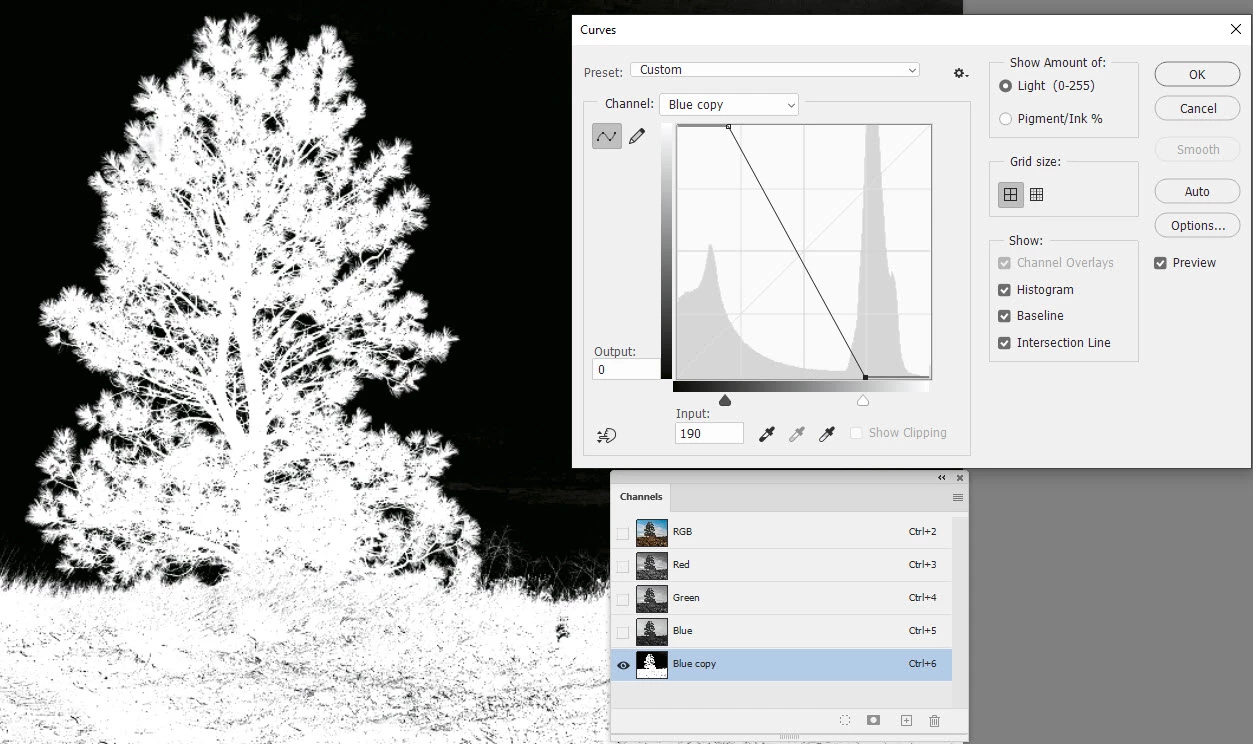
2. Select that duplicate channel and use image adjustments curves set as shown below so that it inverts and makes the tree and ground white and sky black


3. Paint in black over the ground leaving just the tree (you are painting on that duplicate channel)

4. Load the channel as a selection (click the dotted circle at the bottom of the channels panel) and turn back on the RGB channels

You can now use your selection to add an adjustment layer or make a mask etc


Dave


2 replies

Chuck Uebele
Community Expert
February 21, 2020

You would have to either make a selection of the tree and then mask the adjustments to that selection, or use the blend if sliders to limit the adjustments. And as GED mentioned, you need to post the image, so we can give a better answer. 

D R Smith
D R SmithAuthor
Known Participant
February 21, 2020

Attached is an example of the photo that I was referring to.  I want to enhance the tree and leave the sky as it is.

This is just a quick jpeg that I made of the .psd file I am working on.

Thanks for your help.

davescm
davescmCorrect answer
Community Expert
February 21, 2020

Try making a selection from the blue channel.


1. In the the channels panel duplicate the blue channel

2. Select that duplicate channel and use image adjustments curves set as shown below so that it inverts and makes the tree and ground white and sky black


3. Paint in black over the ground leaving just the tree (you are painting on that duplicate channel)

4. Load the channel as a selection (click the dotted circle at the bottom of the channels panel) and turn back on the RGB channels

You can now use your selection to add an adjustment layer or make a mask etc


Dave


February 21, 2020

Hi

Can you post the image in question or a sample of it