


PNog
Inspiring
August 5, 2023
Answered

Select next layer in Photoshop on a Portuguese layout keyboard

  • August 5, 2023
  • 1 reply
  • 449 views

Hello,
As far as I know Option and [ or ] selects the layer above or below in Photoshop.
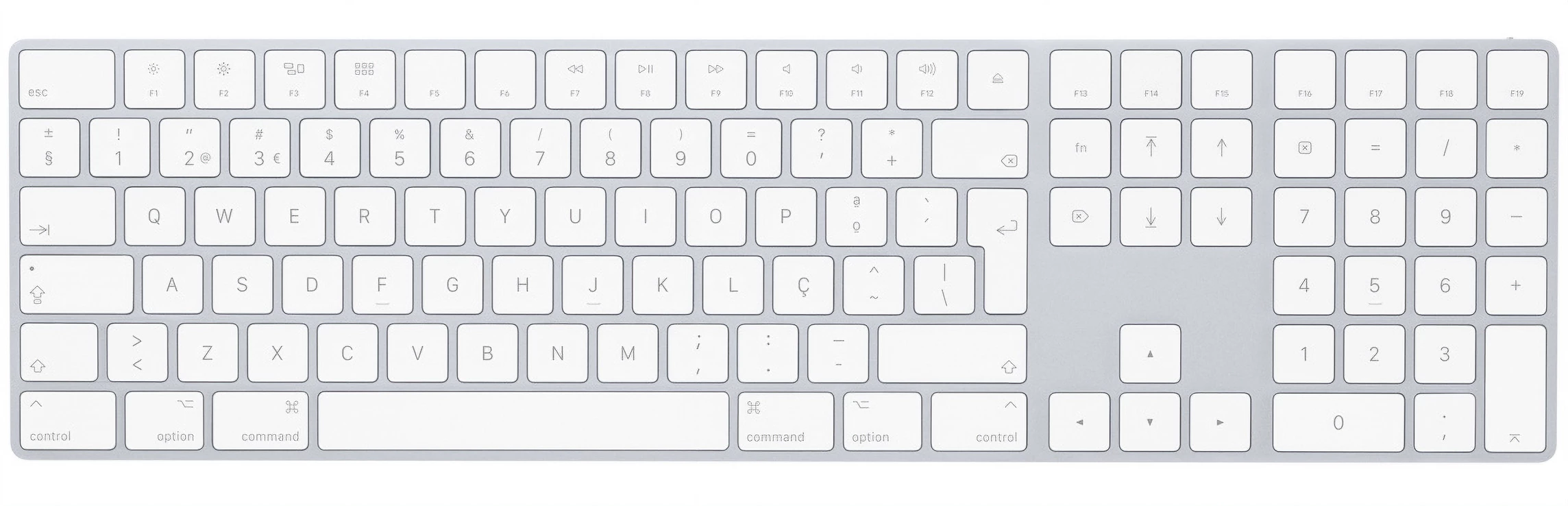
How can I do that on a iMac Portuguese layout keyboard?
Thank you.

 

This topic has been closed for replies.
Correct answer jane-e

@PNog 


You are correct that Option with a square bracket key selects the layers on an American English keyboard.


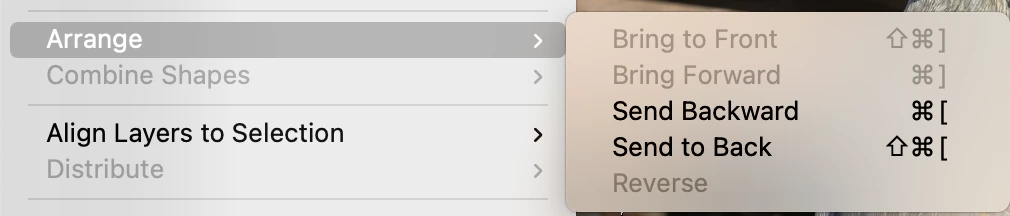
I can think of one thing for you to try. Can you go to the Layer menu > Arrange and see what the shortcuts are for moving layers? On my keyboard, it uses the square backets with either Cmd or Cmd+Shift.


If you see a character in this menu that is used instead of the square brackets, maybe that's the key you are looking for. It may or may not work, but it's worth a try.


Jane


1 reply

jane-e
Community Expert
jane-eCommunity ExpertCorrect answer
Community Expert
August 5, 2023

@PNog 


You are correct that Option with a square bracket key selects the layers on an American English keyboard.


I can think of one thing for you to try. Can you go to the Layer menu > Arrange and see what the shortcuts are for moving layers? On my keyboard, it uses the square backets with either Cmd or Cmd+Shift.


If you see a character in this menu that is used instead of the square brackets, maybe that's the key you are looking for. It may or may not work, but it's worth a try.


Jane


PNog
PNogAuthor
Inspiring
August 5, 2023

Hi Jane,


The problem is that the shortcuts I have on Layer Menu > Arrange are the same as yours.
Cmd or Cmd+Shift + square brackets 😞
I had the same problem with the shortcuts to increase and decrease the brush size but in this case I managed to change them to ‘<‘ to reduce brush size and ‘Shift+>' to increase brush size via Keyboard Shortcuts.
In this case, I can't find where the shortcuts are in order to change them.


* Wait! Finally, I already figured it out with the help of your tip.

Obviously they are hidden in Keyboard Shortcuts > Layers > Arrange… 😜


Thanks for your help.

jane-e
Community Expert
Community Expert
August 5, 2023

@PNog 


Oh, I'm so glad to hear that! 😊


Jane