CFCsjmishra
Participant
May 19, 2018
Answered

Separating layers properly from an image

  • May 19, 2018
  • 3 replies
  • 538 views

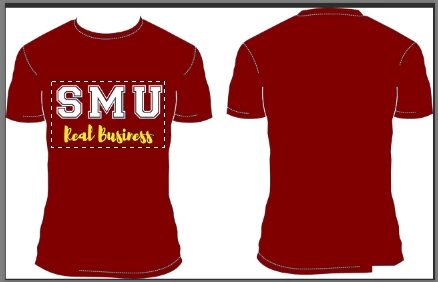
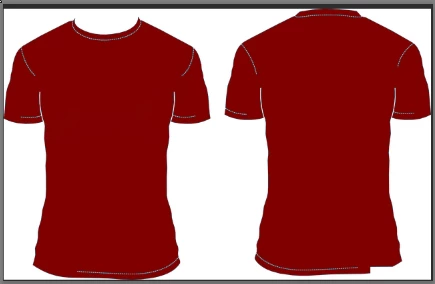
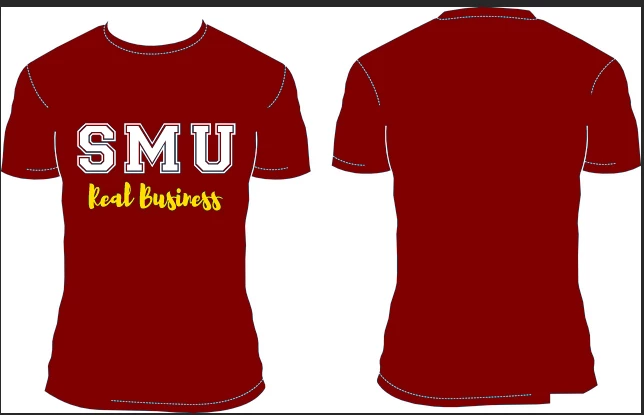
Hello everyone! So, I have the following image and what I want to do is to separate the t-shirt away from the words written on it. I don't want 'SMU' and 'Real Business written on it. Rather, I want a blank canvas so I can edit from the scratch. Just like it is on the right hand side(back) of the t-shirt. What would be the best way to proceed with this?
    This topic has been closed for replies.
    Correct answer davescm

    Hi

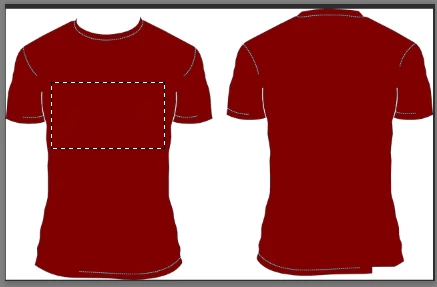
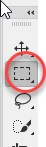
    Make a selection around the text, I used the rectangular marquee tool

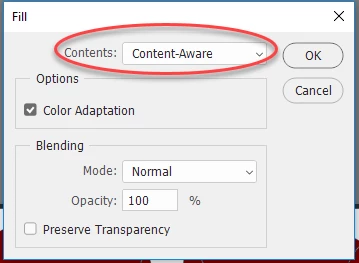
    Go to menu Edit - Fill and choose content aware

    Press OK

    Press Ctrl+D to deselect

    If you add new logos or lettering do so on separate layers

    Dave

    3 replies

    Bojan Živković11378569
    Community Expert
    Community Expert
    May 20, 2018

    I do not see any variations in color on the shirt. You can sample color from shirt using Eyedropper to set it as Foreground color then simply paint with Brush tool on a layer with a t-shirt or on a separate layer above the layer with t-shirt.

    Theresa J
    Community Expert
    Community Expert
    May 20, 2018

    Where did you get the image? What kind of file is it? There is a very good chance that this is vector art. If it is vector art, you should open it in Adobe Illustrator where you can easily edit the shapes, colors and remove the logo.

    davescm
    Community Expert
    davescmCommunity ExpertCorrect answer
    Community Expert
    May 19, 2018

    Hi

    Make a selection around the text, I used the rectangular marquee tool

    Go to menu Edit - Fill and choose content aware

    Press OK

    Press Ctrl+D to deselect

    If you add new logos or lettering do so on separate layers

    Dave