


Miguel Hortiguela
Inspiring
July 7, 2021
Answered

Set Default Bit Depth and Colour Space

  • July 7, 2021
  • 2 replies
  • 4919 views

Hi Everyone:


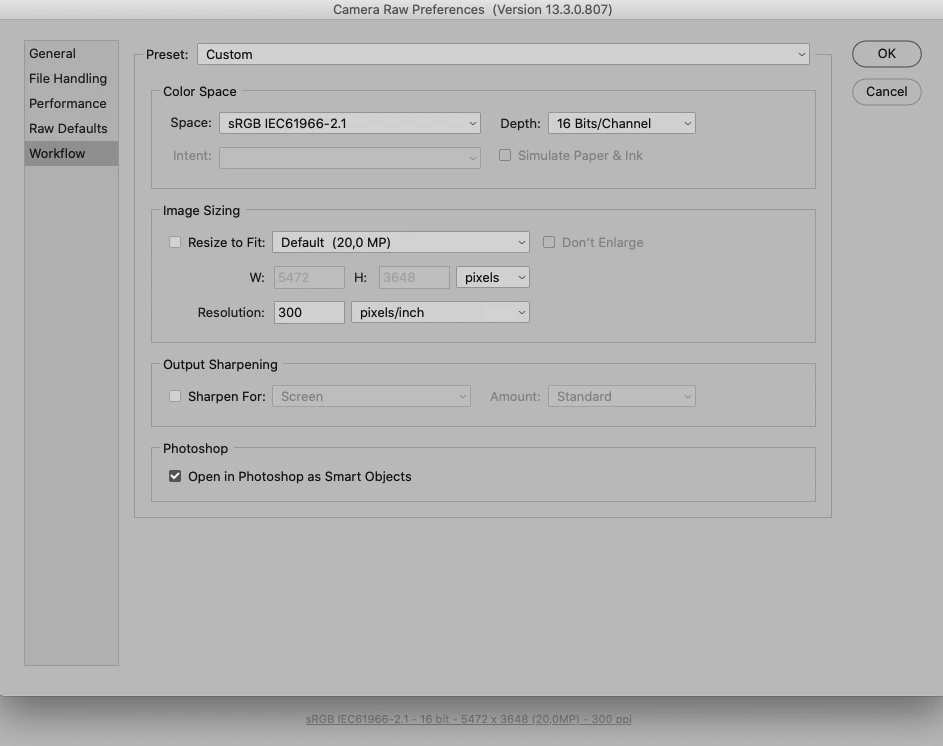
I know where to change my Bit Depth and Colour space on any OPEN image file but is there a way to set default settings for those two variables for EVERY image that I open, not NEW files, existing files?


Thanks,

Miguel
This topic has been closed for replies.
Correct answer c.pfaffenbichler

»If I always shoot RAW in 14 bit, why do the files automatically open in PS as 8 bit?«

Because you apparently set them up that way. 

Why don’t you develop 16bit right away? 

2 replies

c.pfaffenbichler
Adobe Expert
July 7, 2021

But you may want to think twice about implementing that – conversions mean damage, so one should try to keep them to a minimum when possible. 

Miguel Hortiguela
Inspiring
July 7, 2021

Hi ????:

Thanks for your reply. I watched a video by Joel Grimes in which he describes his technique for working in 32 bit by merging three - out of the camera 14 bit bracketed-files.  I understand your concern with regard to messing with the original files but near the end of the video, it appears that he sets those variables as defaults and was curious as to where.


If I always shoot RAW in 14 bit, why do the files automatically open in PS as 8 bit?  What happens to the files if I change the Mode to either 16 or 32?


Miguel

rob day
Adobe Expert
July 7, 2021

Thanks so much for your help and patience with this.  Yes, I keep the original RAW... well DNG files.

I searched some more at my end and discovered that even in LR, setting the default Import Bit Depth to 16 is primarily for viewing and that regardless files are Exported with the original Camera Bit Depth of 14.


Again, thanks and have a wonderful day,

Miguel


Bit Depth to 16 is primarily for viewing and that regardless files are Exported with the original Camera Bit Depth of 14.


Hi Miguel, You should be able to export a true 16-bit per channel image from LR.


Here is a 16-bit  TIF from LR with a number of layer adjustments added in Photoshop, and you can see the histogram has no gaps. If I convert the file to 8-bit, you can see the gap damage being caused by the layer adjustments:


If you are trying to get 16-bit output by placing a 16-bit per channel image format in a pagelayout, InDesign will always export or print it as 8-bits—print halftone screens are not capable of outputting more than 8-bit. The only way to get 16-bits out of InDesign or Illustrator is to Save As PDF with no Compression.

c.pfaffenbichler
Adobe Expert
July 7, 2021

That would likely need to link an Action or Script to the Open-Event in File > Scripts > Script Events Manager.