


Participating Frequently
December 9, 2022
Answered

Should I tick “Use Windows display calibration” in Windows Color Management?

  • December 9, 2022
  • 1 reply
  • 3876 views

I have an Adobe RGB monitor. Recently, I used a color calibrator to generate an icc profile and installed it following the steps below:


https://support.microsoft.com/en-us/windows/about-color-management-2a2ed8fa-cf09-83c5-e55c-d1428519f616


After installing the icc profile, Photoshop seems to be able to manage color correctly. Specifically, when I open a sRGB picture, it looks less saturate than before. I think what I see in this case is the correct color.


However, I encountered a problem. Some articles on the Internet tell me that I should tick “Use Windows display calibration” in Windows Color Management after installing the icc profile.
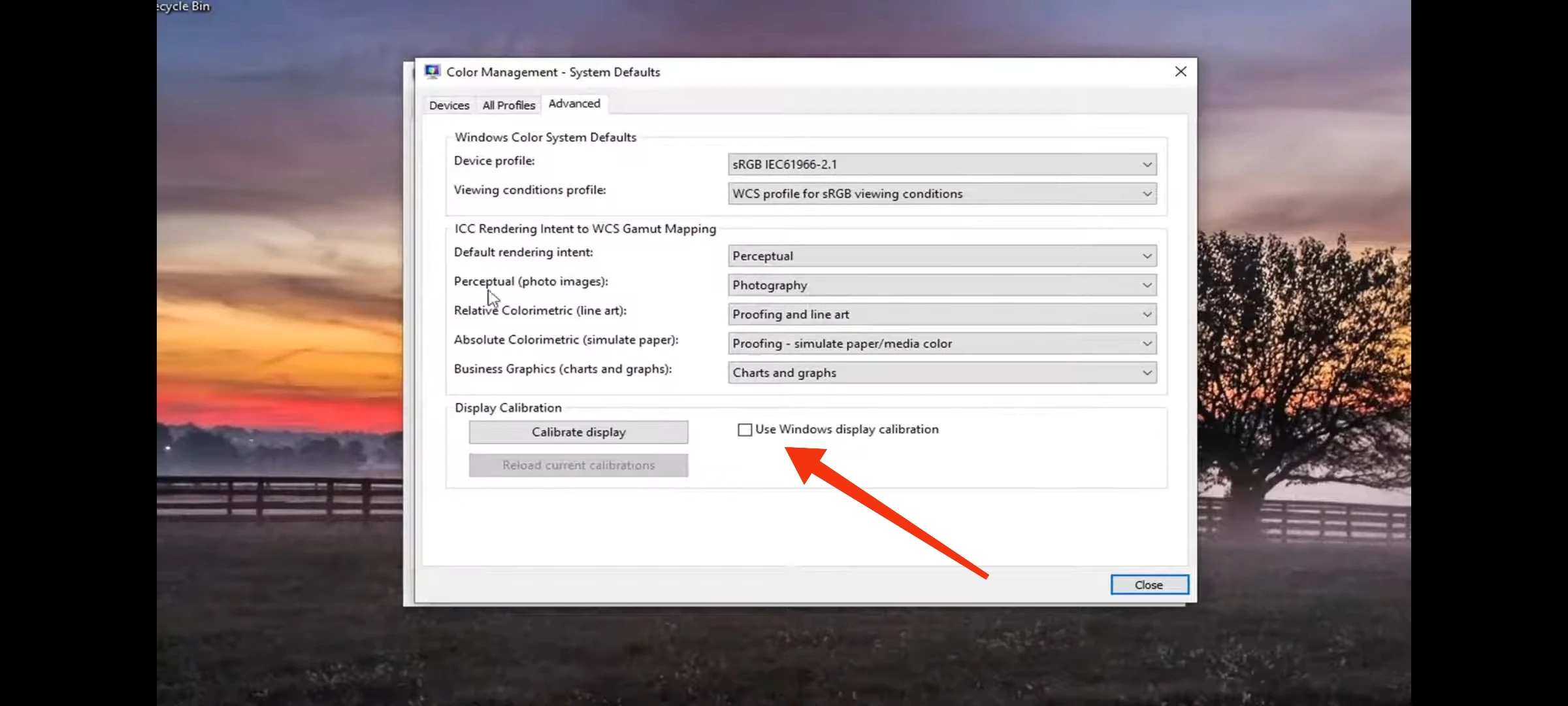


When I tick it, the color of the whole screen  will change a little, including Photoshop. So the color displayed in Photoshop seems to be calibrated twice.


In short, whether tick “Use Windows display calibration” or not will generate different colors. I don't know which one is correct.


Please help me. Thank you.

This topic has been closed for replies.
Correct answer D Fosse

No, don't do anything! The software will set it all up automatically. Run the calibrator, at your chosen calibration parameters, done.


You are specifically not using Windows display calibration. You do not need to go into the Windows color management dialog at all.


BTW, "Adobe RGB monitor" is just a marketing term. It does not match Adobe RGB exactly, and it doesn't have to. The monitor doesn't need to match any standard color space.  Leave it at "native" response, don't use the ARGB preset. From a color management perspective, you could just as well have a monitor half way between standard and wide gamut.

1 reply

D Fosse
Community Expert
D FosseCommunity ExpertCorrect answer
Community Expert
December 9, 2022

No, don't do anything! The software will set it all up automatically. Run the calibrator, at your chosen calibration parameters, done.


You are specifically not using Windows display calibration. You do not need to go into the Windows color management dialog at all.


BTW, "Adobe RGB monitor" is just a marketing term. It does not match Adobe RGB exactly, and it doesn't have to. The monitor doesn't need to match any standard color space.  Leave it at "native" response, don't use the ARGB preset. From a color management perspective, you could just as well have a monitor half way between standard and wide gamut.

Participating Frequently
December 9, 2022

Yes, I used a Spyder X(①) and its software to generate an icc profile(②). After that, I took the colorimeter off the screen, and uninstalled the software. Finally, I installed and selected my icc profile here(③).


Is this the correct procedure?

D Fosse
Community Expert
Community Expert
December 10, 2022

I open an sRGB picture in different situations. Here are the results:


It seems that both Photoshop and Windows/Spyder software do color management in my computer. I think that Photoshop do color gamut mapping, and Windows or Spyder software do white point calibration?


OK, let's take this from the bottom up.


The white point and the black point are properties of the monitor. You can either adjust that in the monitor's own circuitry, or by modifying the video signal that goes to the monitor.


High-end dedicated calibrators like Eizo Colornavigator or NEC Spectraview will go directly to the monitor's internal circuitry. The Spyder will adjust the video signal. Either way, the net effect is the same.


This is not part of the color management chain as such. It will affect all applications regardless of color management support or not. The white/black point is the environment for color management to work in.


Within that environment, 255-255-255 white in the document is just remapped to 255-255-255 white in the monitor. This is all recorded in the monitor profile - but display color management always uses relative colorimetric rendering intent, and part of the characteristics of relative colorimetric is that the white point is remapped. So document white just remaps to monitor white.


If you could use absolute colorimetric, this remapping wouldn't happen. But that would be entirely unworkable because ProPhoto D50 would display very differently from Adobe RGB D65. Relative colorimetric is the only practical way.


All of this is done by Photoshop's color management engine. The Spyder makes the profile and then it's done. Windows hands the profile to Photoshop and then it's done.