Inspiring
June 10, 2019
Answered

Should opacity of a duplicate layer influence the opacity of the layer underneath?

  • June 10, 2019
  • 2 replies
  • 1613 views

Newbie question:

Finished retouching an area of portrait and brought the layer opacity to, say, 70%.  Next, I duplicated the layer, so that I can retouch another area of portrait on this new layer and control the opacity of this new duplicate layer independent of the previous layer.

Initially, I want to set the layer opacity of this new layer to 100% and adjust it later.  However, setting the opacity of this new duplicate layer to 100% seems to affect the opacity of the previous layer underneath. Only when I set the new duplicate layer (upper most) to 0% that I get the desired effect of the retouch done on the earlier layer underneath; i.e., retouch at a layer opacity of 70%.

According to the tutorials I’ve been watching, this should not happen; i.e., opacity of the new duplicate layer should not influence the opacity of the layer underneath.

What am I overlooking?
    This topic has been closed for replies.
    Correct answer Chuck Uebele

    Added a layer mask to the original retouched layer, as you suggested.  When I activated the layer mask, the mask rendered at the same 70% opacity as the layer that it masks (i.e., we're on the original layer). Retouching looks fine.  (If I change the opacity of the mask, it changes the opacity of the retouching on the layer.  OK, so I know not to touch the opacity of the mask.)

    However, when I duplicate the original layer, I have the same problem, - in that changing the opacity of the new duplicate layer effectively influences the opacity of the retouching on the original layer underneath.

    Perhaps, it's helpful to know that when I created the duplicate layer, it rendered at the same opacity (70%) as the original layer's opacity setting.  If I don't touch the 70% opacity setting on the new duplicate layer, the retouching looks fine.  As soon as I readjust the opacity setting on the duplicate layer away from 70%, it changes the appearance of the retouching done on the original layer.  Of course, the objective is to create a new duplicate layer, whose opacity setting has no bearing on layers underneath.

    Somehow, the layer mask is not protecting the opacity setting on the original layer & the retouching done on that layer.Chuck Uebele


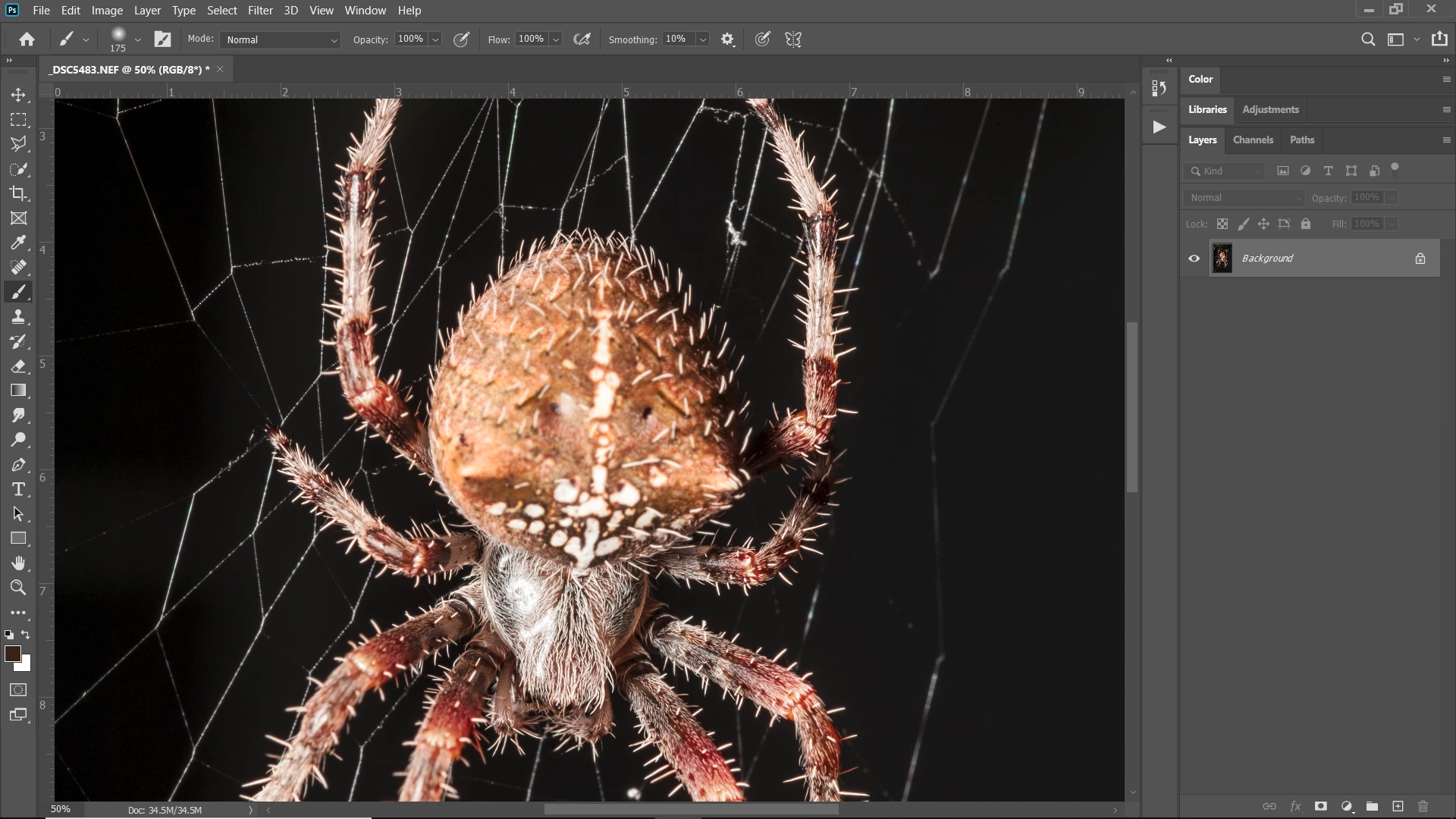
    Here's an original layer:

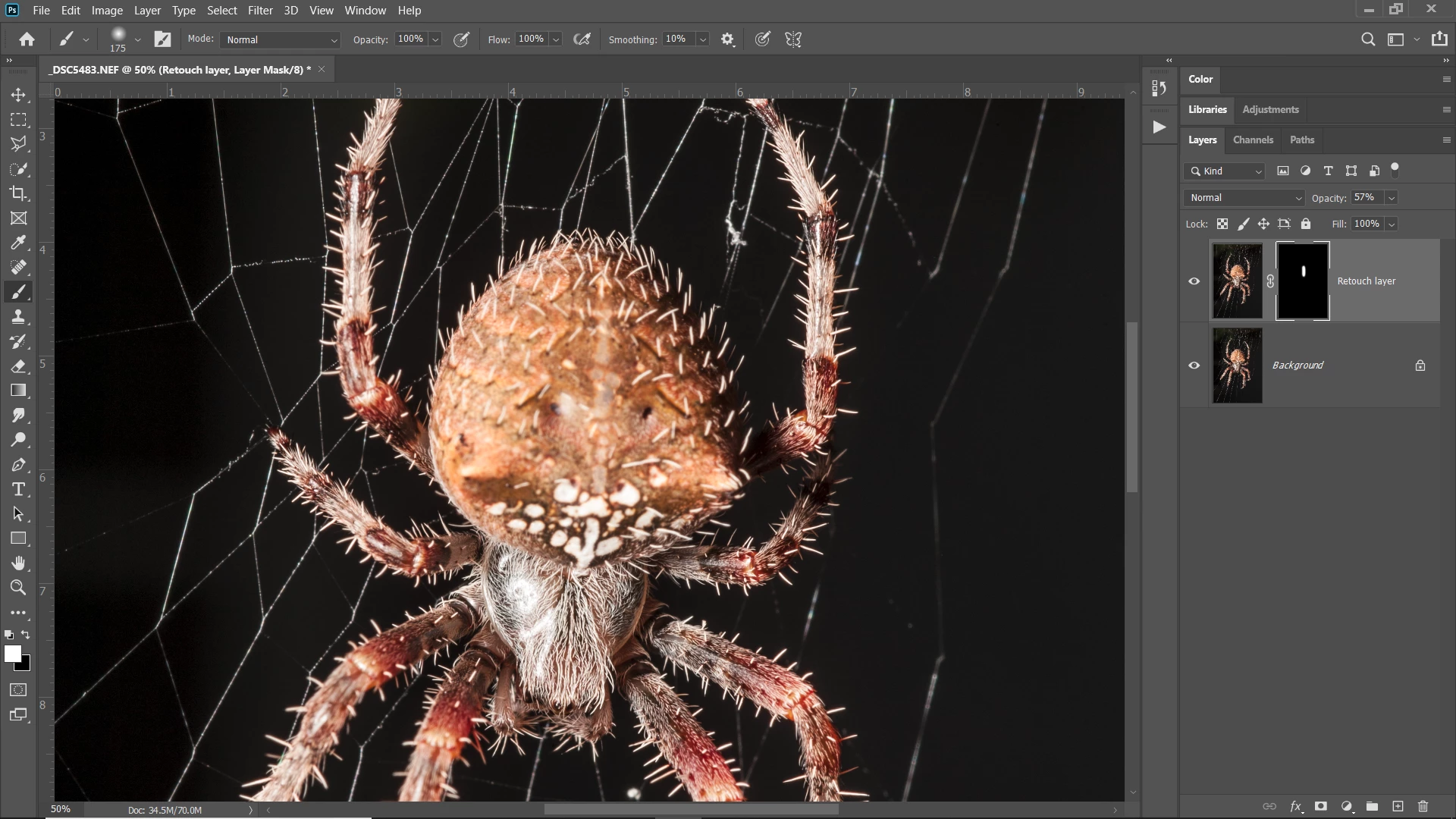
    Here I duplicated the background layer and retouched out the white stripe on the back of the spider. I reduced the opacity so that it partially shows up. I also added a layer mask for just the area of the stripe.

    Now I added a new layer, under the original retouch layer and retouched the spots.

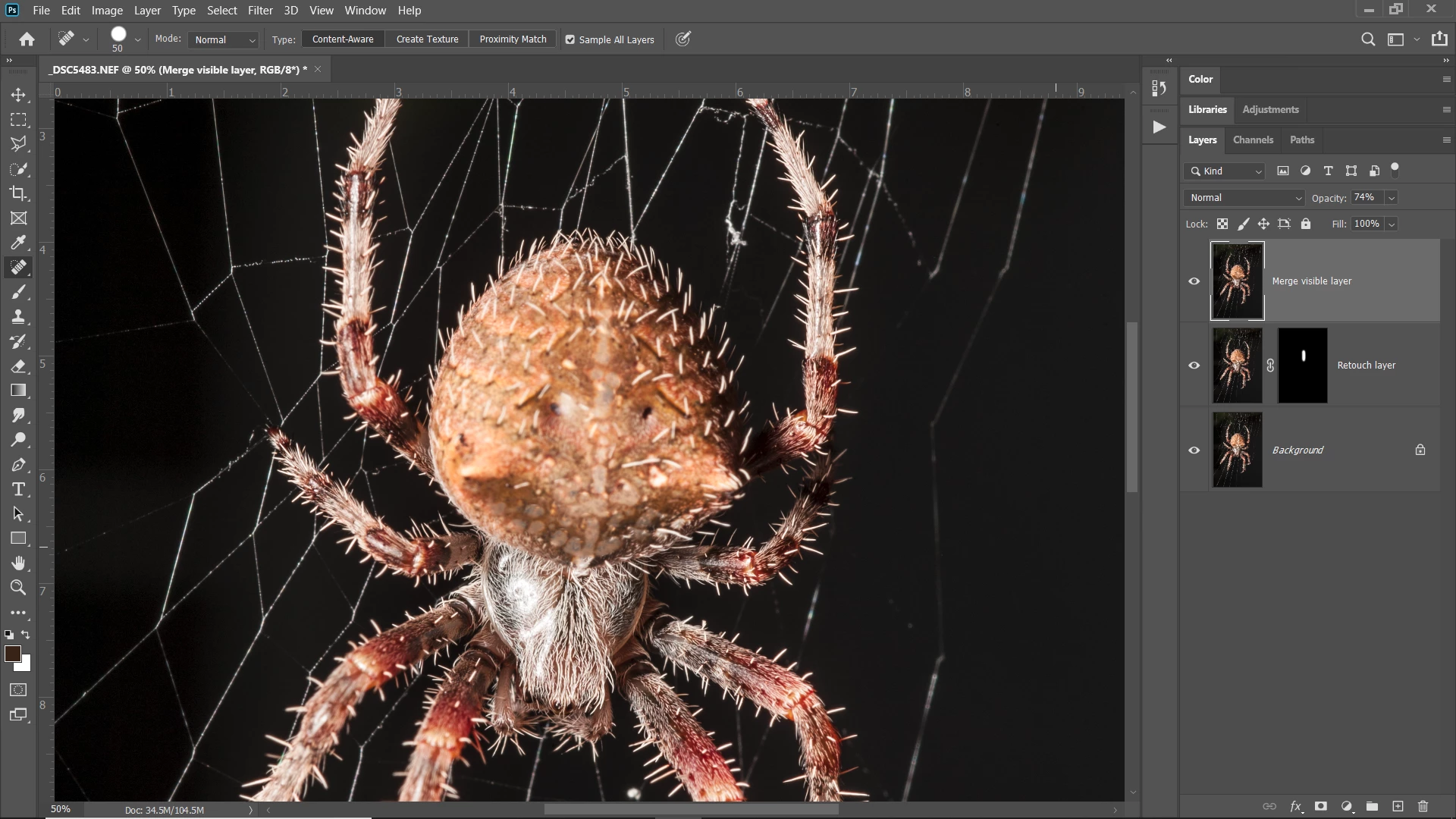
    But rather than do that, here I made a merge copy visible ctrl-alt-shift-E to dupe all the layers with the retouch. I then retouched the white spots, reduced the opacity, and the original retouching doesn't change, as it was part of the merged layer.

    2 replies

    Chuck Uebele
    Community Expert
    Community Expert
    June 10, 2019

    If the new layer is above the old layer that has the retouching, and the new duplicate layer is from the original layer and not the one with the retouching, it's hiding the retouch layer, which is why you have to set the opacity to 0. You most likely will need to use a layer mask to show the areas of the underlying layer's retouching. Or do your retouching on a blank layer (for spotting) where you can set the tool to sample all layers.

    BH888Author
    Inspiring
    June 10, 2019

    You identified the source of the problem!  I unwittingly employed the “patch tool” on the original layer (i.e., duplicate of background layer), adjusted the layer’s opacity, and then duplicated the original layer; - instead of doing the patch work on a blank layer; - which I understand would be the preferred method of working.

    Having spent considerable time retouching the original layer and being happy with the results, how would I preserve the retouching, as well as the adjusted opacity of that layer, before moving on to the next stage of retouching, which would first involve producing a duplicate layer?

    You suggested using a layer mask.  I would be grateful, if you could provide some guidance on how that layer mask should be applied and to which layer; - the original layer or the duplicate layer?

    Many thanks.  @@@

    BH888Author
    Inspiring
    June 10, 2019

    Here's an original layer:

    Here I duplicated the background layer and retouched out the white stripe on the back of the spider. I reduced the opacity so that it partially shows up. I also added a layer mask for just the area of the stripe.

    Now I added a new layer, under the original retouch layer and retouched the spots.

    But rather than do that, here I made a merge copy visible ctrl-alt-shift-E to dupe all the layers with the retouch. I then retouched the white spots, reduced the opacity, and the original retouching doesn't change, as it was part of the merged layer.


    Crating a stamp visible layer was the solution!!

    Thank you for taking the time to explain things so clearly!  Much appreciated!

    Nancy OShea
    Community Expert
    Community Expert
    June 10, 2019

    What is the Blend mode of each layer please?

    Nancy O'Shea— Product User & Community Expert
    BH888Author
    Inspiring
    June 10, 2019

    Blend mode of new duplicate layer was set to "normal".