


Known Participant
October 15, 2023
Answered

Show All Menu Items

  • October 15, 2023
  • 2 replies
  • 1785 views

I found no answers with search to this (either in this subforum or via google).

I looked through Preferences and could not find it:


How do I make all menu items show up (no hiding of menu items, requirement me to select 'Show All Menu Items')?


I thought it was a learning thing, but after spending a couple of hours repeatingly having to select "Show All Menu Items" in the Ps Filters menu, it was still hiding the item I was repeatedly using. Days later now, that's still the case. 


So I would prefer to turn the hiding of menu items off, if there is such a preference (that I've missed).


If this is not user configurable, please point me to a product feedback or developer discussion area where I can make the requeset for that to happen.


But I really hope that I'm just missing it.


Thanks much, Chris
 

Correct answer Jeff Arola

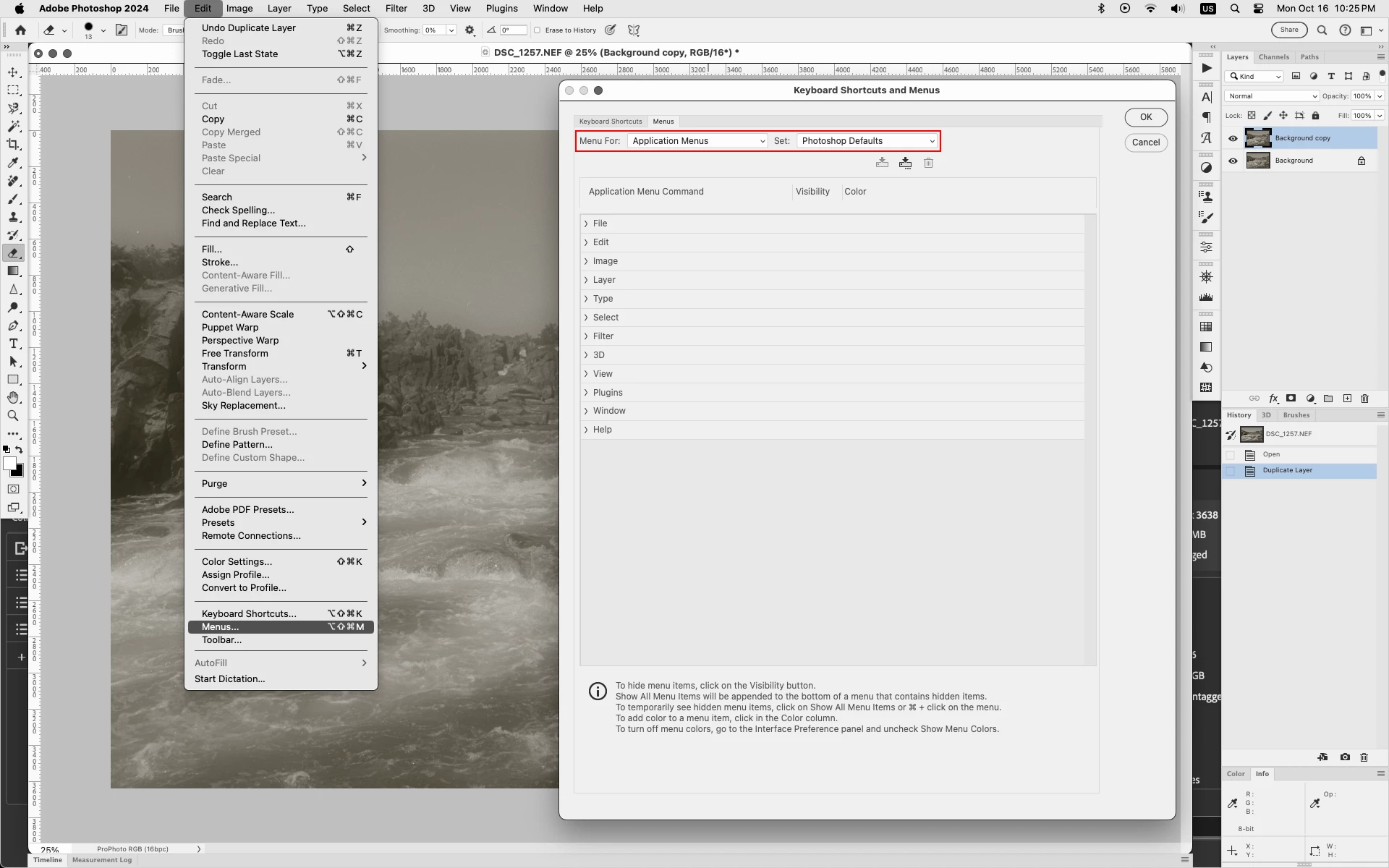
In photoshop see if going to Edit>Menus and setting the Application Menus to Photoshop Defaults makes any difference.


2 replies

Jeff Arola
Community Expert
Jeff ArolaCommunity ExpertCorrect answer
Community Expert
October 17, 2023

In photoshop see if going to Edit>Menus and setting the Application Menus to Photoshop Defaults makes any difference.


Known Participant
October 17, 2023

Hi Jeff,


That indeed did make the difference. It was set to one my own saved workspaces, and setting it to "Photoshop Defaults" cleared the menus of this behavior (everything shows up now.


So thanks for that, as I now have full menus back.


I wonder how this happened, as there was extensive menu hidding going on (so not just a random menu item or two) and I don't recall doing it. But that will probably remain a mystery.


Thanks again,

Chris


Participant
November 19, 2024

I had this exact same problem of drop down menus being colored and things being hidden and then having to click "Show all menu items" or something to that effect. Bottom line, the solution of changing things the way Jeff Arola mentioned abopve fixed it.


Not sure why it was set like this, it may have been from a plugin installation that adjusted some settings. Absolutely infuriating because I honestly had no clue how to get it back to the way I prefe it. So thanks!


JR

Trevor.Dennis
Community Expert
Community Expert
October 15, 2023

I am not 100% sure what you are describing.  Can you show us a full res screen shot of your workspace showing the issue please?

Known Participant
October 15, 2023

See the attached images:


  • 01 - Show All Items - Collapsed.jpg: this shows the menu with items missing, with the "Show All Items" at the end required to expand the menu to show things you do not see.
  • 02 - Show All Items - Expanded.jpg: this shows the menu after selecting "Show All Items", with all of the menu items showing.


I used Boxed blur dozens of times over a period of a couple of hours and it remained hidden. I had hopes that the interface/workspace would eventually learn that it was a common item and add it to the list of menu items shown without having to select "Show All Items", but that never happened.


The Request: there be an option in Preferences to turn off hiding of menu items, so all menu items always show, are never hidden (there is never a need to select "Show All Items").


Alternative request: there be an option in Preferences to add items used (one the menu is expanded) to the menu when collapsed (once a hidden item is used, do not hide it again unless it goes unused for a very long time).  In short: The missing item should start showing up immediately after use, or at least after a small number of uses (2 or 3). 


Chris


Known Participant
October 16, 2023

To repeat: "If this is not user configurable, please point me to a product feedback or developer discussion area where I can make the requeset for that to happen."