


Known Participant
June 15, 2020
Answered

Spinning beachball PS 2020

  • June 15, 2020
  • 4 replies
  • 3212 views

I am getting a 2-3 sec spinning beach ball on every function; crop tool, brush, save... even trying get a spinning beach ball when I select photoshop/about

I am only having issues with photoshop.


I reset preferences and all is good for about an hour then the spinning beach ball starts again.  

I have verified fonts, deleted Font cache

PS 21.1.3  

iMac (Retina 5K, 27-inch, 2019), 10.15.5

3.6 GHz 8-Core Intel Core i9

64 GB 2667 MHz DDR4

Radeon Pro Vega 48 8 GB


This topic has been closed for replies.
Correct answer josephlavine

This does sound odd.

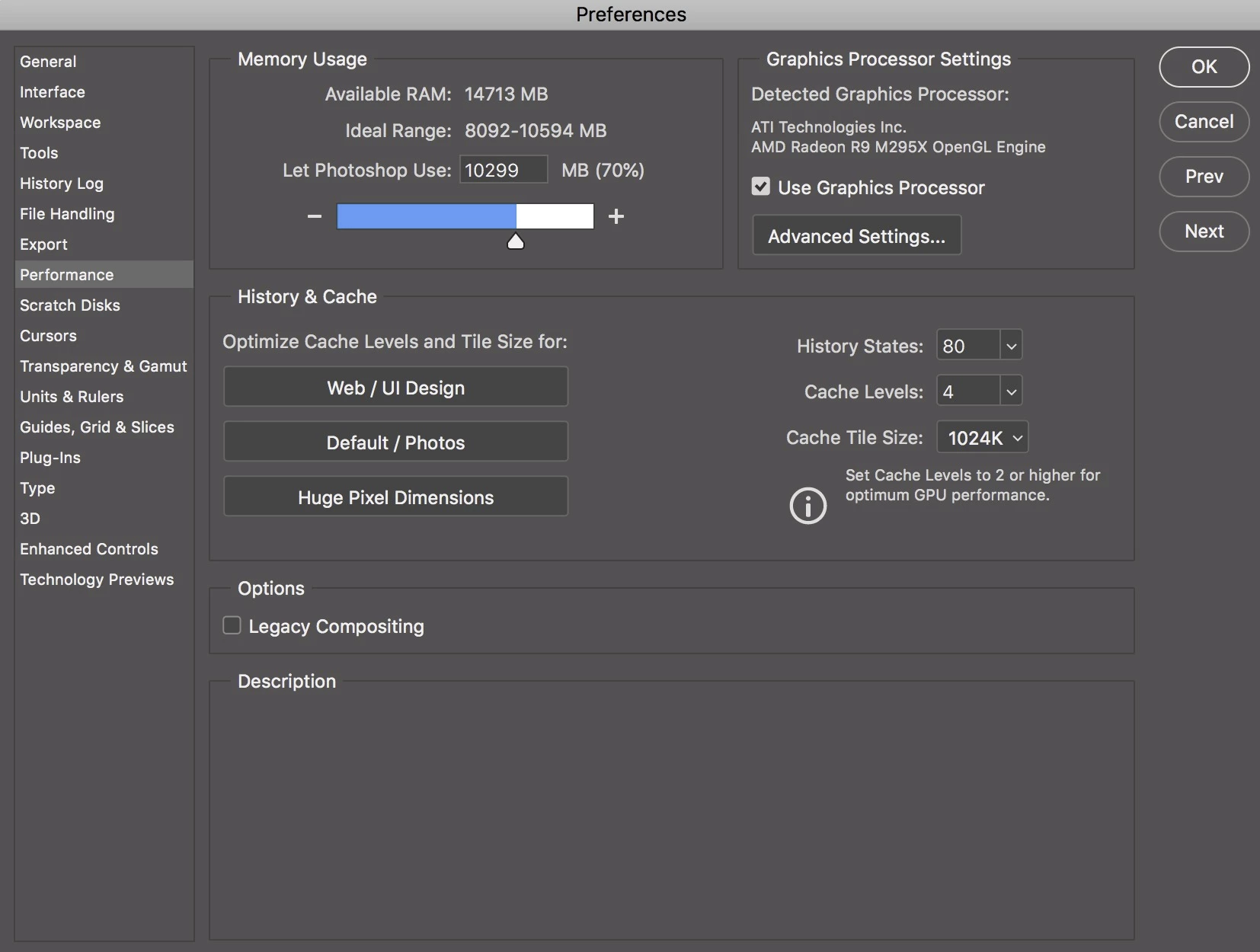
The first area that I suggest checking is to make sure you have enough RAM allocated and the Graphic Processor is checked. These are both listed under Photoshop > Preferences > Performance. You might also want to reset all defaults listed under Preferences > General. warmly/j 

4 replies

scottmosher
Inspiring
February 9, 2022

THIS worked for me too:

I've found the "guilty" pref, wich caused the beach ball lag. For me it was the User/Library/Preferences/Adobe Photoshop 2020 Settings/MachinePrefs.psp . I deleted it, and the beach ball lag has gone! This way all my settings remained.

Participating Frequently
January 10, 2021

For Photoshop 2021,

Preferences > General > Reset Preferences on Quit

Did the trick and solved the spinning ball lag for me.

Thanks for the thread!

aldofabbri
Participant
October 28, 2020

Deleting the "MachinePrefs.psp" did not work for me. I also allocatied 70% of my ram to Photoshop, dropped my history state count- down to 80(just for good measure), but still getting a beach ball. I did transfer my settings/preferences from the previous version of PS, so I will try resetting my preferences. Wish me luck!

aldofabbri
Participant
October 29, 2020

My machine specs just for reference for anyone who can help. Thank you.

aldofabbri
Participant
October 29, 2020

UPDATE: Fixed the issue after resetting preferences and relaunching PS. Thank you!!!


josephlavine
Community Expert
josephlavineCommunity ExpertCorrect answer
Community Expert
June 15, 2020

This does sound odd.

The first area that I suggest checking is to make sure you have enough RAM allocated and the Graphic Processor is checked. These are both listed under Photoshop > Preferences > Performance. You might also want to reset all defaults listed under Preferences > General. warmly/j 

Participant
August 14, 2020

Worked!


I just rest all of my preferences (yes I had to go back in a change everything back to normal) but this seemed to have solved it.


I have a feeling that PS imports the prefs from previous versions during install and there is a conflict.

Domi1974
Participating Frequently
October 12, 2020

I've found the "guilty" pref, wich caused the beach ball lag. For me it was the User/Library/Preferences/Adobe Photoshop 2020 Settings/MachinePrefs.psp . I deleted it, and the beach ball lag has gone! This way all my settings remained.
Thanks for the tip to chuckszachta for resetting preferences!