Participant
April 9, 2021
Answered

Split circle into 4 equal parts April 2021

  • April 9, 2021
  • 1 reply
  • 6910 views

Why is it so hard to find this information anywhere online...


I want to split a circle into 4 equal parts, and make each segment a different colour. That is all. 


I do not have Illustrator, only InDesign 2020 and Photoshop 2020.


Please share with me simple instructions on how to do this. 


Thanks, Sophie

This topic has been closed for replies.
Correct answer Norman Sanders

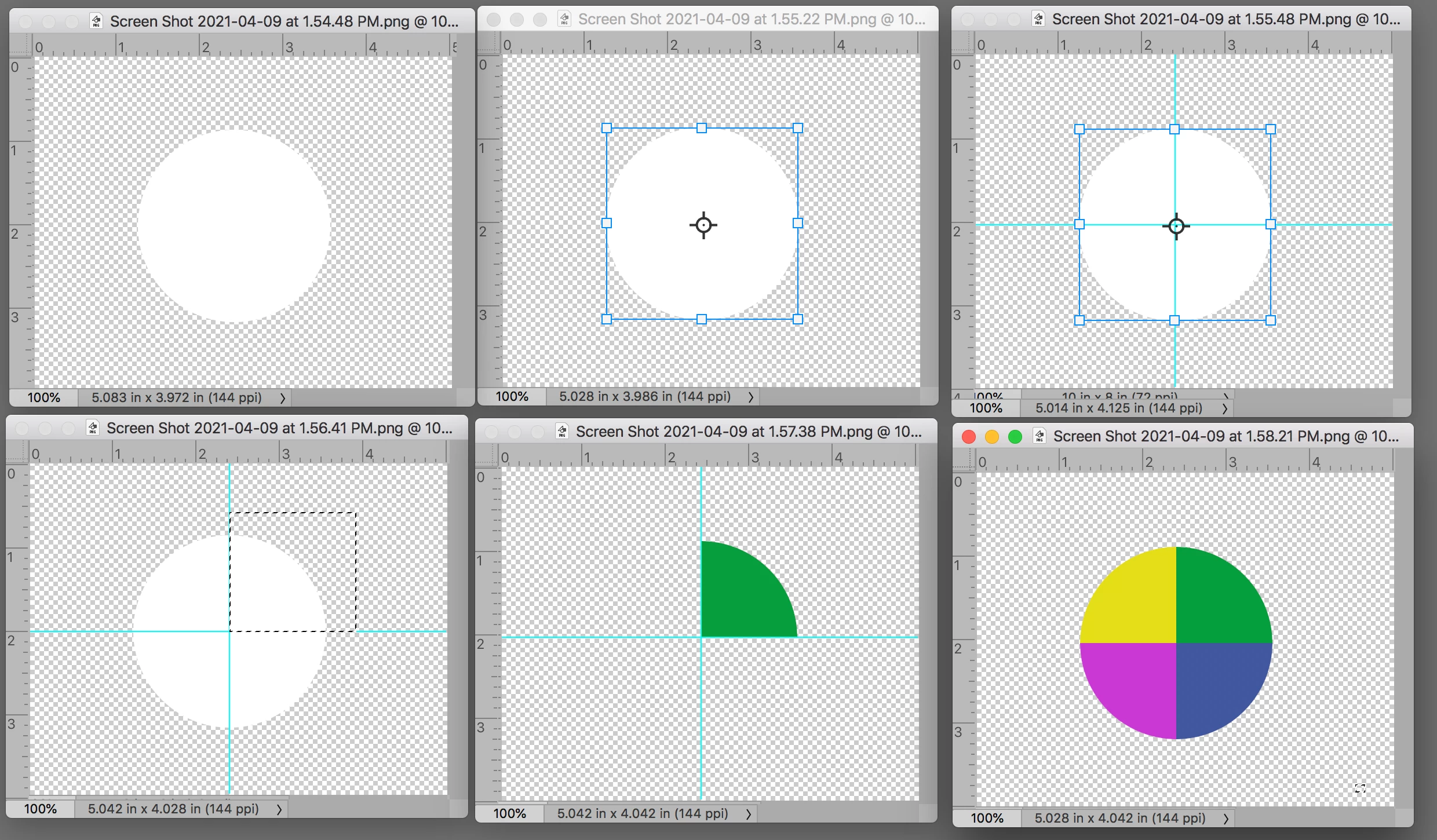
Fig 1. Create a circle on a transparent layer and Fill it with white. Be sure View > Rulers is checked. Turn off Background layer.

Fig 2. Edit > Transform > Scale.  It will present a center mark 

Fig 3. Drag out reference lines from the top and side rulers across the center mark. With that done you no longer need the Transform lines in Step 2,  so do not Commit

Fig 4. Use the Rectangular marquee tool to draw the rectangle shown. Cmd+J to put the section on its own layer

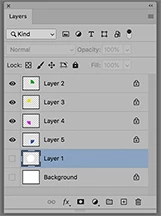
Fig 5. Lock the transparent area by clicking on the symbol in the Layers panel. Then Edit > Fill with a color

Step 6.  Return to the circle layer and repeat Step  4  for the remaining 3 segments. Then use the Move tool to straddle the reference lines and return each to its ruler.

1 reply

Norman Sanders
Norman SandersCorrect answer
Legend
April 9, 2021

Fig 1. Create a circle on a transparent layer and Fill it with white. Be sure View > Rulers is checked. Turn off Background layer.

Fig 2. Edit > Transform > Scale.  It will present a center mark 

Fig 3. Drag out reference lines from the top and side rulers across the center mark. With that done you no longer need the Transform lines in Step 2,  so do not Commit

Fig 4. Use the Rectangular marquee tool to draw the rectangle shown. Cmd+J to put the section on its own layer

Fig 5. Lock the transparent area by clicking on the symbol in the Layers panel. Then Edit > Fill with a color

Step 6.  Return to the circle layer and repeat Step  4  for the remaining 3 segments. Then use the Move tool to straddle the reference lines and return each to its ruler.

jane-e
Community Expert
Community Expert
April 10, 2021

Very clever to see the Photoshop method, Norman. I think I'll still use Illustrator though. 😊

~ Jane
