pctechtv
Inspiring
June 17, 2022
Answered

Straighten image with only rounded edges

  • June 17, 2022
  • 3 replies
  • 1118 views

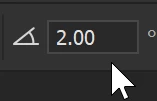
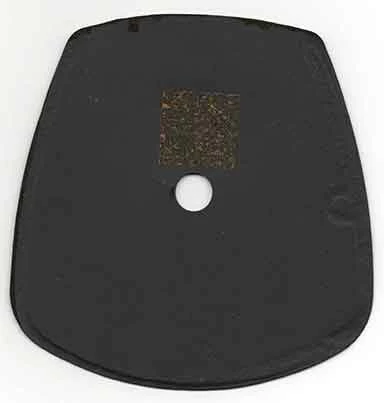
I have a scanned image of something I want to cut out. It has rounded corners. It was not straight on the scanner. I would like to know if there is any method of straightening it in Photoshop? I could also employ Illustrator if that is recommended. Usually, when I have a rectangle-like corner, I use the ruler tool and draw a line. Then I use Image Rotation -> Arbitrary to straighten things. However, I do not have the point to draw my line to and from here. Thanks
This topic has been closed for replies.
Correct answer barbara_a7746676

With no straight edges, it seems easier to eyeball it.

However, this is one way:

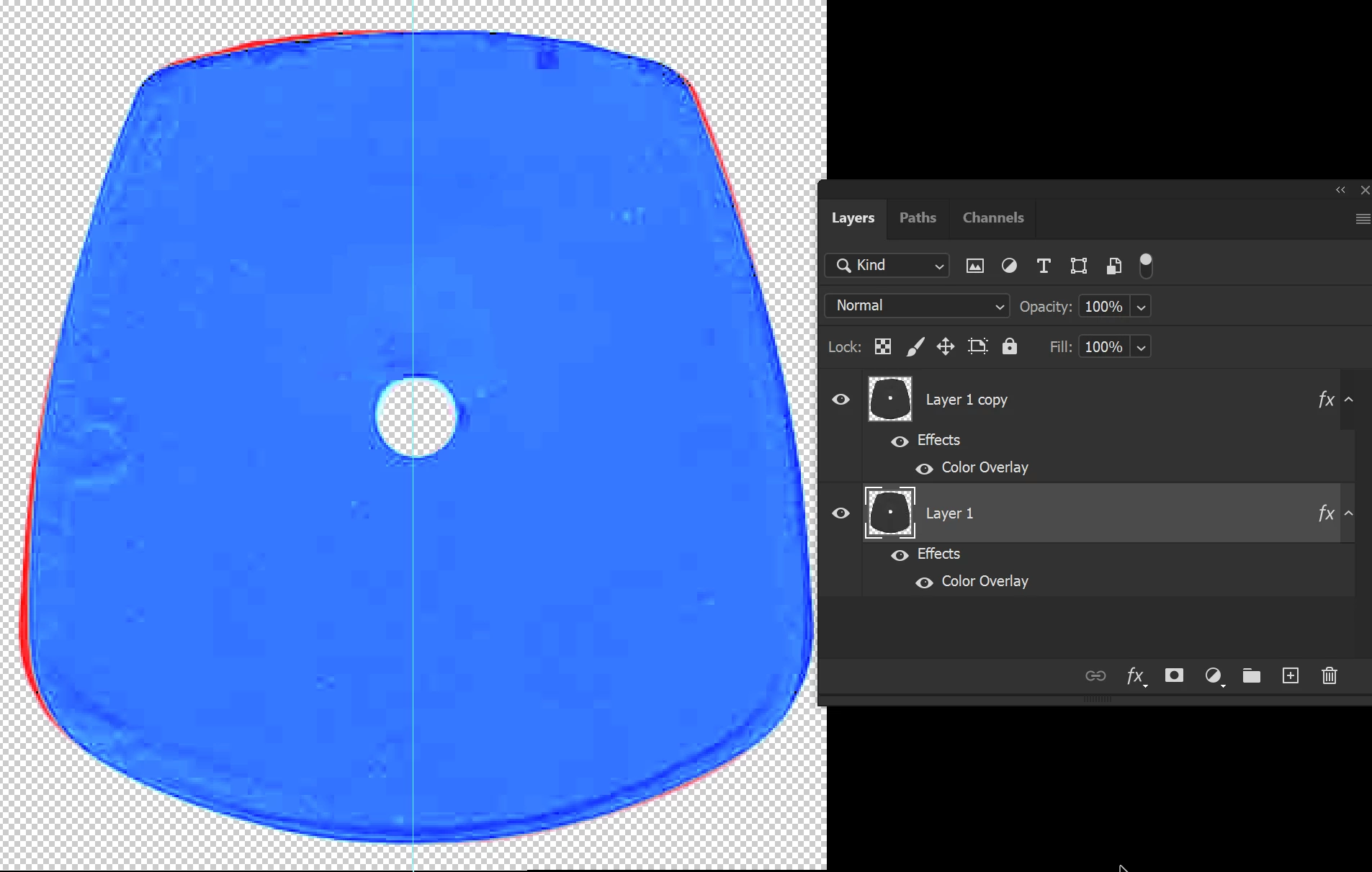
Duplicate the layer. Flip the top layer (the duplicate) horizontally.

Give each layer a different color overlay effect.

Rotate just the top layer until it aligns with the bottom layer.

You could now delete or hide the top layer.

On the bottom layer, rotate it to a negative half that amount.

3 replies

barbara_a7746676
Community Expert
Community Expert
June 18, 2022

This is one of my favorite ways to straighten:

Select the Ruler tool.

Drag the ruler across a horizontal or vertical. You can adjust the angle by moving the end points after dragging.

Then click on Straighten Layer in the Options bar.

pctechtv
pctechtvAuthor
Inspiring
June 18, 2022

Thank for the comments so far. I messed this up. When I saw the square I should have scanned the other side. The square is something I stuck there (for something else) and yes I will admit it looks pretty straight. However, I want to know is this possible on a symmetrical rounded side shape. I am doing it for this project now, but I have had other times when I need to do it for other things that did not have a square to reference as straight. Thanks so much.

Leslie Moak Murray
Community Expert
Community Expert
June 18, 2022

Drag guides down even with one corner of the square and the right corner of the object, then Edit>Transform>Rotate.

Chuck Uebele
Community Expert
Community Expert
June 18, 2022

It looks like there is a square patch on your object that you could use straighten the image.