Participant
February 23, 2025
Answered

Strange artifacts when I rotate solid color shapes.

  • February 23, 2025
  • 3 replies
  • 407 views

I need the shapes I make to be perfect green and perfect red (Red 255, Green 0, Blue 0,  - As well as Red 0, Green 255, Blue 0.)

So I make a red shape with a green shape surrounding it, Merge the shapes but I need rotate it (to be exact I just rotate as perfect 45 degrees). But when I rotate the shapes I get arttifacts on the edges (as always), and I have to penicil in the full colors, which takes about an hour.


Here is what I see when I do it: First solid Shapes:

Now after the rotate:
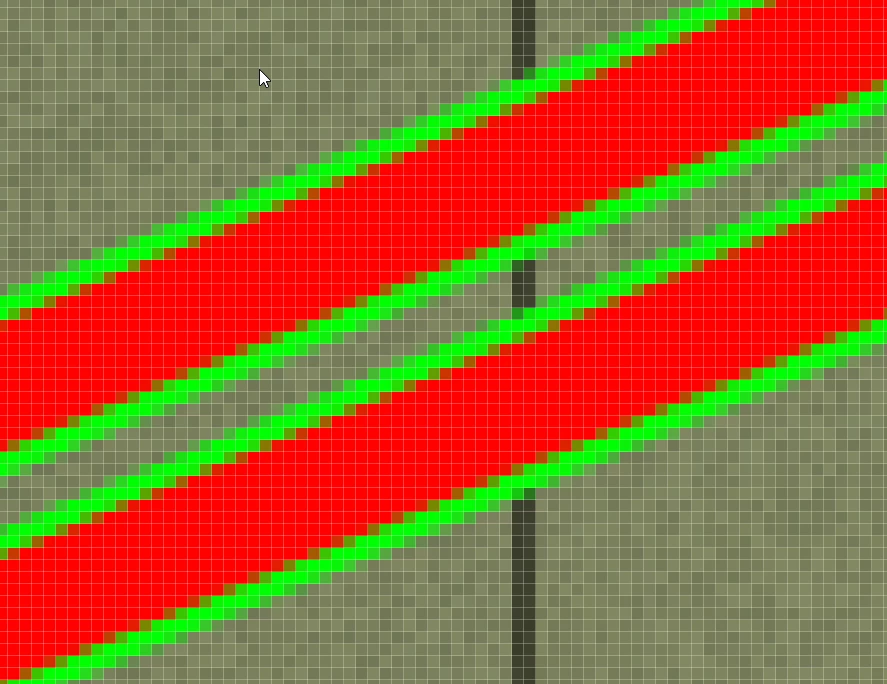
 

Some might know how picky a game engine is. It Needs exact Red and Green.

Like II said I spent and hour penciling in the true Red and Green and it is a pain to do.

Is there a setting that could keep this I suppose automatic antialaizing from doing This.


Thank you.
 

Correct answer Trevor.Dennis

You are zoomed way in to the pixel grid, and looking at anti aliasing.

That looks like you are using raster (pixel) layers.  Vector Shape layers still use Anti Aliasing, but it might be less pronunced.

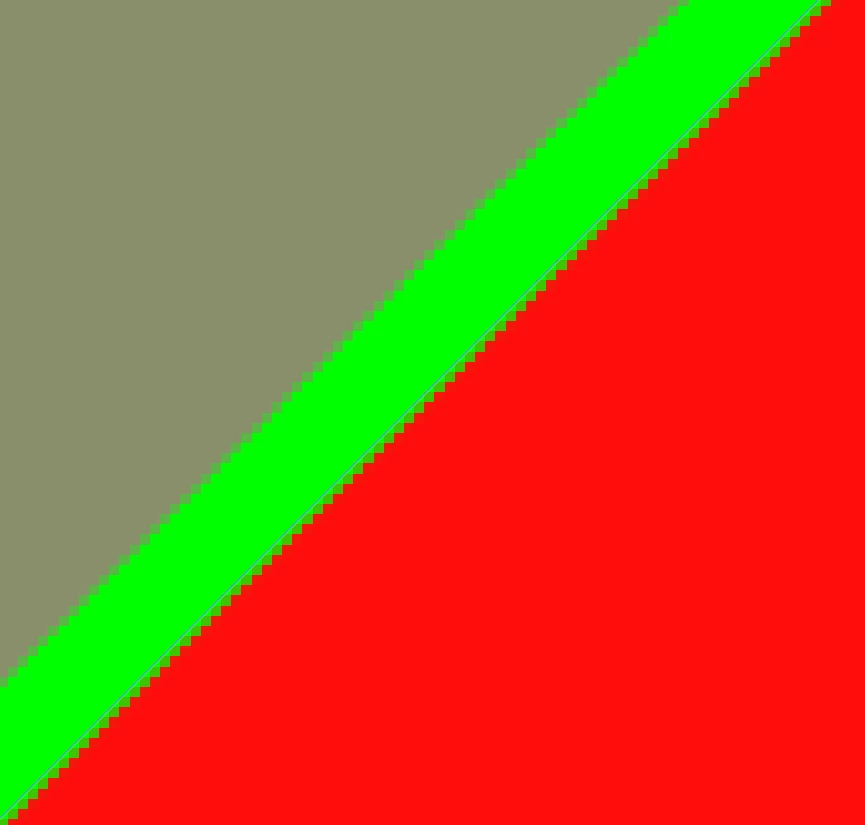
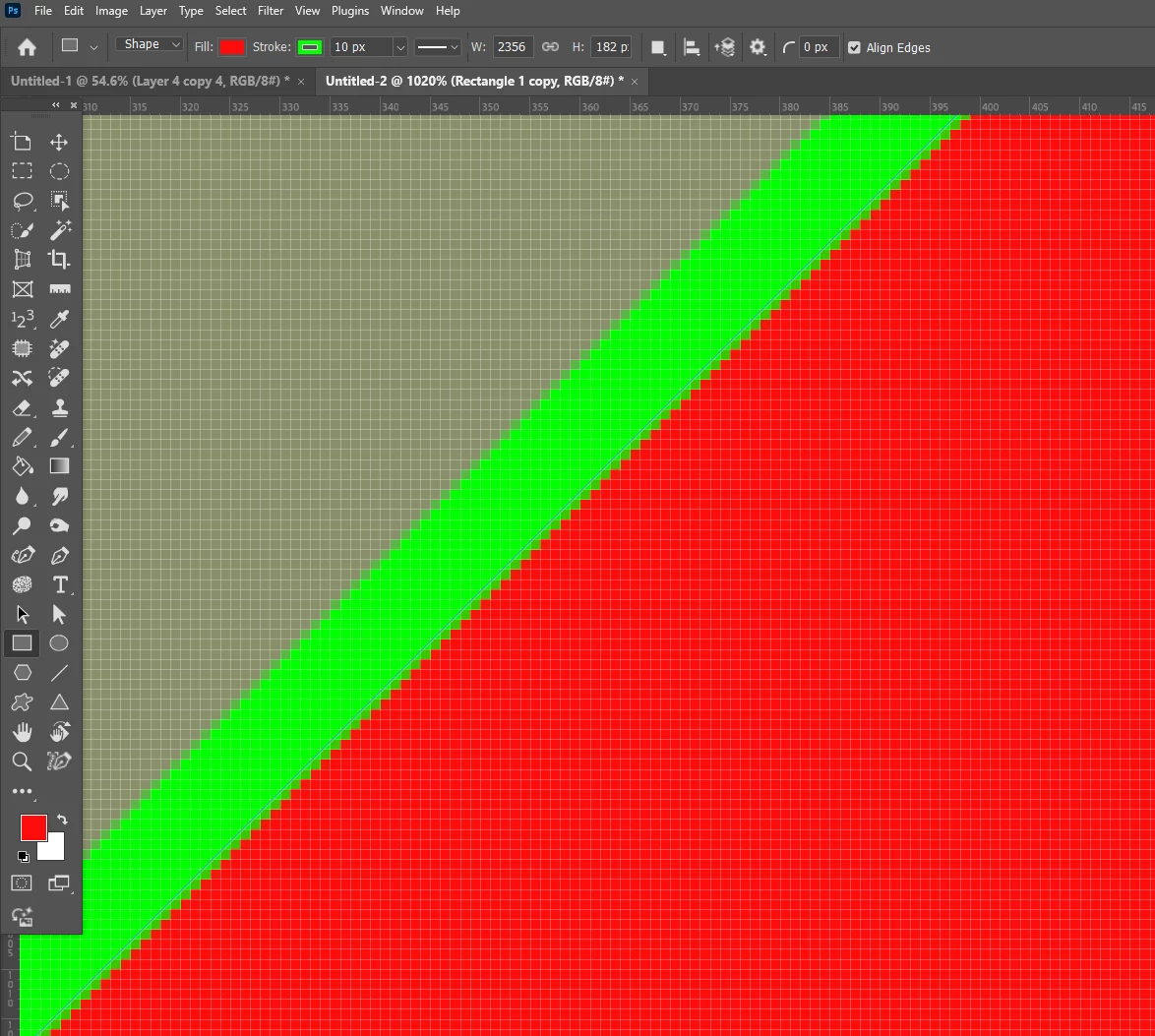
This is a stroked vector shape layer rotated to 45° with a similar zoom ratio (we can see the pixel grid)

This is the same zoom ratio with the Pixel Grid turned off


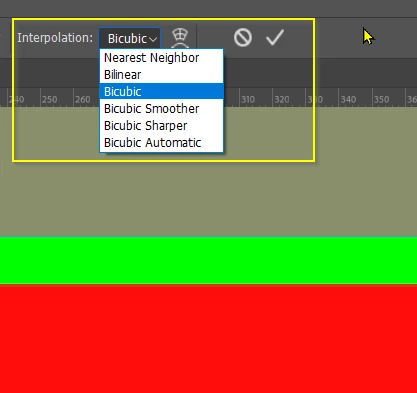
When you rotate a layer using Free Transform, yoy have a choice of Interpolation method

If you use Nearest Neighbor it will not use anti aliasing to smooth the diagonal.  


3 replies

Bojan Živković11378569
Community Expert
Community Expert
February 23, 2025

There are also other possibilities, such as drawing shapes on the fly using Pencil tool, for instance, with sharp edges.

Participant
February 23, 2025

Thanks guys. I never considered the Interpolation method set to Nearest Neighbor would help. 


The Red and Green shape is meant to be a road in a game map. It needs to be about 12 pixels wide and red and green. The original image under the road I am working on is 13312 x 13312 pixels and I need to zoom in a lot to adjust the individual pixels via a 1 - 5 pixel pencil tool to add the road. The image in the background is a layer that is somewhat transperant to see where I want to add the roads on the map, Inbetween citiy and mountain areas and all.


I know how to turn of the pixel grid, but I don't think thats nessesary.


Thank you guys. This will save me a lot of time.

Participant
February 23, 2025

Yep, using nearest neighbor when rotating dit what I wanted to do.


Thanks again for your replies guys,

Trevor.Dennis
Community Expert
Trevor.DennisCommunity ExpertCorrect answer
Community Expert
February 23, 2025

You are zoomed way in to the pixel grid, and looking at anti aliasing.

That looks like you are using raster (pixel) layers.  Vector Shape layers still use Anti Aliasing, but it might be less pronunced.

This is a stroked vector shape layer rotated to 45° with a similar zoom ratio (we can see the pixel grid)

This is the same zoom ratio with the Pixel Grid turned off


When you rotate a layer using Free Transform, yoy have a choice of Interpolation method

If you use Nearest Neighbor it will not use anti aliasing to smooth the diagonal.  


Jeff Arola
Community Expert
Community Expert
February 23, 2025

Before rotating change the interpolation method to Nearest Neighbor in the tool options bar.