

Inspiring
March 6, 2023
Answered
text design
- March 6, 2023
- 3 replies
- 991 views

Lay down your text layer. It needs to have thick/bold characters for the effect to show. The colour doesn't matter, but it needs to contrast with the background so you can see it.
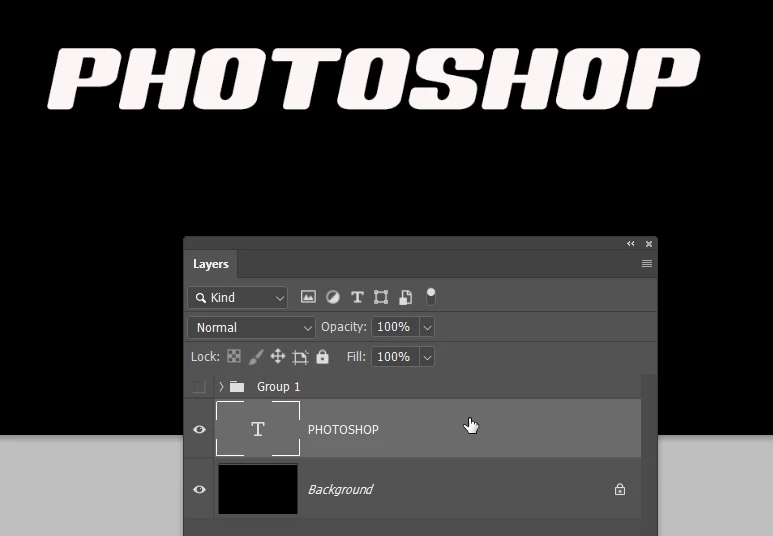
Make a new layer.
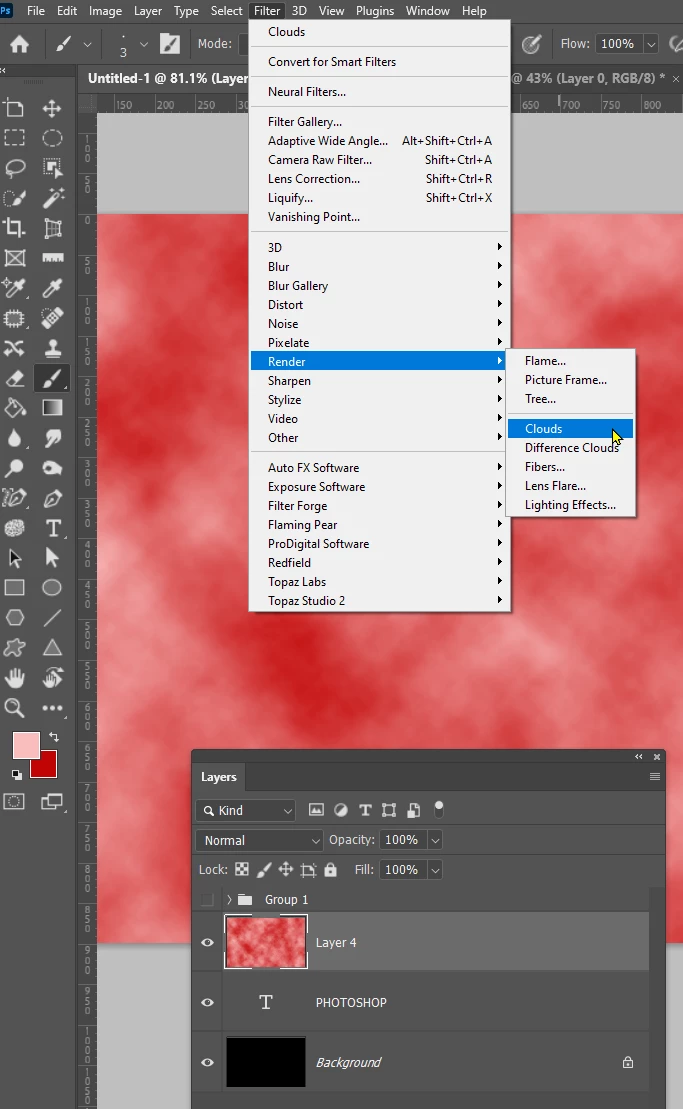
Select the desired foreground and background colours — there needs to be a decent contrast between the two colours.
Go Filter > Render > Clouds
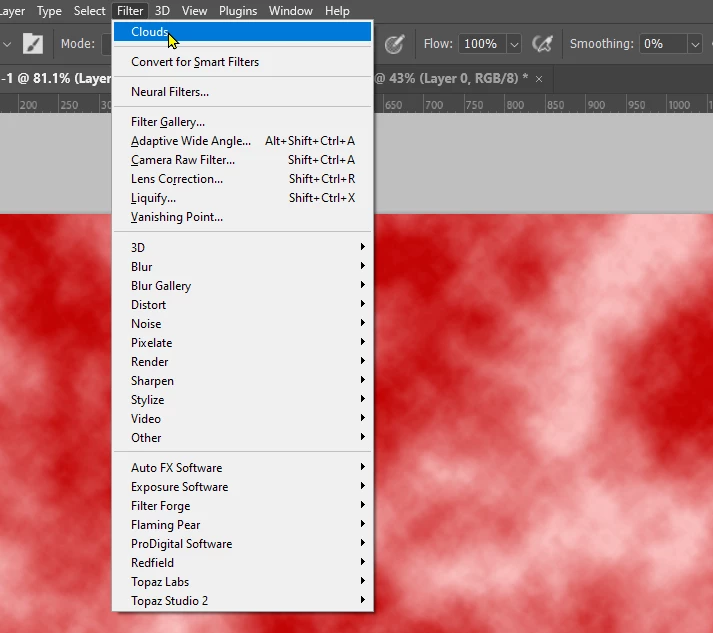
You can increase the contrast by holding down the Alt/Opt key and selecting Clouds from the top of the Filters menu
Right click the clouds layer and chose Create Clipping Mask this will cause it to only show against the underlying type layer.
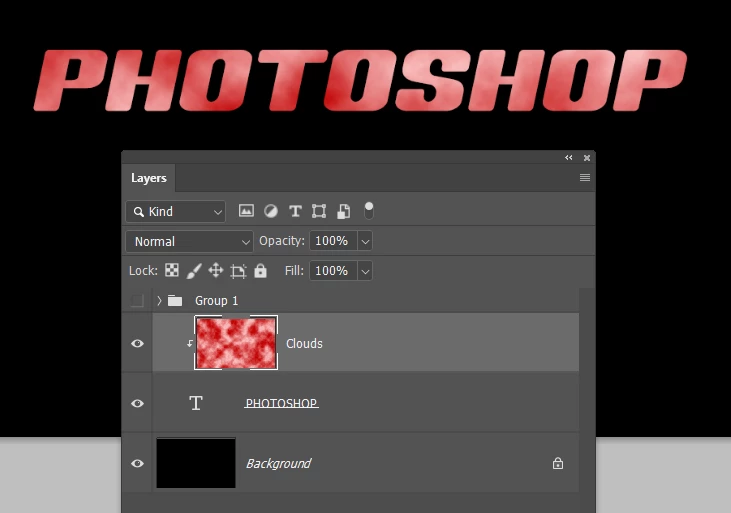
Now you neeed to use Free Transform on the clouds layer to increase the pattern density of the clouds effect. Note: Hold down the Shift key to allow you to change thee aspect ratio. Just do this for best effect
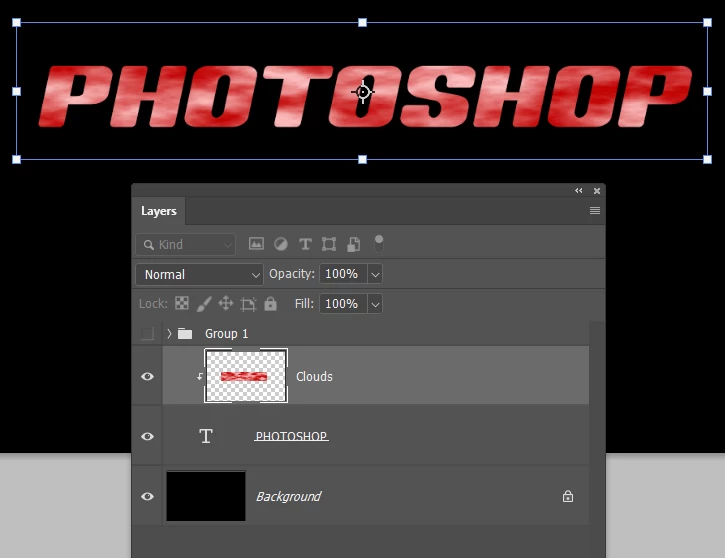
Your example has a gradient making the effect lighter at the top. You can do this with a Curves or Levels layer and runing a gradient down its layer mask
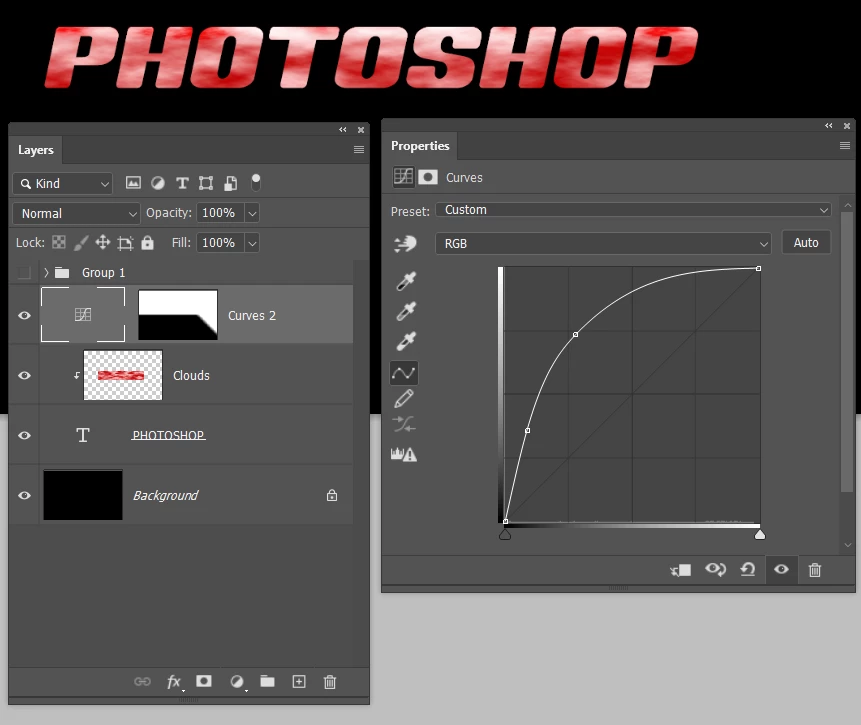
You can control the effect with the curves layer, or by how you make the render clouds layer via the colours you use. Add a wee flare and you are done.

Already have an account? Login
Enter your E-mail address. We'll send you an e-mail with instructions to reset your password.
 AdChoices