


Transparent checkerboard background bug. Photoshop unable to display transparency properly.
Hey folks! For many, many years Photoshop had no issues displaying smooth gradients over the default checkerboard transparency background, but in recent years that is no longer the case. After scouring this community for answers I've found several others reporting this bug, only to be essentially told to "deal with it" or work around it. This is unacceptable, and I don't believe this issue is intended behavior. Photoshop did not have this problem for some ~20 years I've been using it.
To highlight the problem, I've taken a series of screenshots. Please also note this bug persists on multiple PCs and Macs with a wide variety of displays, bit depths, and color profiles, etc. so I don't believe the problem stems from hardware or color settings.
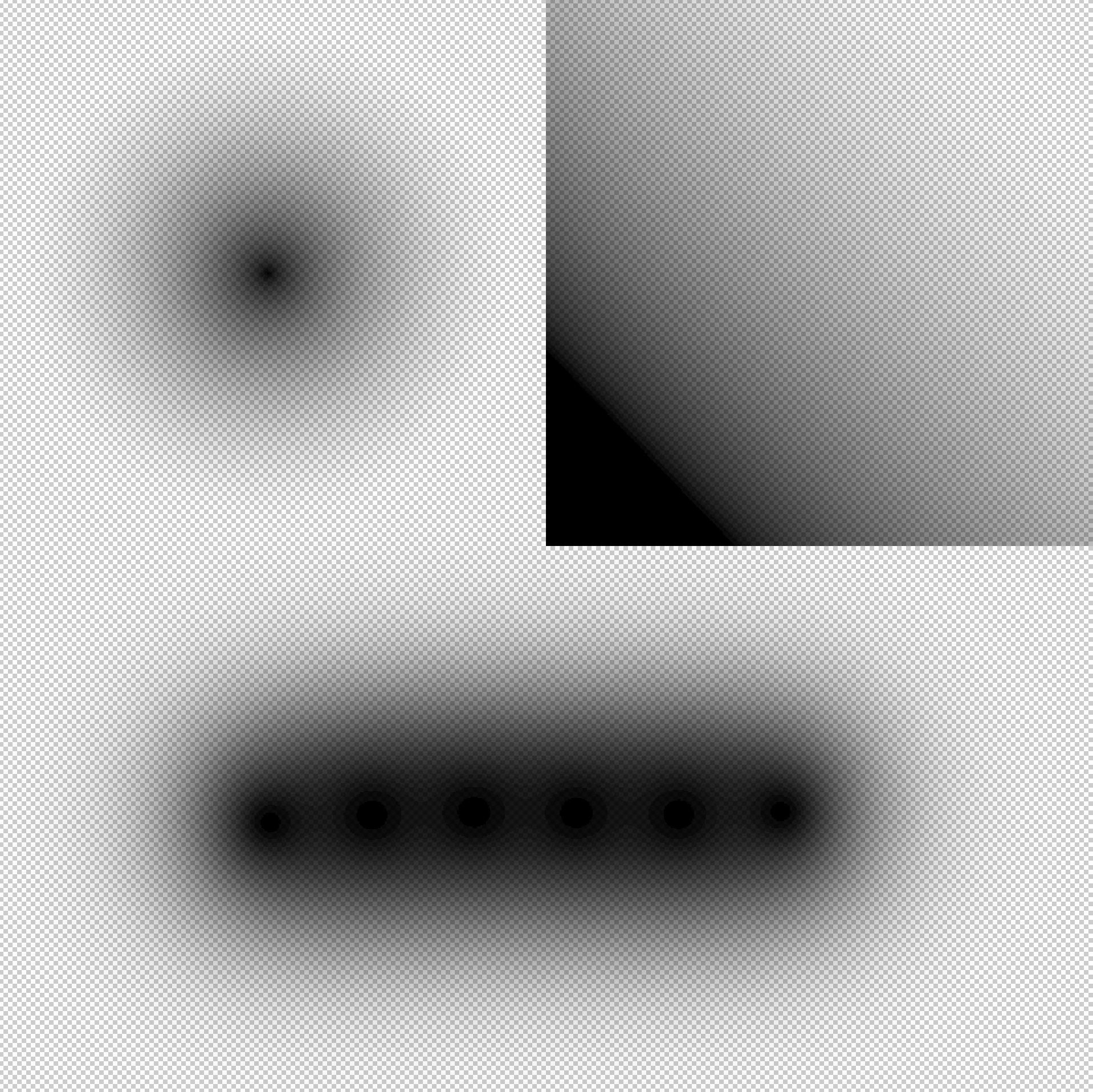
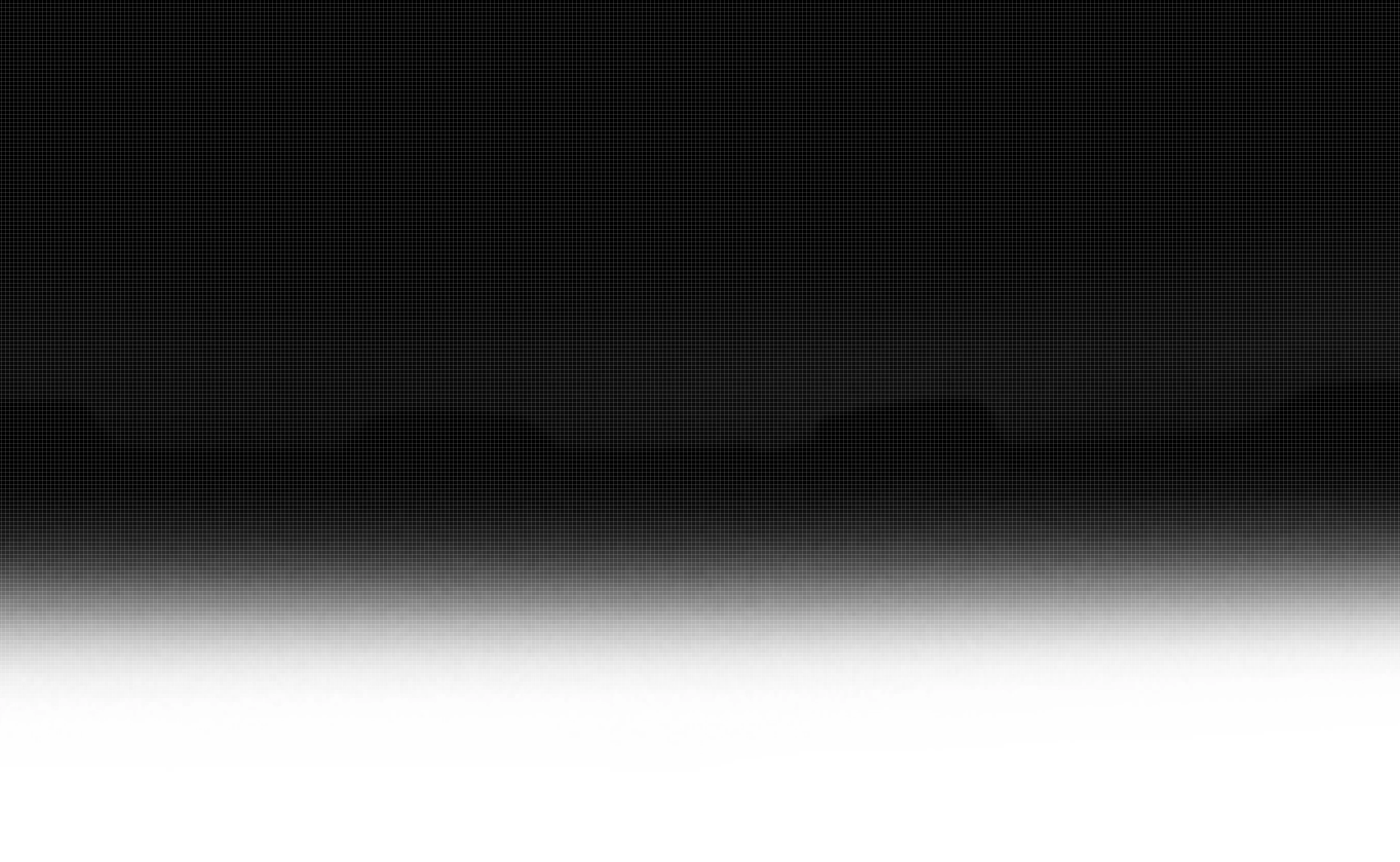
The meat of the issue is that Photoshop can't seem to display smooth gradients over the default checkerboard transparency background. The example below shows two different gradients (linear & radial) created with the gradient tool, plus a brush stroke with 0% hardness, all of which should produce a smooth transition from black to transparent.
As other members of the community have pointed out, the issue is made less aparent when a solid background is enabled behind the layer with transparency. The below image is the exact same as the above, only with white bg enabled. I also cut out a portion of the white BG so show how drastic the soft brush stroke changes over the transparent background.
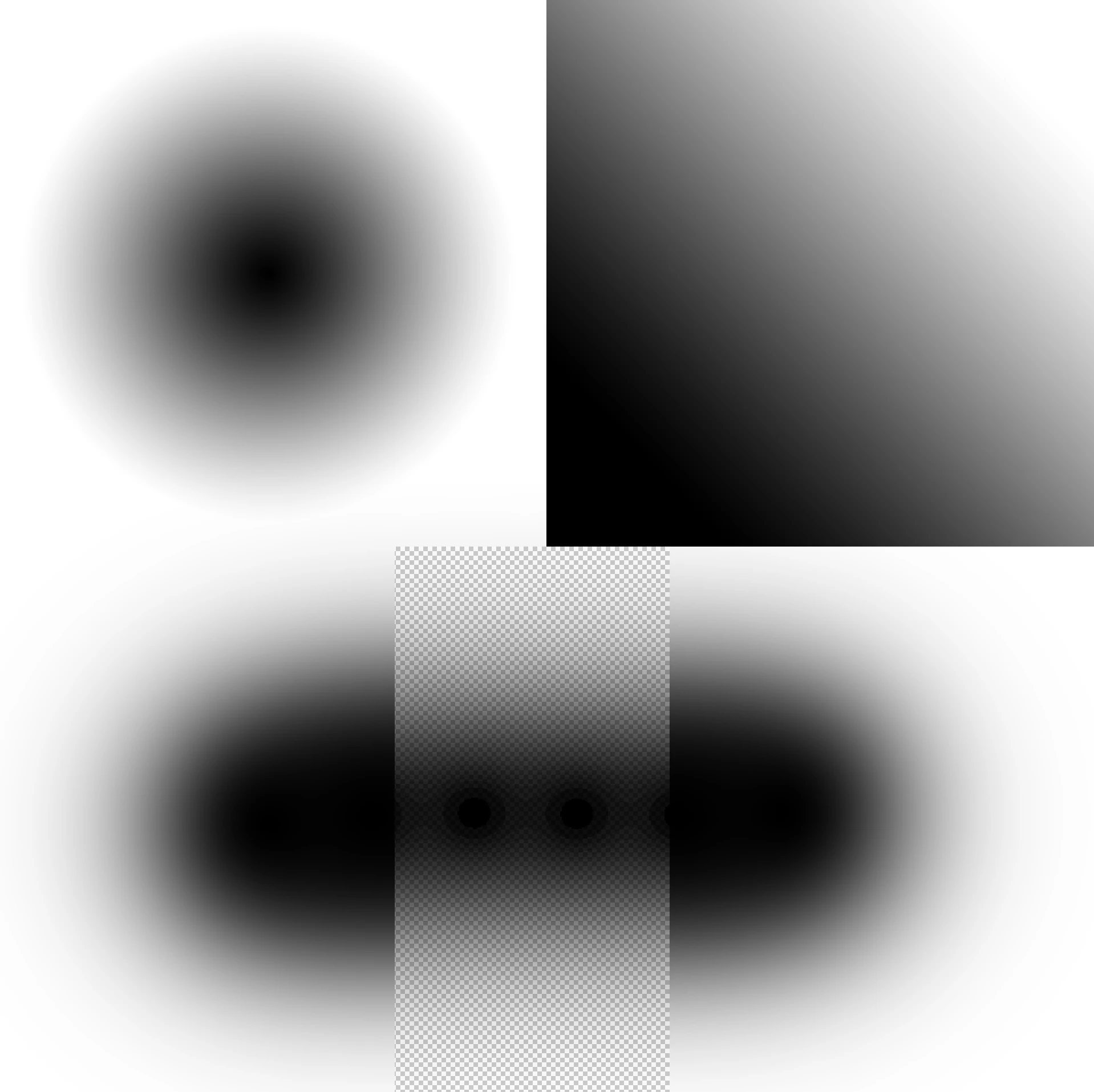
Now other members have claimed that the issue disappears entirely when a solid background is enabled, but the images below prove that the problem persists (to a smaller degree) even when the background isn't checkerboard.
Over checkerboard:
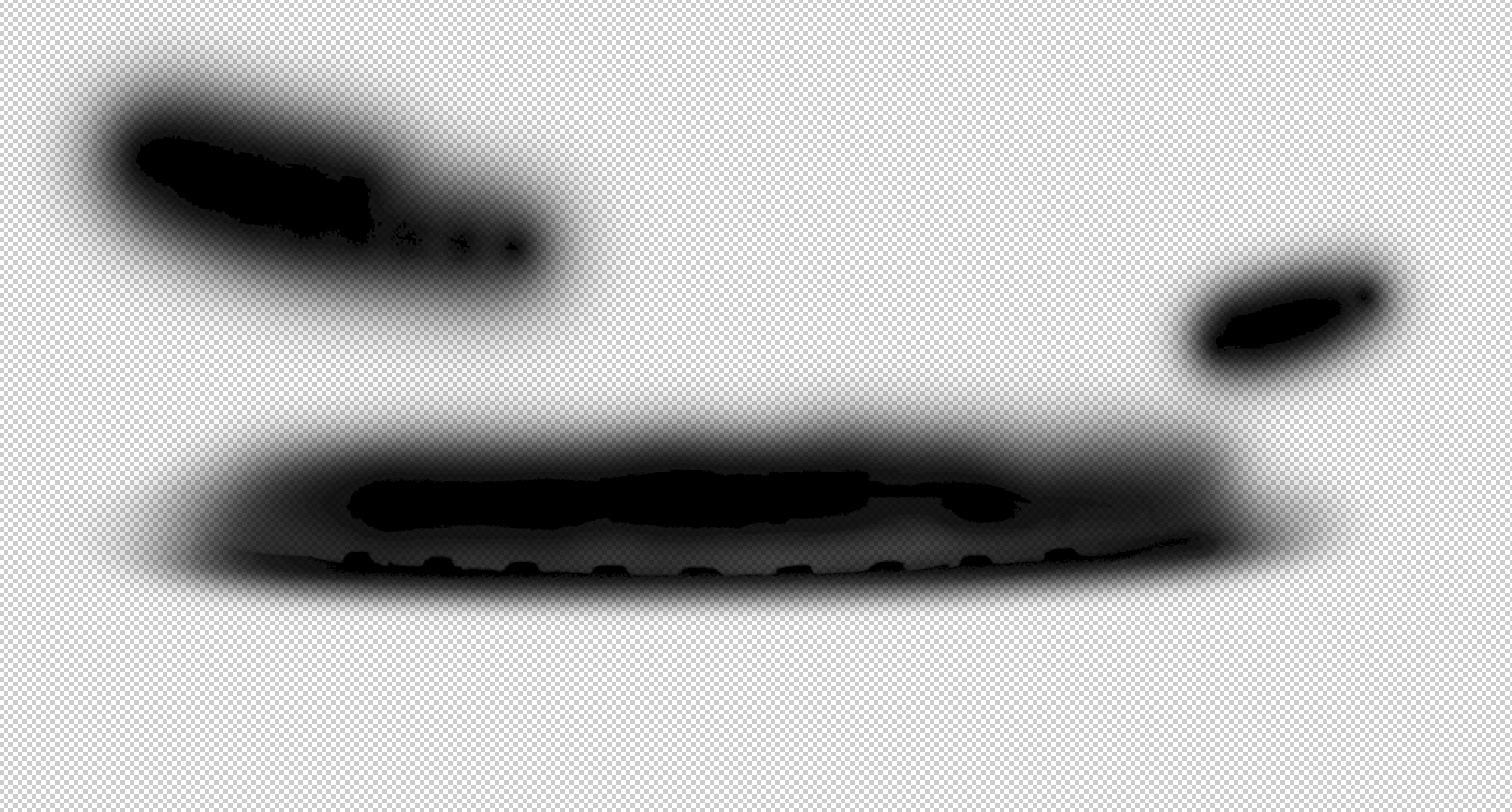
Over white looks better than the checkerboard, however...(see next image)

If I zoom in all the way, you can still see the faint outline of these tire-tread looking artifacts, even with the solid white background enabled. This proves it's not just the checkerboard.
Some members have correctly pointed out that this is only a problem with displaying the transparency within Photoshop, which appears to be correct. For instance, if I take a PNG created in Photoshop (with the same jagged shadow shown above) and open it in Gimp, there are no signs of the artifacts. While it's reassuring that the exported images from Photoshop don't have the artifacts, I believe strongly that the output should match what you see within program. I shouldn't have to open up Gimp just to see how my Photoshop shadows look with transparency.
(GIMP screenshot)
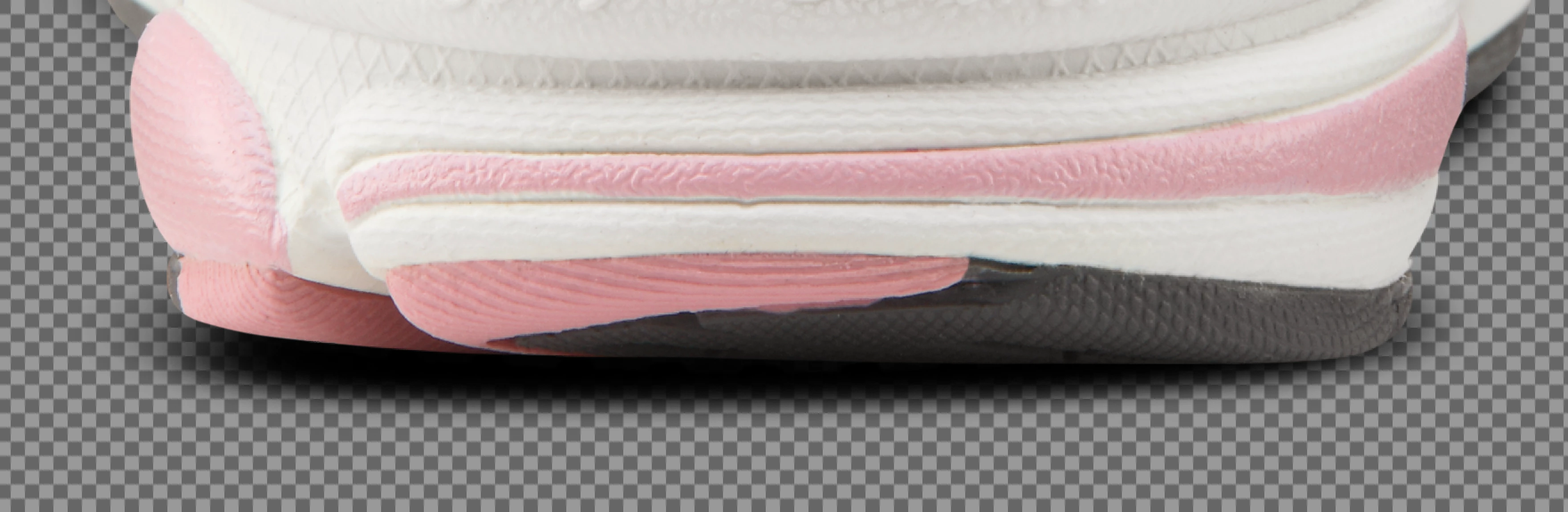
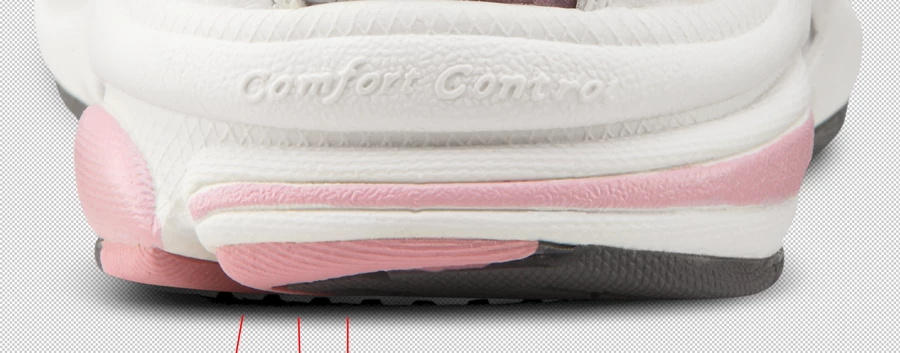
If I open that same (24bit) PNG again in Photoshop, the artifacts persist. (Notice the tire-tread artifacts in the shadow.) This is the exact same file as the one above (arrows added to show the different shadow with the unwanted tire-tread looking artifacts).
Now some may say this is a minor or non-issue, but I can tell you it is negatively affecting my professional workflow. I often have to deliver PNG files with transparency to other artists, and it causes significant delays when they open the file in Photoshop and see these horrible looking shadows. Since they are often PNGs, I cannot always send them a file with a solid background just to they can see the shadow properly. It also slows my workflow down if I have to keep turning on and off a solid background just to see what a final PNG deliverable might look like.
To be clear, Photoshop should be displaying transparency properly over the checkerboard background. Anyone who says this is intended behavior, or that I should just use a solid background is unfairly excusing a significant and troublesome bug which should be fixed immediately.
Thanks for reading. Hopefully this post helps shine some light on this long-standing bug.
 AdChoices