


Known Participant
April 2, 2022
Answered

trying to put a frame around a photo in photoshp 7.0

  • April 2, 2022
  • 9 replies
  • 5063 views

Hello all. I've spent hours trying to put a frame around a nice photo in photoshop 7. I have looked at tutorials with limited success. I have tried to download frames from google, there are many but I save  the image and when I try to upload it into photoshop it includes the white background of the frame. I can't just drag the frame by itself. Anyone can help would be good, thanks
This topic has been closed for replies.
Correct answer Jeff Arola

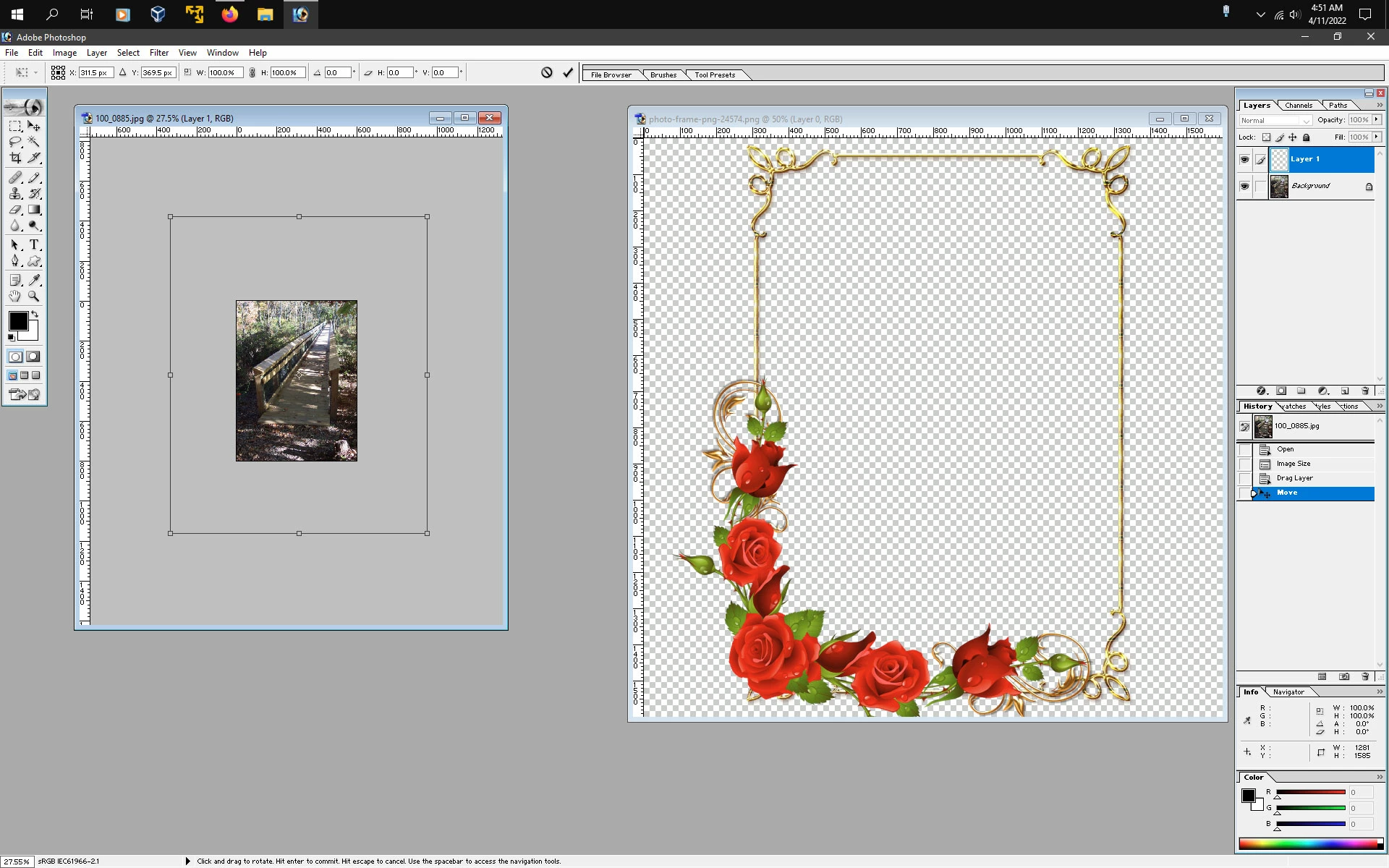
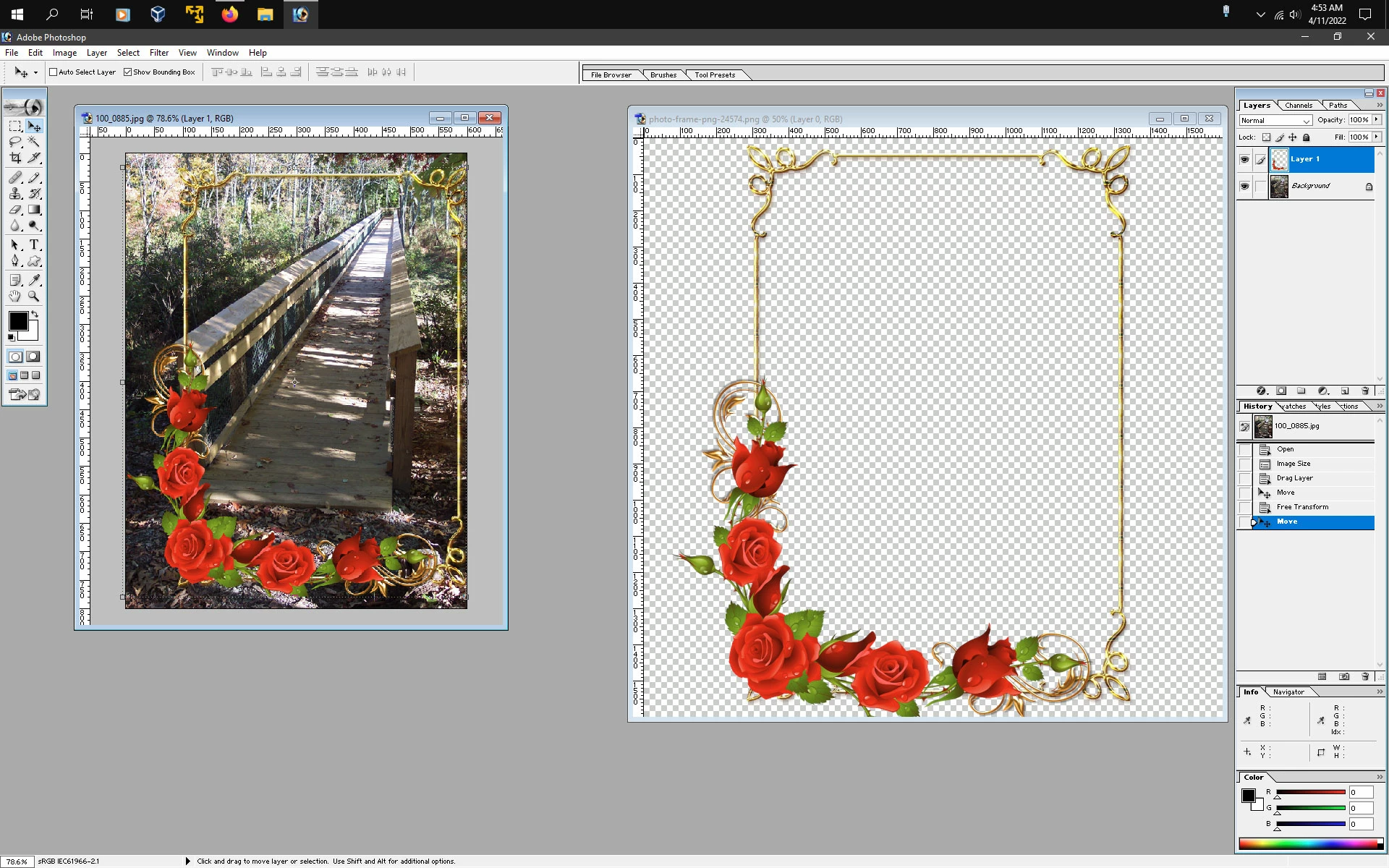
Hello. I'm having some success here. I managed to move the frame onto the photo side by side but the frame is way bigger than the photo. How do I resize the frame to fit perfectly to the photo then save?


Press Ctrl+T to enter transform mode, press the Alt key and scroll with the mouse wheel to make your picture smaller until you see the Transform Bounding Box. Then press the Shift key and move one of the corner handles inward to reduce the frame size.


9 replies

Jeff Arola
Community Expert
Community Expert
April 14, 2022

Here is short screen recording:


1. Go to Window>Layers so you can see the Layers palette


2. Click on the Frame layer in the Layers palette


3. Select the Magic Wand Tool


4. Click inside the Frame to make a selection of the area inside the Frame


5. Click on the Photo layer in the Layers palette


6. Click on the Add Layer Mask button at the bottom of the Layers palette

    (that should hide everything outside the frame)


Steve747Author
Known Participant
April 15, 2022

Hello. Thanks for the screen view. When I clicked on layer at the top then new layer the only things available in the drop down box is layer from background and layer set and layer via copy. It doesn't say anywhere layer pallette and when I tried to move the frame that you demonstrated on it says layer is locked


Jeff Arola
Community Expert
Community Expert
April 11, 2022

If in ps 7 you go to Edit>Preferences>Transparency & Gamut, what are the Transparency Settings?


Steve747Author
Known Participant
April 11, 2022

Hello. here are the preferences settings. This is becoming frustrating. It must be simple to separate a frame. I want to put it around a nice photo I have in a folder

Steve747Author
Known Participant
April 11, 2022

After I posted the last message message I was able to go to preference and transparency and I managed to change the background so now I can move the frame. I opend up the photo and put it next the frame. So now I have to move the frame around the photo

Jeff Arola
Community Expert
Community Expert
April 8, 2022

If in ps7 you go to File>Open Recent, is the file listed there?


Steve747Author
Known Participant
April 9, 2022

Hello. The original file is not in the recents view. I'll try the frame site you suggested but when I went to a site called frames.png I could save the frame but it also came with the white background and I couldn't separate the frame from the background. Thanks

jane-e
Community Expert
Community Expert
April 9, 2022

@Steve747 wrote:

I couldn't separate the frame from the background. 


Please tell us the steps you used (with screen shots) when you tried.


Jane


Jeff Arola
Community Expert
Community Expert
April 7, 2022

I meant the actual layered psd file you have open in ps7 named frame.psd.


Steve747Author
Known Participant
April 7, 2022

Thanks for the reply. I'm not very good with photoshop. I have just been clicking all over the place and seem to do things by accident. Where would I find the .psd file that you mentioned?

Jeff Arola
Community Expert
Community Expert
April 7, 2022

The frame.psd file is probably in your downloads folder.

Jeff Arola
Community Expert
Community Expert
April 7, 2022

Can you attach that file to the forum?

Steve747Author
Known Participant
April 7, 2022

It's already on here in a previous post with some explanation but I still can't figure out how to put a picture in the frame which is saved on the computer

Jeff Arola
Community Expert
Community Expert
April 3, 2022

In your screenshot it looks like you have a active selection around the frame part.


It would be easier to work with if you have your layers panel visible by going to Window>Layers.


Then double click on the Background Layer thumbnail in the layers panel to turn the Background layer to

a regular layer.


Then click on the Add Layer Mask button at the bottom of the layers panel to make the inside of the frame transparent


Steve747Author
Known Participant
April 4, 2022

Thanks again, I'm sending another screenshot with the layer window open but not sure where to go from here to place apicture inside the frame


Steve

Jeff Arola
Community Expert
Community Expert
April 4, 2022

Is that how you got the frame with the layers already added?


If the frame was free, can you give a link?

Jeff Arola
Community Expert
Community Expert
April 2, 2022

Here's what i did using your example:


1. Used the Rectangular Marquee Tool to make a selection of the White Area

    (if the original is a solid color like white then you could use the Magic Wand Tool

      to click on the white to select it)


2. Inversed the selection by going to Select>Inverse


3. Double click on the Background Layer to make it a regular layer and then add a layer mask by going to Layer>Add Layer Mask>Reveal All

    (that gets rid of the white)


4. Added a layer style to mimic woodgrain by going to

    Layer>Layer style>Blending Options, clicking on the word

    Styles, then clicked the flyout menu, clicked Buttons and selected Woodgrain


5. Put a photo under the frame.


There are quite a few Frame actions to download here, that were made around the time of photoshop 7.

https://www.outdooreyes.com/actionsindex.php3

Steve747Author
Known Participant
April 3, 2022

Thanks again. Not having much luck, see the attachment. I still can't get rid of the white inside the frame. There seems to be nothing inside the actions box. I can't see any frame styles in the layer styles flyout menu also

jane-e
Community Expert
Community Expert
April 3, 2022

@Steve747 


Please show a screenshot after you have done steps 1, 2, and 3 in Jeff's instructions.


Jane


Legend
April 2, 2022

Bear in mind your Photoshop is very old, and no tutorial made for modern Photoshop is going to work. A huge amount was added in the 20 years since your app was made. You will struggle to find Photoshop 7 tutorials on the web. Maybe use the printed manual that came with it.

Jeff Arola
Community Expert
Community Expert
April 2, 2022

Do you have a particular kind of frame in mind?


If in ps7 you go to Window>Actions you can load a variety of Frames actions from the Actions palette flyout menu.


what the different frames look like


Steve747Author
Known Participant
April 2, 2022

Thanks for replying. When I tried to download frames. I couldn't separate the frame from the white background from the website. One tutorial made it look easy. I'm attaching a photo of what I've been trying to do. I want to change the plain blue frame to maybe a wooden look