andrewmontooth
Known Participant
May 27, 2023
Question

Trying to use generative fill (PS beta)

  • May 27, 2023
  • 3 replies
  • 798 views

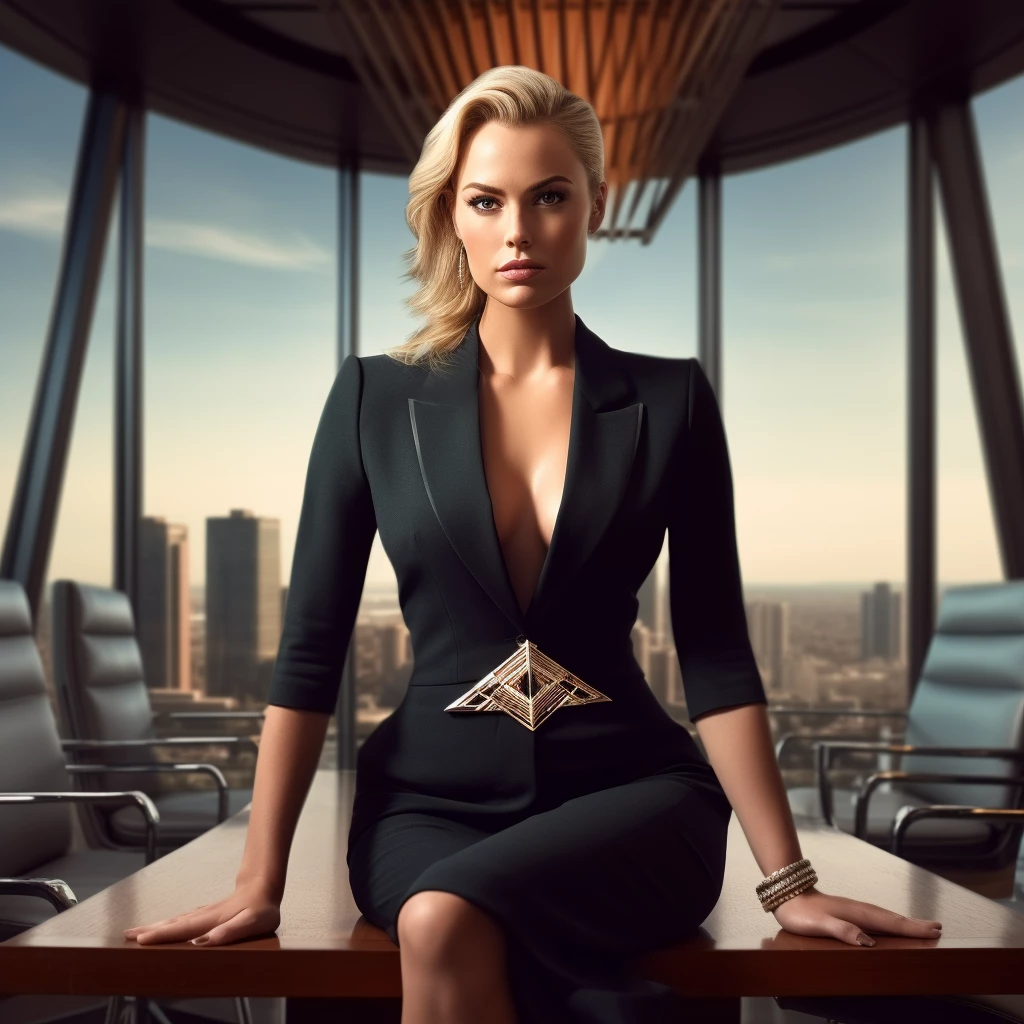
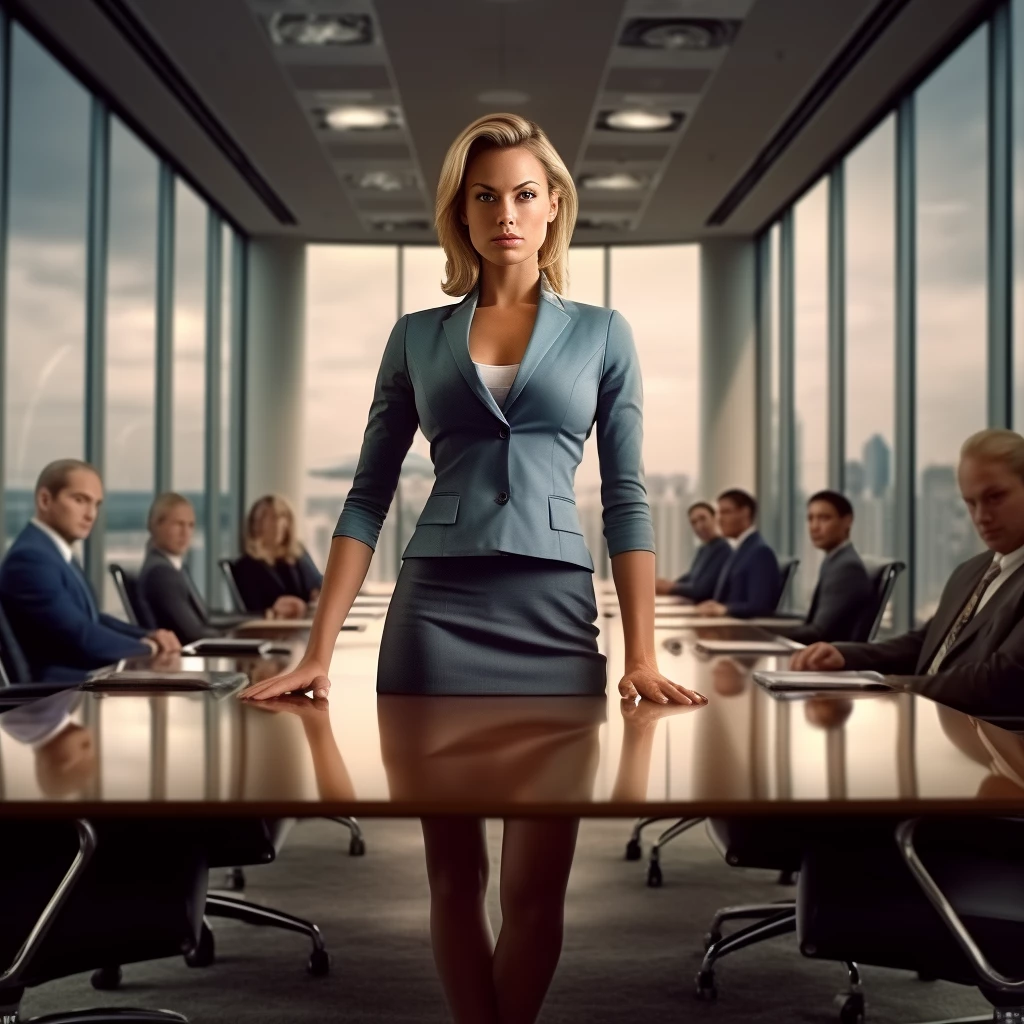
I'm trying to fix a few images produced in MidJourney. One is perfect ... except the woman is standing in the middle of the table. Many MJ hours later (don't ask me about the inverse effect when I tried to reduce the subject's bust in MJ...), I decided to give PS Beta with Generative Fill a try. The results were even more bizarre. What prompts would work to remove the first woman from the table and what might get the other woman to put her shirt on? 
This topic has been closed for replies.

3 replies

Trevor.Dennis
Community Expert
June 8, 2023

I wonder what your selection looked like for the second image?  I got several useful results with this selection anbd just the word blouse. 


For the first image I used Object Select and Select Subject to select the woman and her reflection, and left the promt window empty.  This was the best of the three from first try. Note I did not expand the selection of the woman.  It was tight to her outline.

Myra Ferguson
Community Expert
June 8, 2023

The selection I made included her neck so that it could include a collar.

Myra Ferguson
Community Expert
June 8, 2023

For the second image, I used the Object Select Tool to select where the shirt should go and entered, "crisp white shirt under blazer" for the prompt.

andrewmontooth
Known Participant
June 8, 2023

Thank you, that's a good prompt i've not tried yet. I've discovered since posting that the selection needs to include more of the surrounding area for the machine to understand what we want. I was using the selection as if I were dropping in something cut from another image. "Crisp white" is a good addition. I'll try that.


Myra Ferguson
Community Expert
June 8, 2023

One way to address the top image would be to use the new Remove tool instead. In the result I got below, I duplicated the image. On the lower layer, I used the Remove tool to completely remove her from being inside the table. On the top layer, I used the Remove Background Quick action in the Properties panel to remove the background from her. Then I turned her into a smart object, scaled her down, and applied a Gaussian blur.