


Participant
February 10, 2024
Question

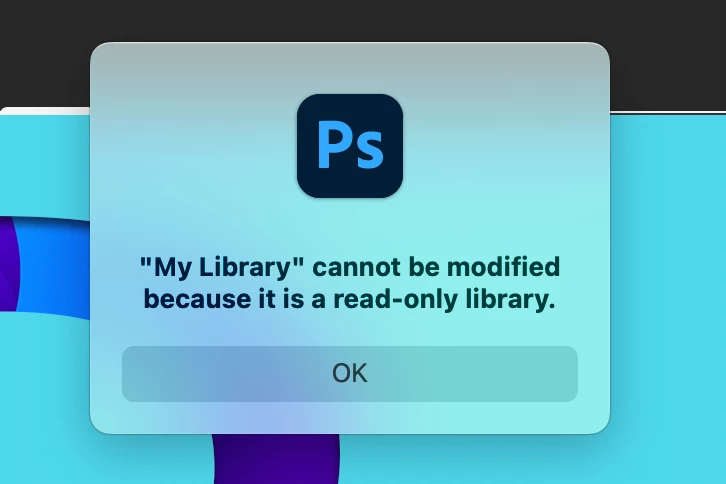
Unable to create a new Photoshop Style - error message says "My Library" is a read-only library

  • February 10, 2024
  • 3 replies
  • 6720 views

Hello all! 


Earlier today I was trying to add a new graphic Style in photoshop by clicking the "new style" button on the Styles panel. The chat box appears asking me to type the "name" of the style and 2 more settings but after clicking "Ok" a message pops - see screenshot.  - I use Mac OS Sonoma. I tried going into the applications folder and granting read-write permissions to the photoshop folders but it did not work.

Does anyone know what's hapenning here and how to fix it? Any information would be much appreciated! 

Thank you all.
3 replies

Participant
August 8, 2024

Heya, I struggled with this a bit myself, but I believe I've found the solution - my Library was stuck in Read-Only mode despite being able to view it and delete items using the Adobe Creative Cloud Desktop app so I didn't believe it was a library setting.


It wasn't until I loaded the default Library "My Library" in the Libraries view since it wasn't already a part of my workspace, by enabling it via Window >> LibraryDoing that it was able to access the contents of my default 'My Library' from my Creative Cloud andI believe a link from Photoshop to that Library was directly established.  Then I could add swatches or patterns or whatever because Photoshop had loaded my Libraries to read from and write to.

Participating Frequently
November 12, 2024

Thank you!!! This resolved my issue. So simple! 

Participant
May 28, 2024

To: Sebastianr81134350:

I hope you've solved your MyLibrary "Read-only" problem since February, but if  not, or if others are having this problem, here's my experience on a Mac (as someone who is not an expert about anything connected with Adobe, Mac, or computers in general). For several days now, in Photoshop (Beta), I've been unable to save colors as swatches and have gotten an error message saying that "'My Library' cannot be modified because it is a read-only library." Tonight I went into the color library and tried deleting an existing color and it worked. Then I tried changing the name of another existing color and that worked also. So I went back the Photoshop (Beta) document I was working on and tried again to save (the same) color as a swatch and it worked--I did not get the error message and when I checked the Color Library again, my new color was there with the name I had assigned to it. Maybe we just need to show Creative Cloud who is boss. Though this wasted a lot of time, I'm glad that at least for now this is working again. Hope this helps someone.

didiermazier
Community Expert
Community Expert
February 10, 2024

Libraries are now only on the Cloud so this must not be a Mac permissions issue… Did you try to create another library and add the style to it?

Participant
February 10, 2024

You are absolutely right, I noticed it's coming from the Libraries inside CC so I tried creating a new one and modifying the existing one but I can't find any setting to change that "read-only" to "read-write" so it keeps showing the same error message... this is all a bit new for me, does this happen to you at all?

didiermazier
Community Expert
Community Expert
February 11, 2024


Here on Mac with the latest sonoma system everything works fine.

It is clearly a CC problem. There are some similar threads on the forum but with no real solution.

Did you try to disconnect and reconnect to the Creative cloud via the App and online?

Did you try to send you an invitation for the library to your own email (or maybe another one) to check if in that case the problem persists?

Did you check the creative cloud Asstes folder on you mac to check if this library did not stay there instead of being on the cloud?

 Wish you will be able to get out of this trouble