


Unable to paint at 100% opacity with pressure sensitivity on
Hi,
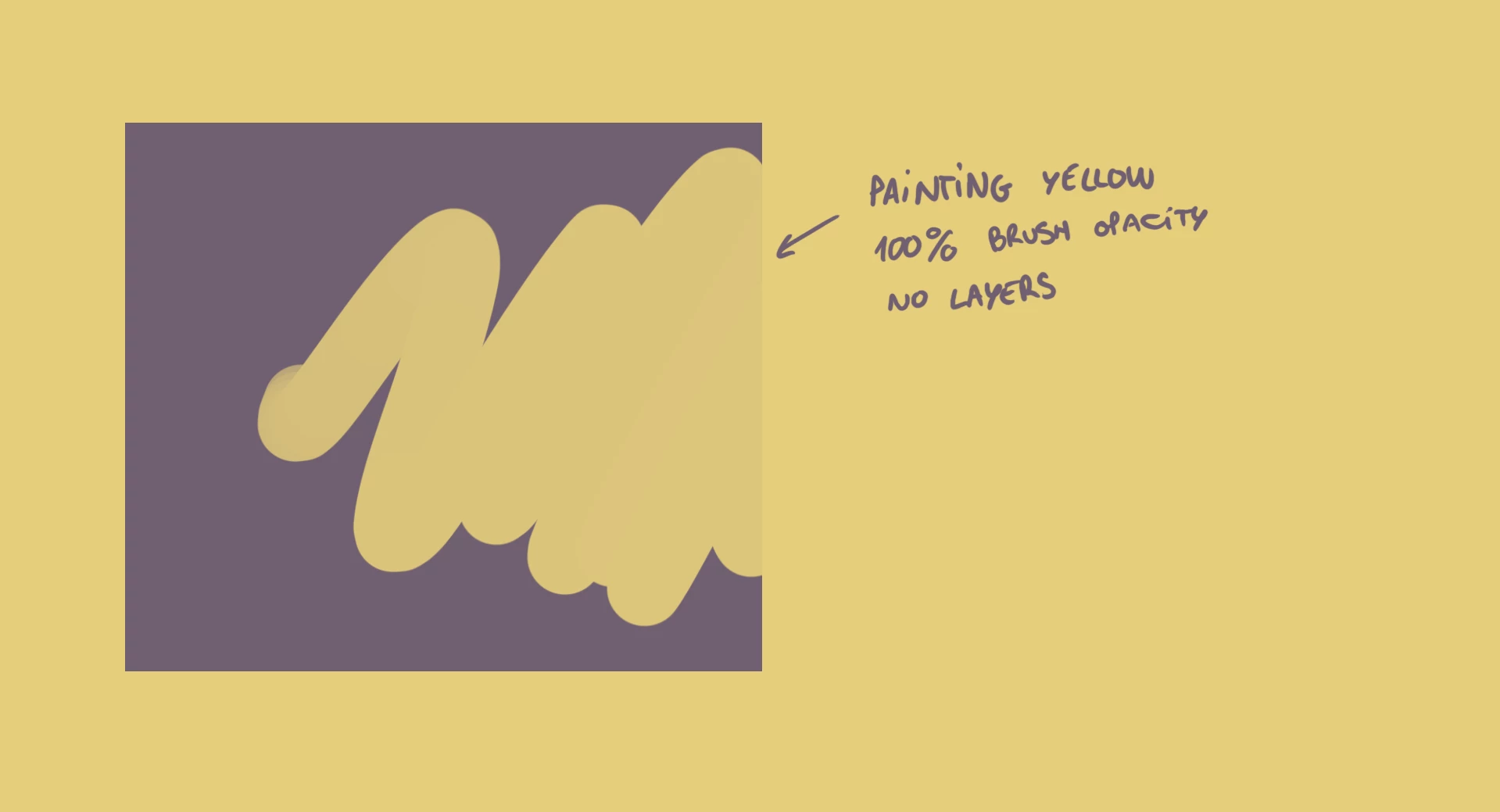
Since some time ago I'm unable to paint at 100% opacity. I'm demoted to CS6 (always worked fine, and I generally prefer older versions) but I doubt it's version-specific. I paint with a Cintiq 13HD with opacity linked to pressure sensitivity. However, no matter how hard I press, it seems to be unable to reach full 100% opacity. Fully opaque brush settings paint 100% just fine. I am at the second pressure sensitivity setting in Wacom settings (Softest +1), if I took it even lower the problem solves but I'm unable to paint anything remotely low-opacity, higher settings to +1 paint even less opaque at maximum pressure. I'm using no layers, the brush image is 100% black and both the opacity and flow are 100%. Minimum opacity per pressure is set to 0% in the brush (which I need, since I need the full range of pressures) and it does paint opaque if I turn it to 100% (but again, I lose the chance to paint with lower opacity).
Any ideas?
 AdChoices