Exit
  • Global community
    • Language:
      • Deutsch
      • English
      • Español
      • Français
      • Português
  • 日本語コミュニティ
  • 한국 커뮤니티
0

Unable to Replace color in Photoshop - Color results different from what is chosen

Community Beginner ,
Nov 01, 2019 Nov 01, 2019

We are trying to edit a scanned copy of an image in PS. We want to replace all the black in the image to a shade of Pink. Mode under "Image" tab is RGB. On going to Image > Adjustments > Replace Color and choosing the eyedropper to choose black, and thereafter choosing the shade of Pink in the hue results, the color on the actual image shows Gray rather than Pink. We have been on the chat support with Adobe exec for over half hour with no resolution in sight. They made us update the graphic driver of Windows and yet no difference. Is there a solution to this? thanks,

Attached are the images showing how the colors look before and after choosing the replace color option. 
4.8K
Translate
Report
Community guidelines
Be kind and respectful, give credit to the original source of content, and search for duplicates before posting. Learn more
community guidelines

correct answers 1 Correct answer

Deleted User
Nov 01, 2019 Nov 01, 2019

Hi

The Replace Color doesn't work with Black, White or Gray

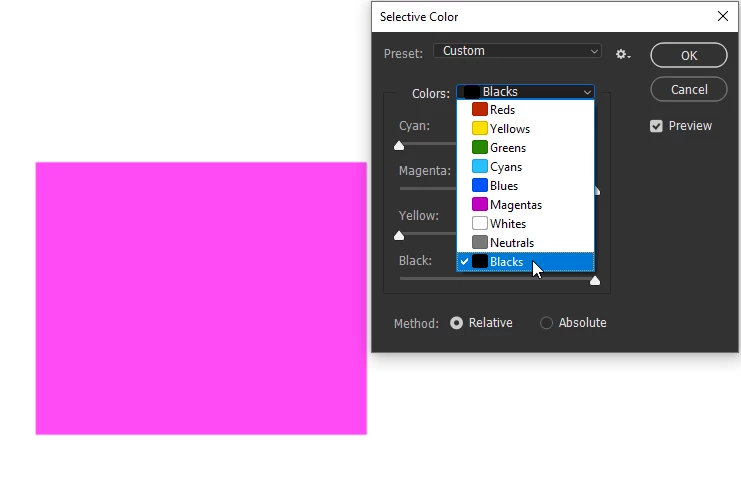
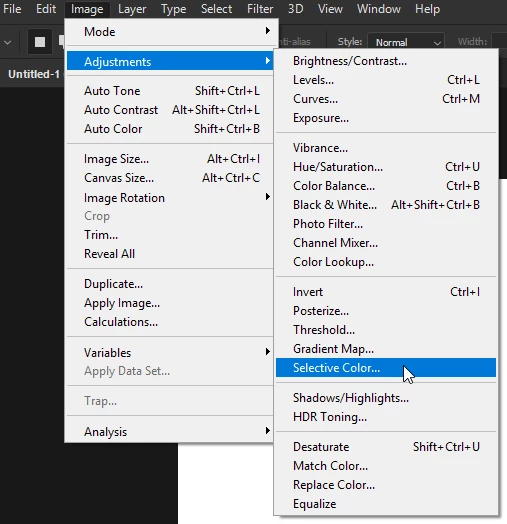
You could try the Selective Color and choose black from the dropdown menu

image2.png

image.png

Translate
Adobe
Guest
Nov 01, 2019 Nov 01, 2019

Hi

The Replace Color doesn't work with Black, White or Gray

You could try the Selective Color and choose black from the dropdown menu

image2.png

image.png

Translate
Report
Community guidelines
Be kind and respectful, give credit to the original source of content, and search for duplicates before posting. Learn more
community guidelines
Community Beginner ,
Nov 01, 2019 Nov 01, 2019

Thanks. That worked for most part. 
Selective dropdown doesn't seem to work for white. For example, in the image attached, we tried replacing the white in the image by Selective Dropdown > choosing white from dropdown and altering colors below. But it doesn't change. Anything that can be done here? thanks,Example.jpg 

Translate
Report
Community guidelines
Be kind and respectful, give credit to the original source of content, and search for duplicates before posting. Learn more
community guidelines
Community Expert ,
Nov 01, 2019 Nov 01, 2019

Why not simply multiply the layer over a Solid Color layer?


Screen Shot 11.png

Translate
Report
Community guidelines
Be kind and respectful, give credit to the original source of content, and search for duplicates before posting. Learn more
community guidelines
New Here ,
May 31, 2023 May 31, 2023

For anyone stumbling across this thread having a similar issue using black and white images with transparent parts use Layer Effects -> Color overlay. Works like a treat.

Translate
Report
Community guidelines
Be kind and respectful, give credit to the original source of content, and search for duplicates before posting. Learn more
community guidelines
Community Expert ,
May 31, 2023 May 31, 2023
LATEST

You cannot use "replace color" for this.


Black is not a color! Black is the absence of color. In Photoshop, the color component is separate from the luminance/brightness component. The meaning of the term color is narrower than in casual everyday speech. It has to be - otherwise you would just get an area of flat color like a stroke of paint.


The proper way to do this is to select the area you want and make a mask. Then use any tool avalable in Photoshop to modify it.

Translate
Report
Community guidelines
Be kind and respectful, give credit to the original source of content, and search for duplicates before posting. Learn more
community guidelines