I use VueScan on an Apple Silicon Mac. Although I don’t normally use the VueScan plug-in for Photoshop, I had an idea about a solution.
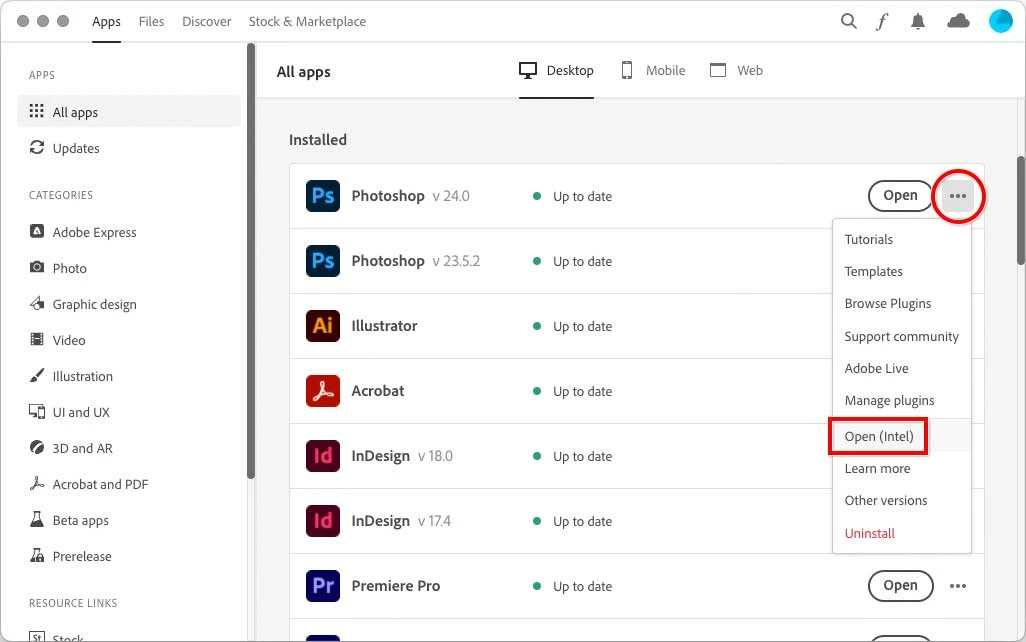
In the Creative Cloud desktop app, when viewing All Apps, click the options ( … ) menu for Photoshop, and choose Open (Intel). This will open Photoshop using its Intel code.
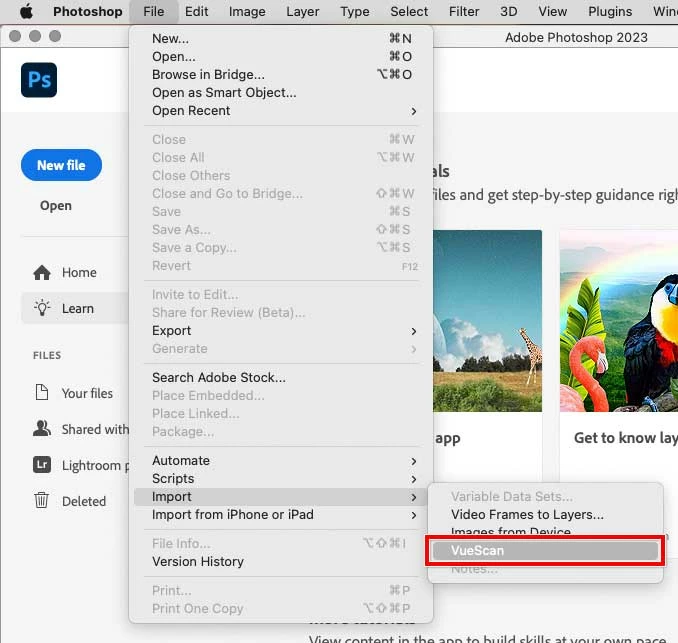
With Photoshop running as Intel, the VueScan plug-in appears in the Photoshop Import submenu.
Important: “Open as Intel” through the Creative Cloud app applies only to the current session of the application. If you open Photoshop normally next time, it will open using Apple Silicon code and the VueScan plug-in will not load. If you want Photoshop to always open using Intel code, follow the Apple instructions (under “Which Apps Need Rosetta?” on that linked page) to enable Open Using Rosetta.
However, it might be best to open Photoshop normally most of the time, and only open Photoshop as Intel when you want to scan into Photoshop through VueScan. The reason is that when you open Photoshop as Intel, you do not have all of the high performance advantages of Apple Silicon.
In the long run, Hamrick needs to update their plug-in for the current Photoshop plug-in architecture on Apple Silicon.




 AdChoices