

Participating Frequently
July 20, 2024
Answered

Warp text is greyed on on top toolbar

  • July 20, 2024
  • 3 replies
  • 6789 views

I cannot click on Warp Text in the toolbar of my workspace, but I can select the text and right click and choose warp that way? IMac, Sonoma 14.5, memory 16 GB, Apple M1, PSCC 25.11.0

Thank you.

Correct answer Ged_Traynor

Hello, here are four snaps.  I've also attached 2 snaps of my settings. thank you.


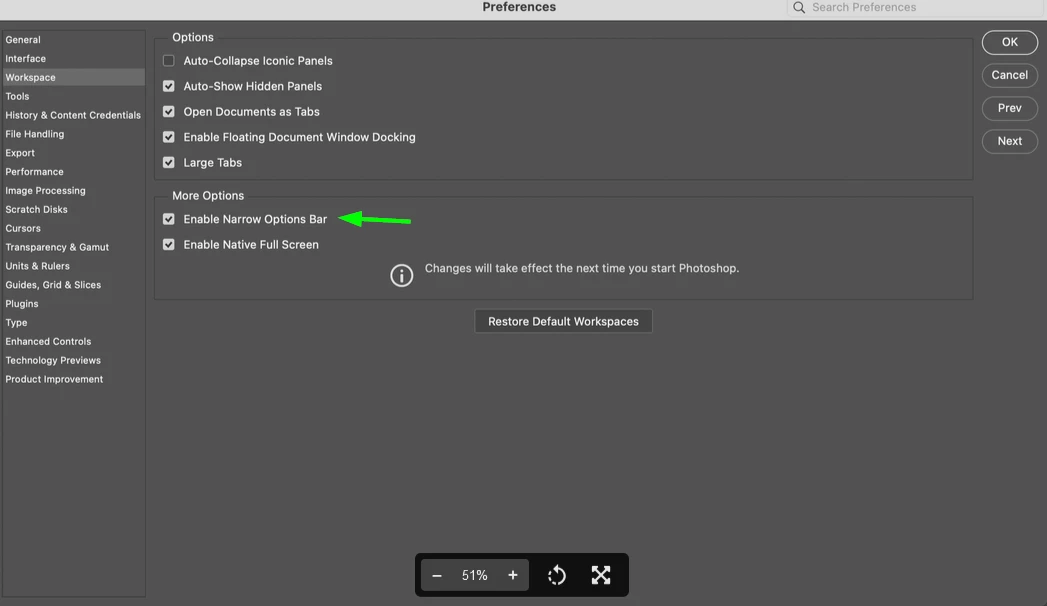
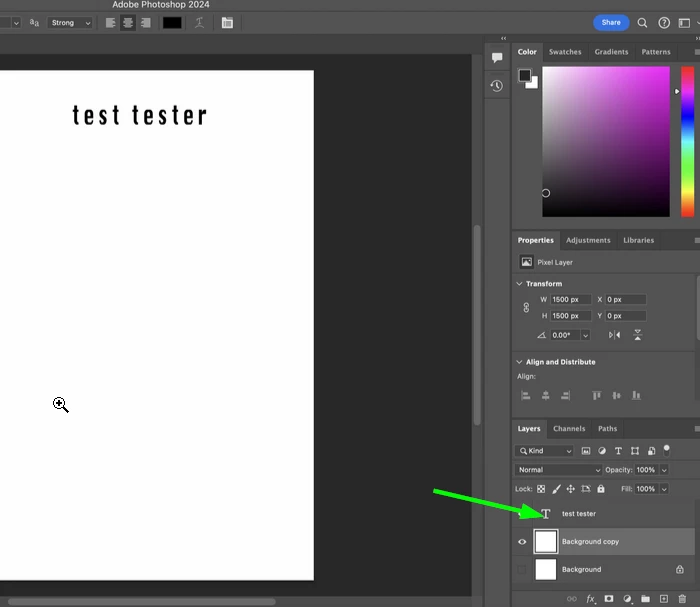
@JoLM disable this option in preferences and restart Photoshop, also you need to click on the type layer for the warp text option to become available
Select this layer
3 replies

Participant
March 24, 2025

Same issue had happened to me, this really helped thank you!

JoLMAuthor
Participating Frequently
July 21, 2024

Thank you!

Myra Ferguson
Community Expert
Community Expert
July 20, 2024

In the first image, the text does not appear to be selected but it is in the 2nd image when you right-clicked on it. The text would need to be selected for the Warp Text option to become available in the Options bar. The Warp Text option will be visible but grayed out when the Text tool is selected but not the text on the canvas.

JoLMAuthor
Participating Frequently
July 20, 2024

Hello, thank you. 

Whether or not the text is selected, the icon remains greyed out. When I activate text, put my curser on the screen, the after photo appears. After I finished typing, the after photo appears. When I select the text, the after photo appears, blocking the warp text icon.


Ares Hovhannesyan
Community Expert
Community Expert
July 21, 2024

You must see warp icon in option panel when text is selected with double click
