LEFT4LAZY
Known Participant
September 27, 2023
Answered

Way to bypass Layer Lock when using the Automate>Batch?

  • September 27, 2023
  • 2 replies
  • 1370 views

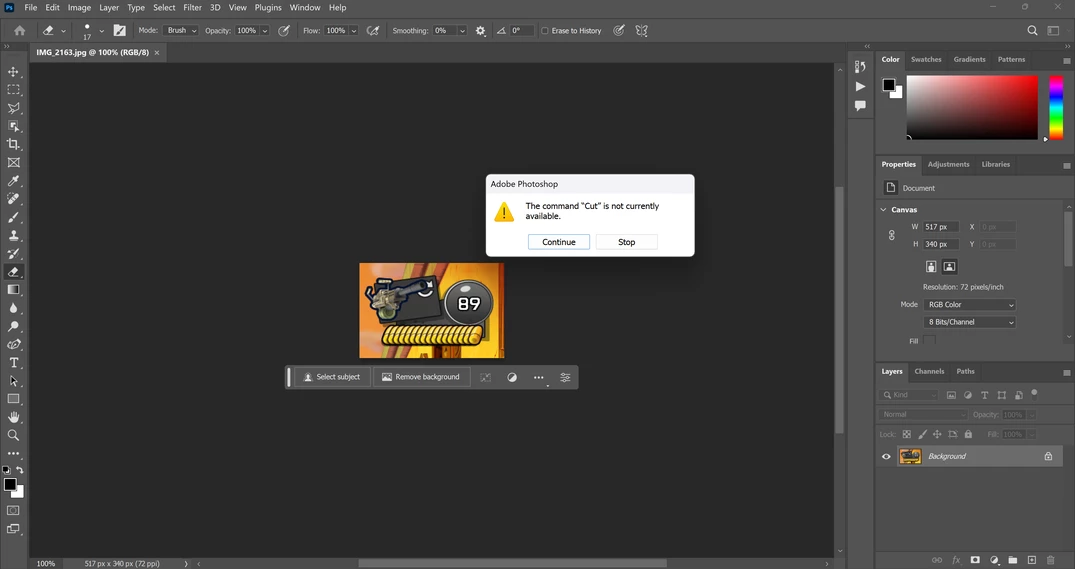
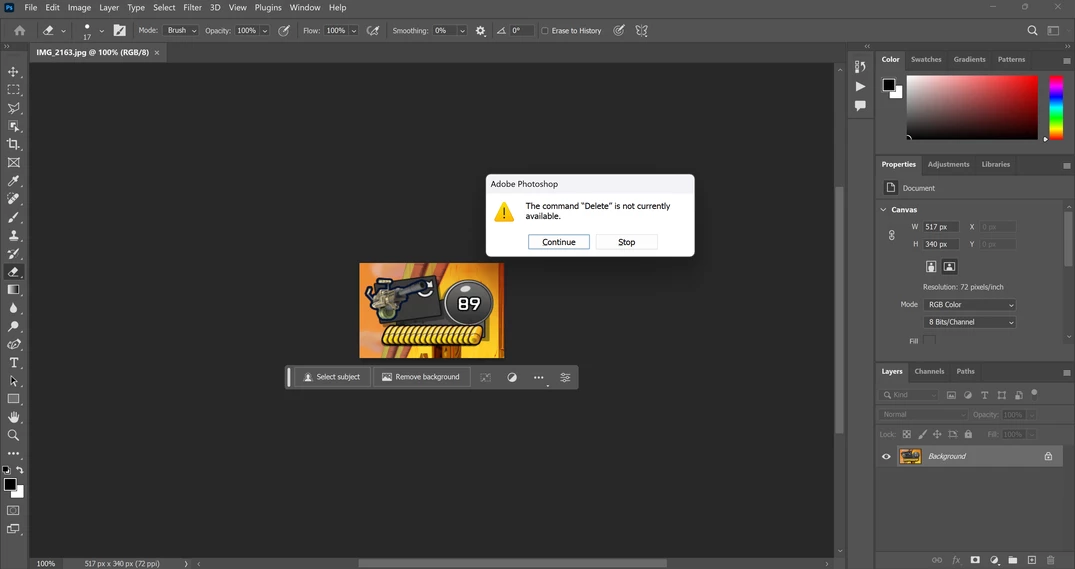
So I'm trying to batch crop over 200 photos with the automate option, but every time an image is added, it's automatically locked, causing the system to stop all actions. Is there a way to have it so none of the photos added into the processor will be locked?


Here's how it appears:
1

3

5

2

4

This topic has been closed for replies.
Correct answer Stephen Marsh

@Stephen Marsh, nope no background layer, I added that in to bypass the layer lock for the batch process (it's the only thing I added in, in this version) - is that bad?


The path name in the panel section is just named 'Path 1', the action one reads, 'Set Section [next line] To: Work Path [next line] With vector mask parameters'.


If the path is called "work path", how do you expect the action to load a selection from a path named "Path 1"?


Actions are explicit, the file content has to match the action content.


Notice how the action step and the file content match below:


2 replies

Bojan Živković11378569
Community Expert
Community Expert
September 27, 2023

Can you press Stop when you see error message then take screenshot with Layers panel and Actions panel expanded and visible. When you stop playing action because of error message it will expand action and highlight problematic step so we can see step and situation on screen and Layers panel what will help to determine what exactly causes problem.

LEFT4LAZY
LEFT4LAZYAuthor
Known Participant
September 27, 2023

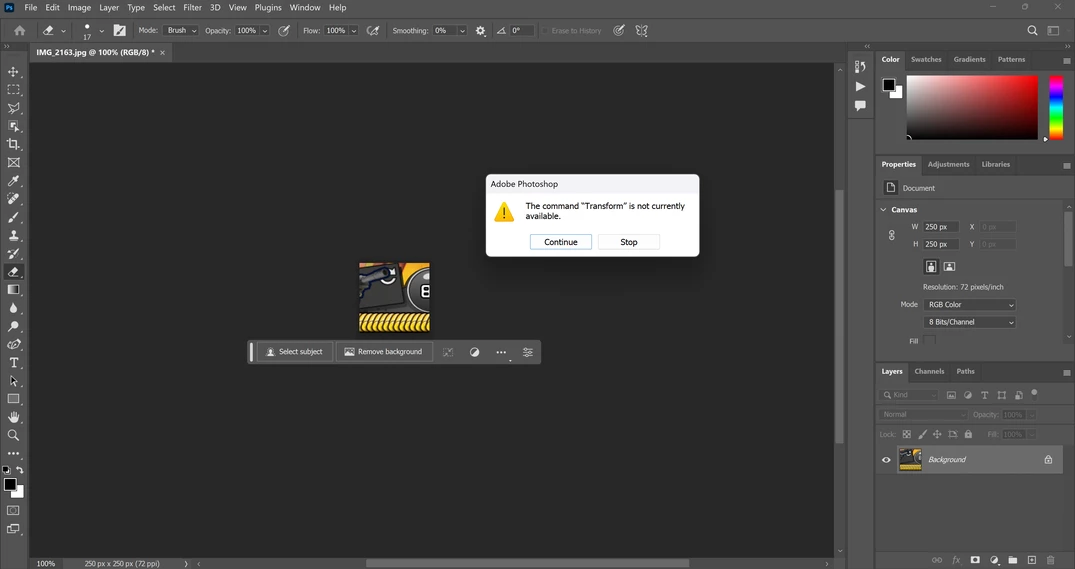
Ah, I see @Stephen Marsh@Bojan Živković11378569. Here's that prompt:

Also Marsh I followed your directive on those .atn files as well, hopefully that clears any future confusions I may have. If it comes down to it, maybe I can send a screen recorded video of what exactly it is I did.

LEFT4LAZY
LEFT4LAZYAuthor
Known Participant
September 28, 2023
quote

@Stephen Marsh nope nothing in the paths panel. Hopefully I am not misunderstanding here, but I turned off all the dialog boxes, I also performed the action with just the first two dialog boxes whitened (Delete Work Path & Set Selection) which were the only two that were apart of a modal (I assume the others are Set Slection & Fill). Despite these changes, the same errors presist.


By @LEFT4LAZY


So if there is nothing in the paths panel, how can you delete a path or load a selection from a path?


What happens if you disable (untick) those two steps in the action?


Hey @Stephen Marsh, ok so same thing applies unfortunaetly. For now I'm scrapping the completed action, I'll start small, and with a still-in-recording action.


Here it is so far:


Even in the simplist state I can get, for what I'm trying to accomplish, there's still errors in the same category, does the curvature pen tool not work in an action sequence?

I neglect to mention but in the three photos after the first, the work panel for the test image has no completed work path; interesting how that works.

Stephen Marsh
Community Expert
Community Expert
September 27, 2023

@LEFT4LAZY 


How is the action performing the crop? Please post a screenshot of your Action panel with the action steps and options expanded/visible.


Using Canvas Size would be one work-around.


Another work-around would be making the first step in the action to promote the Background into a floating layer (these are JPEG files which don't support layers). You may also wish to add a Flatten Image command as the last step in the action before saving.


The Script Events Manager also has a default script that can automatically promote the Background to a layer on the open event, which might be overkill for this task.

LEFT4LAZY
LEFT4LAZYAuthor
Known Participant
September 27, 2023

@Stephen Marsh

Well shoot, maybe it is the action itself, I recorded a more rigiours task, which is more of a "custom" crop, also adding some shadowing effect.


Here's the full panel:

I assume the action list takes consideration of all actions when I excute the command, and not the main one? Because the only one I added myself was the 'Reload Icon Crop', which can be found in the first image, at the 21st checkmark. The others seem to be preincluded.

Stephen Marsh
Community Expert
Community Expert
September 27, 2023

Create a new Action Set (folder).


Drag your custom action out of the Default Set into the new Action Set.


Use the Action Panel menu to save the Action as an .atn file.


@LEFT4LAZY 


On a side note... You risk losing the action if left in the Default Actions and if not saved to .atn file.


https://prepression.blogspot.com/2017/01/photoshop-custom-action-file-backup.html