This topic has been closed for replies.
Correct answer Norman Sanders

After completing the Pen step, choose the Paths panel and either:

Click on the "Load path as a selection" symbol at the bottom of the Paths panel

or

Cmd/click on Work Path in the Paths panel

4 replies

Participant
August 17, 2017

I think it is nice

Inspiring
August 16, 2017

Before

After - Colors are off, need to read up on how to record my actions and on the Paint Brush tool. Thanks so much everyone for all your help!

Norman Sanders
Norman SandersCorrect answer
Legend
August 14, 2017

After completing the Pen step, choose the Paths panel and either:

Click on the "Load path as a selection" symbol at the bottom of the Paths panel

or

Cmd/click on Work Path in the Paths panel

Inspiring
August 14, 2017

OMG, this worked using the Pen tool. Your answer is spot on! Thanks, thanks, thanks.  Now I have to stop long enough to go outside to do some weed whacking. Lucie.

sishamIAGD
Community Expert
Community Expert
August 14, 2017

Not sure what you are trying to do?

Can you explain a bit more what you want to achieve.

Inspiring
August 14, 2017

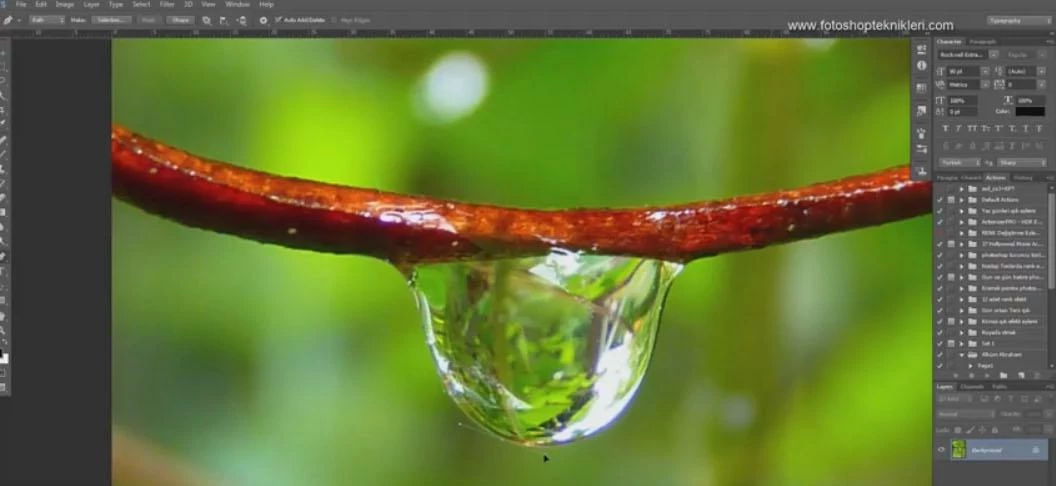
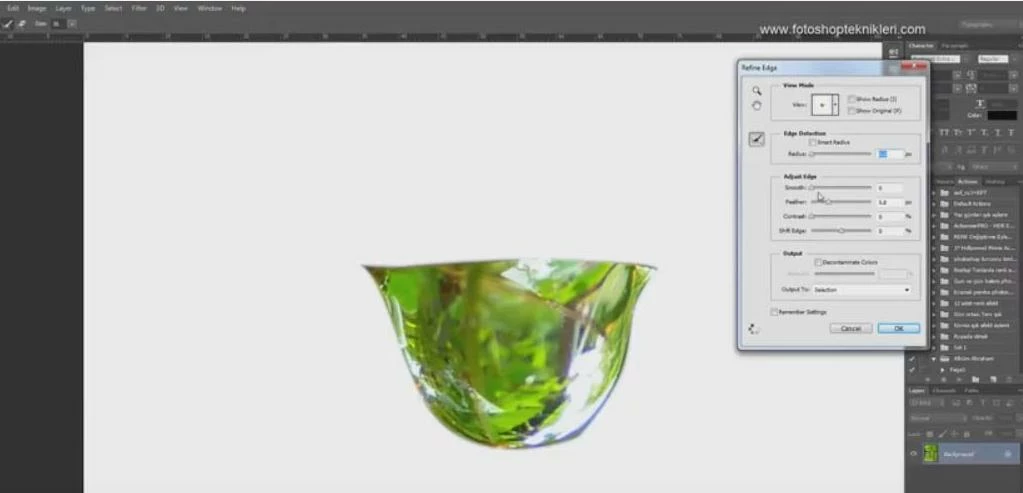
I had just barely began this tutorial (Photoshop manipulation, After the rain | Photoshop Training - YouTube) and I am stuck on how the instructor was able to select Refine Edge after selecting the Lasso tool. There is just one Background layer showing in his tutorial. I have used the Pen tool to select the image, clicked on the Lasso tool, next it states to click on Refine Edge--that is grayed out on my end? How can I pluck out the raindrop and set it on a white background?

sishamIAGD
Community Expert
Community Expert
August 14, 2017

I have added a comment to your other post. try to keep one post running as it will get confusing for people trying to help. :-)