


Known Participant
June 29, 2020
Question

Why do flat-surface 3D objects have shading artifacts???

  • June 29, 2020
  • 8 replies
  • 3629 views

Hello all - Just trying to put a 3D object in some art and have it shade properly.  Running into several issues.  Have years of experience with PS Elements, and am brand-spanking newbie to the full PS [Side Bar: is there a way to just buy the blessed full-featured 2019 or whatever latest PS (am not even sure of the name as there seems to be multiple versions CC this CC Pro that--I think the one I am using does not even have the CC) rather than the subscription approach?].  


1. The object is modeled with flat faces.  The .stl files have flat faces.  But when I add textures and save as an .obj, I get these weird shading artifacts that guessing there is a name for and it is a well-known thing.  Including a portion of the image below.  The shading artifacts are lots of v-shaped straight lines along the background surface that appears to be some sort of mathematical artifact from the mesh process.  (Seeking some education in this area.)  I tried making the .obj in Meshmixer and 3D Builder, same thing.  I tried importing the .stl into PS and then generating UV's, same thing.  The object is nice and flat until last step to make it useable...then garbage.  So, question #1 is understanding what is going on and how to get rid of this "puckering" shading artifact.  [Ego Disclaimer #: DontJudgeMe404. This is not how the final 3D object is intended to be textured, yada yada--this is earlier version I am backtrack experimenting with to resolve issues.]  


Thanks in advance for the info,


Richard
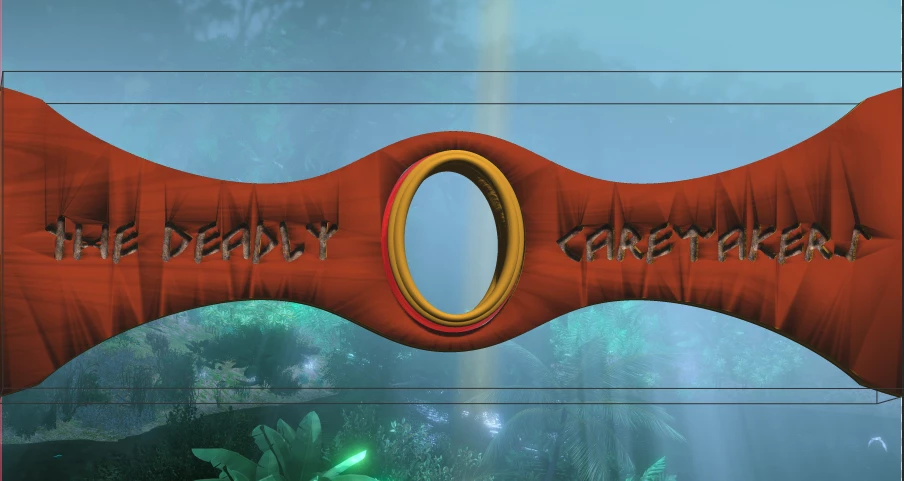
 

This topic has been closed for replies.

8 replies

Ussnorway7605025
Legend
July 5, 2020

you have a few questions there so I'll try to answer them but I may need to see your Dn file so these are best guess on my part;

q1 can you export models = yes... assuming you have the current build of Dimension Obj is always your best option and avoid exporting as Dn if you need to update computers or move between systems

q2 can you adjust materials = yes and no... there are two different types, normal i.e, Nvidia standard allows you to adjust everything but if you use a map {black and white mask image} then that overrides the sliders.

the second type is Substance materials and you need the Substance software to make | adjust these... they do have some adjustments but its up to who ever made them as to what those adjustments are


q3 sounds like you made a woppie like the first image below with lots of default materials you don't want?

the fix [see 2nd image] is to use the eyedrop sample tool

1 select one of the default materials you want to remove

2 use the eyedrop tool to click on a part of the model (in this example titanium is my base material)... the default material now is removed and replaced with what ever you clicked on

q4 save to cc library is new and riddled with bugs so be careful

image 1 = how to get the model into your library... note that you should only select the model itself... the image you see in the library panel is a snapshot

what you get back out in Dimension is the model only however if you try to open the file in Photoshop its the snapshot that gets sent

q5 Photoshop can open but not import?

have you got all formats selected... is there more than one build of Photoshop installed on that system


q6 assuming you have the current build of Dimension and use the export to Obj option then models will import to Photoshop with whatever maps, materials etc they had in Dimension... lights don't import with Obj but you can add them after and Photoshop preview is very old school as has been pointed out before so save first, then do a rendor to see what the model will really look like once you get it in


as always, good luck and share your files = best chance to get good answers in stead of guesses

Known Participant
July 6, 2020

Thanks, had not seen how to export to .obj before...suppose presumed it would not work here since other attempts at .obj import to PS had the shading issue.  Surprises me to no end that cannot import a .dn file into PS?!?  That in theory would avoid the limitations of the .obj format.  


At any rate, I did get it to more or less properly import the .obj format...once.  The problem was that there were two other objects in the Dimension scene that also got exported.  Yes, I could delete them from inside PS but I decided to clean it up by deleting them in Dimension and exporting again.  Has not worked ever since!  (Yes, I restarted both Dimension & PS to attempt to fix, deleted all files in the dedicated folder for the export.)  Will experiment more on that soon and provide details/files with findings.  


Regarding the materials, I want to have different parts of the object(s) be different materials is all.  Not understanding how to use dropper for that, as Dimension treats entire scene as one object.  Have tried not "combine objects" during export in 123D but then the file will not load in 3D Builder or Dimension.  But the workaround--though tedious--is to make separate 123D files for each component and export them individually, then reassemble the object in Dimension (with different materials).  


Hopefully after all that, the compound object will export as .obj from Dimension and import correctly into PS.  


Known Participant
July 6, 2020

Ok!  The separate component exports assembled nicely in Dimension, exported to a .obj, and imported properly to PS.  No shadow "puckering" artifacts!  And can change their materials both in Dimension and PS.  Have a process that works.  


Thank you, all, for helping me work through this.

Ussnorway7605025
Legend
July 3, 2020

Autodesk is a software giant that made lots of money on Cad and Maya back in the ye O days before Blender came along... they make Adobe look like a mum and dad store but software that doesn't talk to each other is very much the norm


p.s, when you want to do small details like fixing the letters with the magic wand it can sometimes be hard to get [just] the part you want selected... a good work around is to temp adjust the scale up from 1-10 which makes the model itself bigger and selecting correct area easy

Known Participant
July 4, 2020

Up next, I attempt to unravel the mysteries of Dimension.  Wish me luck, am going in in one coffee.

Known Participant
July 4, 2020

Oh My Sh*t!  It actually took the .stl.  (The .obj gave it *slight* problems.)  Then, I merely clicked on a material and it, and it, and it...*sob*...textured it!  Now, the only remaining--hopefully small--issue is how to ungroup the objects.  I had to group them during export in 123D so would get all objects.  But I want each object to have own texture.  Am working on that.  Alternately, I can export individually and hopefully snap together in Dimension if need be.  Bonus points if is easy to import/create/buy other texture files--but am happy with reasonable selection of default materials.  


Sure...one test remains...exporting the result and importing into PS or else importing the 2D image as a background in Dimension and operating the lighting.  Sorta leaning toward trying the latter first.

Ussnorway7605025
Legend
July 2, 2020

this is a down and durty example of your [unedited] Stl file in Adobe Dimension

I didn't want to do much to it so I just cut the background out of your image and picked two materials... If I had more time I would fix up the letters but this only took a few clicks and about 5 mins for my work laptop


Just to be clear, I use Blender and Photoshop all day every day and they both do some things better than Dimension... at the end of the day use what works for you mate

Known Participant
July 2, 2020

Ok!  Well that looks like what I am aiming for--blessed flat faces.  No idea why have to do all the gymnastics to get from Autodesk 123D to Photoshop...but let's dance.  Thanks for showing me how to do the Dimension stuff, will check it out.  

Known Participant
July 1, 2020

Ok!  Well the coffee is online and I figured out how/where to put the files and provide requested links.  Here is the 

Here is the .stl file:  https://drive.google.com/file/d/1Vb7kC8ajeiQV5laIt4q7gLBGBQDTv9Kn/view?usp=sharing.  


And here is the Autodesk 123D file: https://drive.google.com/file/d/13Qn1XvW3UwZTFCohvxXSRyBlJiwuR-Q2/view?usp=sharing.  

Known Participant
July 1, 2020

They should both look fine, though 3D Builder did indicate it was "repairing file" when it imported the .stl.  Still, once repaired, there will be no issue with the faces.  The issues only pop up once textures are added.  

rayek.elfin
Legend
July 1, 2020

Two things stand out:

- the normals should be auto-smoothed

- the object is not uv-mapped, and should be uv-mapped in 3d software.


I attached a blend file which can be opened in Blender, and mapped the UVs quickly. Not great, but it should work better now. Also turned on auto-smooth and smooth surface properties. The texture should ideally be at least twice as long, or seamless and then stretched across the surface for best effect.


Open the file in Blender, then export to Collada (File-->Export-->Collada dae). Open this Collada file in Photoshop. (Blender is open source and free: https://www.blender.org/)


PS if you want a nice looking quick render, avoid Photoshop's aging and tired 3d renderer. It is decrepit compared to modern solutions, and is incredibly slow to render with, while the render quality looks like something from two decades ago. I would just render in Blender: fast and great quality, then import into Photoshop. Ideally also some bevelling should be added to the (too) sharp edges.

I used this wood texture: https://cc0textures.com/view?id=Wood026


https://drive.google.com/file/d/1auJha3tAqq4Pe3ZTF4sHK5x4JekSxT7u/view?usp=sharing


PS hit F12 in Blender to render in Eevee.


Ussnorway7605025
Legend
June 30, 2020

thats great mate but you missed the key point... we need to see the actual file before we can help you more

Known Participant
July 1, 2020

Ok!  Have the links in a reply to OP.  

davescm
Community Expert
Community Expert
June 30, 2020

It could be several things such as:

Bad Geometry - it looks like those letters are set into the geometry and the smoothing algorithms are having to cope with them.

Need to remove backfaces

Scaled UVs (there is a bug affecting those)


Without seeing the model it is hard to advise, but you may need to take the model into Blender (or similar) and sort the issues there before brining it back into Photoshop for rendering (or just render it in the 3D app).

Can you post a link to the PSD file?

Dave

Known Participant
June 30, 2020
Thanks Dave.

The geometry was made in Autodesk 123D, but having said that...when I
import it into 3D Builder, 3D Builder does do some repairs on it. But even
after repairs, still does this. Note that after repairs, MeshMixer
indicates zero issues of any sort with it. So can I rule out Bad
Geometry?

No idea what backfaces are or what to do to remove them. Can say that the
affected item is not a composite merge of objects, if that is what this
means. It is an object that had spline volumes subtracted from a block to
get the new object. Note the issue is not merely around the engraved
letters, either. It appears on object even before letters were applied.

Do not know what UVs even are, but infer they are part of .obj that
includes texture info. Can say that 3D Builder .obj has the issue.
PhotoShop import of .stl does *not* have them, until I generate UV's from
within PS...then it has them.

Richard


--
The most terrible poverty is loneliness, and the feeling of being unloved.
― Mother Teresa

Karma is not always direct. Sometimes it comes through our feelings for
those we love, who whether blessed or cursed must live in the world we
helped create.
― Unknown
rayek.elfin
Legend
June 30, 2020

If you share the STL object with us, we can probably explain to you how to fix it. As mentioned by others here, it is a face normals issue, and needs to be fixed in a 3d app such as Blender.

Mylenium
Legend
June 30, 2020

These are smoothing artifacts. You need to play around with the smoothing tresholds in the materials. In an ideal scenario you would avoid them entirely by taking your object to a 3D program and letting it generate proper normals, then save it in a format that is actualyl able to retain that info like FBX, DAE, 3DS, OBJ. STL is unsuitable for such a workflow because it exactly doesn't do that. It's merely meant to carry the geometry for 3D printing, where smoothing for shading would be irrelevant.


Mylenium

Known Participant
July 1, 2020

Well as indicated in post, I did create .obj's in 123D and 3D Builder both, but get the same issue as when I import the .stl into PS and generate UV's (which evidently is an equivalent process).  I tried to use Blender before but was baffled by its UI.  No idea why Autodesk 123D would not be generating proper normals.  It looks fine in 123D...but no textures added.  The problem only comes about when textures are added...in other programs...because 123D does not do textures.  Surprised that 3d Builder (Microsoft) would screw up the normals...???

Ussnorway7605025
Legend
June 30, 2020

the screenshot you posted looks like a shadow effect ... I'd use Dimension in stead of Photoshop because putting 3D objects in front of 2D backgrounds is what Dimension is designed to do


that said, if you share the files I'll take a better look

Known Participant
July 1, 2020

Sounds good will check into it.  Hoping Dimension is free/cheap.  Would like to create bump map for the 2D scene to up-level the shading effects.  Hoping to find something easy to use to do that.