


Known Participant
April 14, 2025
Question

Why does an Adobe RGB test image not show gamma compression on my monitor but does when printed

  • April 14, 2025
  • 2 replies
  • 2993 views

I created a test image with tiles of increasing luminance side by side with tiles with black and white pixels of linearly increasing white pixel density. The gamma compression factor is changed for each group of tiles. When I view this image in Photoshop, I expected to see a luminance match to the black and white pixel tiles on my monitor when gamma compression was 0..4545 (1/2.2) but the nearest visual match is with gamma = 1.0. When I print the image out however, the visually matching set is with gamma = 2.2. 
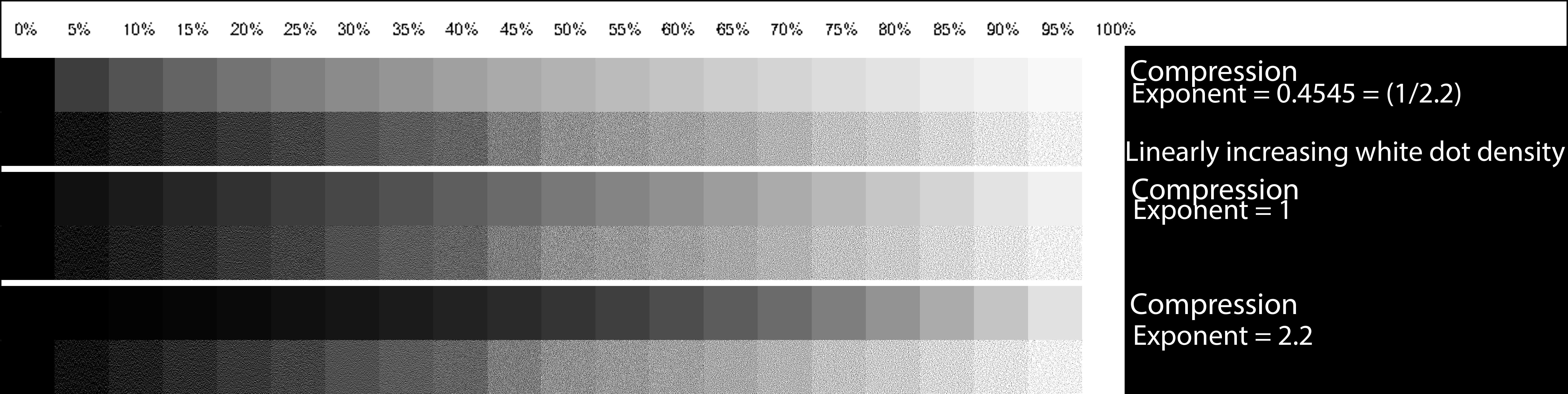


My monitor is calibrated to gamma = 2.2, 6500K white point. I did try recalibrating to gamma = 1.0 and the result was ugly but the visually matching set was still at the same gamma = 1.0.

I printed the test image with Photoshop two ways. One with Photoshop managing colours and one with the printer managing the colours.

This test image is Adobe RGB 1998 but I got similar results with sRGB test images.

I am working on a project that requires two layers of image. A background layer printed on white paper and a translucent layer printed on a digital transparency. The resultant image after light goes through the two layers is the product of the linear light amplitude of each layer for each pixel. This means that gamma compression needs to be taken into account so I need to understand gamma compression really well. When I see such a major difference in a simple monochrome image between my expectation, the image on the monitor and the printed image, it makes me wonder if my understanding of gamma compression is correct.

Would Adobe really make such a huge blunder and not remove the gamma correction before displaying it on the screen? As I see it, either they have indeed made that blunder, or else my understanding is wrong.

I presume that if other people look at my test image on their monitors they will see the same as I do, that the closest matching image is with Gamma = 1.

Can I ask readers please, which of the gammas is closest for your monitor setup? If you print the file, which set matches the dot

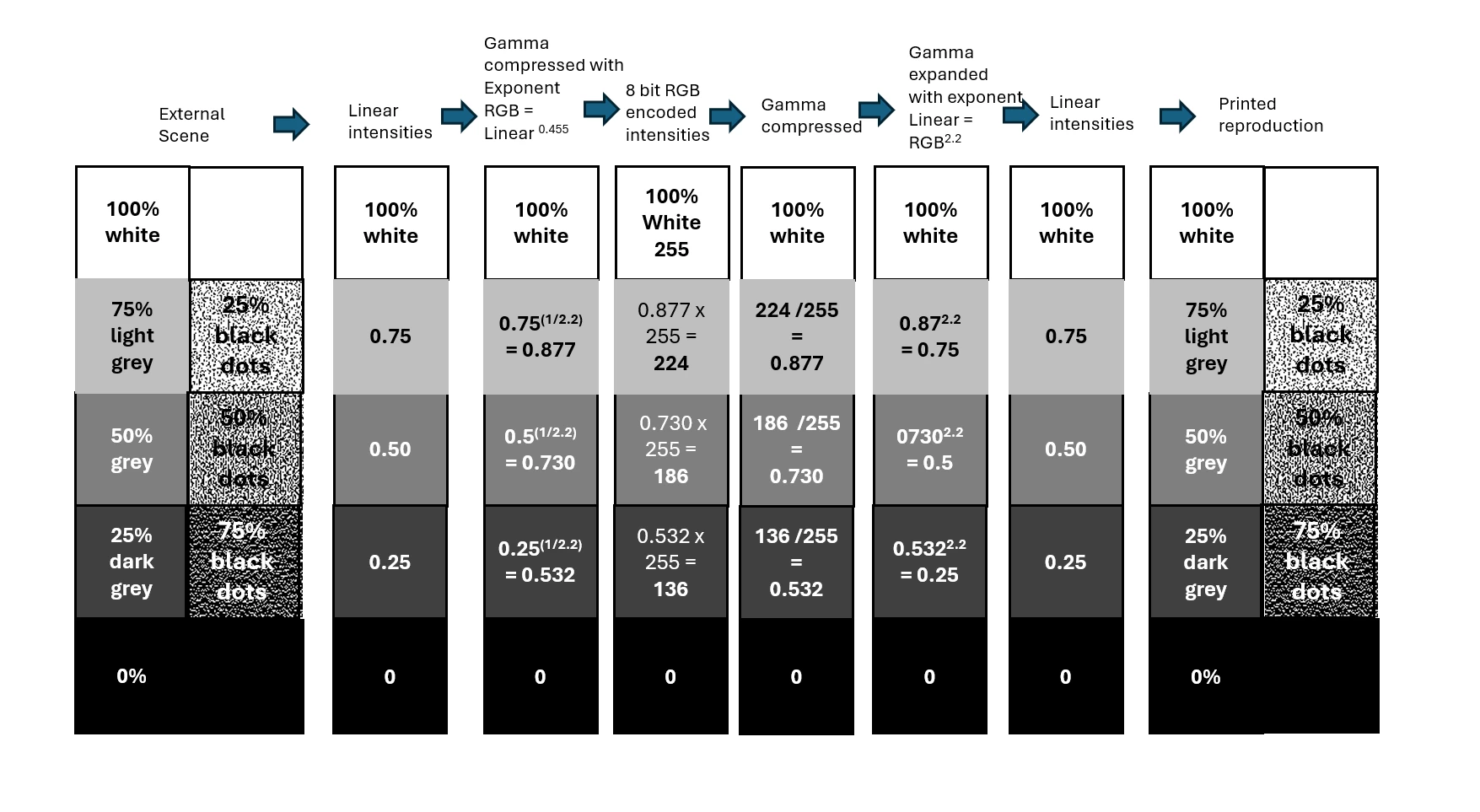
Here is my understanding of how Gamma compression and expansion should work:


2 replies

davescm
Community Expert
Community Expert
April 14, 2025

Your method looks flawed.
You have produced swatch values on your chart you have calculated to be at a specific gamma curve. However, your document is in Adobe RGB which already encodes those values using a transfer curve of 2.2 In other words the swatches you have labelled as gamma 1.0 are actually using values encoded in the document using a 2.2 transfer curve. Your middle value of 128 corresponds to a Luminance value of 54.  So the 'gamma 1.0' values should look closest to the dot swatches.

Photoshop, like any other colour managed application uses values in the document and translates them to the values that need to be sent to the screen using both the document profile and the monitor profile. It does not matter whether the monitor is calibrated to the same curve or not, provided that the profile installed in the operating system correctly describes the monitor in its current state. That is the purpose of colour management. Remember though that, if anything is changed on the monitor, a profile matching that change must be loaded in the operating system, and Photoshop must be closed and restarted in order to pick up that new display profile.

Similarly, the printer profile used by Photoshop must match the paper, ink and media settings that were used when the profile was made. If any settings are changed then the profile is invalid. Provided that the currect media, ink, driver settings and profile are selected then your chart should match closely what you see on the screen with View > Proof Colours and the printer profile selected. 


So here, I see that the closest on the monitor is the gamma 1.0 strip. I say closest as it is not a match. The 128 grey value, corresponding to L 54 is next to a dot swatch with a median value of  142.63 which I would expect to be lower. As a result the dot patch looks closest but not exactly the same.
When I print out the chart, using a print profile I created for the Canson paper I use, I see exactly the same. The closest match is the 1.0 strip. That is what I would expect, I want my prints to look as I see them on my display. So to answer the question in your title, I suspect your printer profile does not accurately reflect the paper, ink and media settings of your printer.


Dave 

Known Participant
April 15, 2025

Thanks so much Dave for putting the time in to explain this to me. What you say makes perfect sense. There must be something wrong with my prints. The thing is, I am also using Canson paper (Canson Infinity PhotoGloss Premium RC 270 gsm - Gloss) and I downloaded the printer profile from the Canson Website for my Epson SC P900 printer. I have told the printer that I am using Photo Glossy paper (It doesn't have a Canson specific setting, only Epson ones) so it should be good.


Do you mind if I ask what specific paper and printer you used?


This is a photo


davescm
Community Expert
Community Expert
April 17, 2025

Thank you so much for your time Dave (and money, ink and paper don't come cheap these days) . There are two strange things about this. The first thing is that the image in the second file I uploaded is at 360dpi, not 72dpi and the second is that even though my original image did not have a Color profile, when I downloaded the file it did actually have a profile (Adobe 1998 RGB). I must have loaded it into Photoshop and assigned that profile to it and saved it again. Are you sure that you didn't actually download the original file again?


You were partly right. I had clicked on your link but mistakenly downloaded the preview image not the file being previewed. I now have the correct version.

The result though is the same as before. On both screen and print the gamma 1.0 strip looks the closest.
It all points to taking a close look at your print driver media settings.  Make sure your media settings match those used when the ICC profile was made, and ensure you are not double profiling. One other thought, because your test strip contains fine dot patterns, make sure your print driver is set to it's highest quality (on the P5000 that is 2880 x 1440 dpi. )

Dave

D Fosse
Community Expert
Community Expert
April 14, 2025

Gamma encoded image > inverse gamma in monitor = gamma 1.0


In a properly color managed process this is all remapped in high precision, so that the net visual result is always linear (gamma 1.0).


Without color management it's not entirely accurate, but most displays are fairly close to (inverse) 2.2 natively, so that a 2.2 encoded file will look roughly right. A gamma 1.8 file (e.g. ProPhoto) will look too dark.