


Known Participant
December 1, 2023
Open for Voting

Make the adjustment of guides consistent in Adobe's apps.

  • December 1, 2023
  • 2 replies
  • 202 views

Currently in order to set a specific value for a guide one needs to perform absolutly different actions in Photoshop, Illustrator, Premiere Pro, and After Effects.

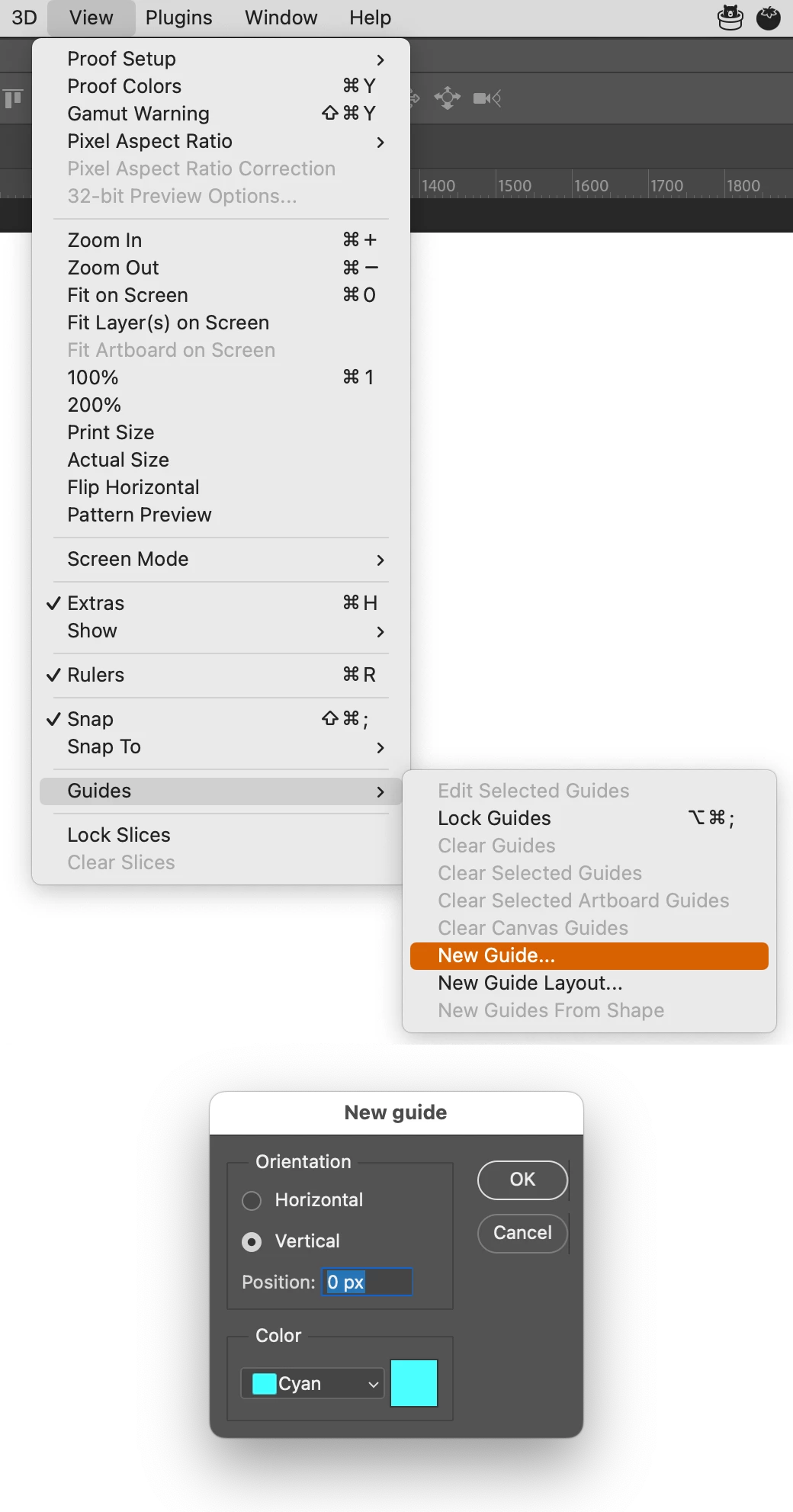
In Photoshop you need to click "View → Guides → New Guide…" and then enter a specific value for a guide :
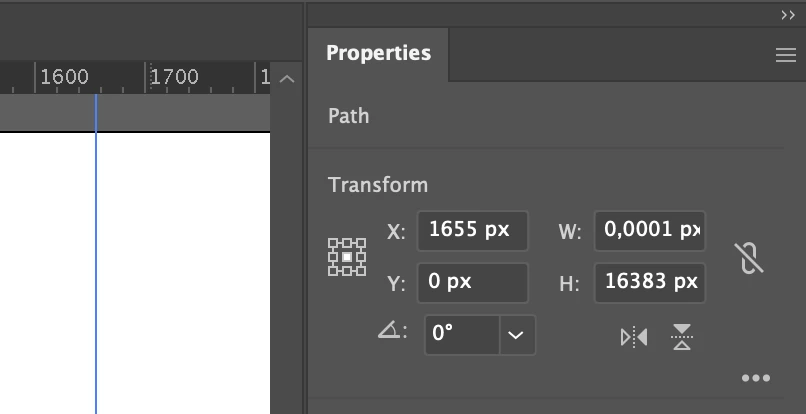
In Illustrator you need to create a guide, select it and adjust its position in the Properties panel under the Transform section:
 

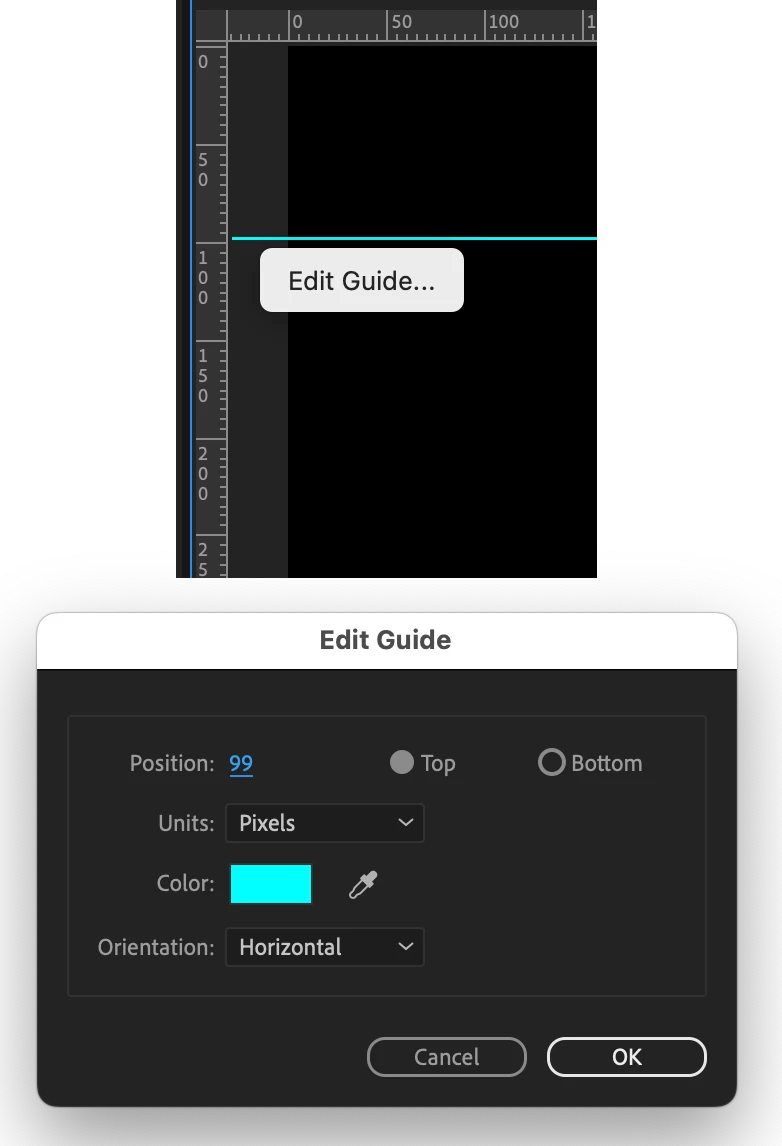
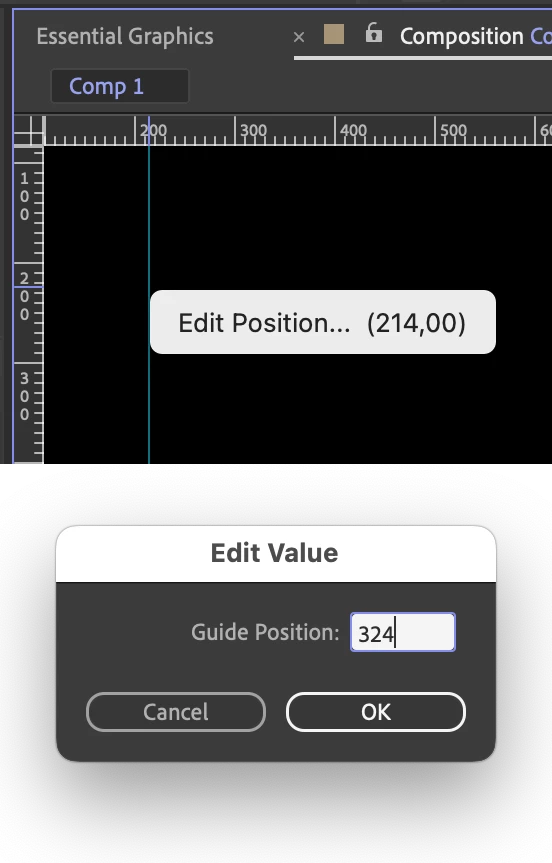
In Premiere Pro and After Effects, you need to right-click on a guide, then select "Edit Position…" in After Effects or "Edit Guide…" in Premiere Pro. After that, you can edit the value inside the window (even these windows look different in Premiere Pro and After Effects):

Premiere Pro:
After Effects:
Due to the inconsistency among the apps within Adobe's Suite, it's challenging for new users to learn how to use it. The same result is achieved differently in each app for some reason. Please make it consistent to decrease the steep learning curve that is present nowadays.


2 replies

Known Participant
December 1, 2023
 

The easiest way in Illustrator is to hold Shift and double-click in the ruler to add a guide to the nearest tic mark. (Without the Shift key, the guide goes to the exact spot where you double-click.) Then you can use arithmetic to change the position (1000px / 2; 25px * 3)


I would be okay if all the applications kept their own methods and simply added this one. Users can get really angry when things are taken away from an application they've been using for 30+ years.


By @jane-e 


That's not intuitive and precise enough. The best solution for this issue would be to use the right-click menu (as in Premiere Pro and After Effects), as it's the easiest and most intuitive approach. Illustrator and Photoshop should adopt this method.

jane-e
Community Expert
Community Expert
December 1, 2023


quote

In Illustrator you need to create a guide, select it and adjust its position in the Properties panel under the Transform section:


By @brumby0890


The easiest way in Illustrator is to hold Shift and double-click in the ruler to add a guide to the nearest tic mark. (Without the Shift key, the guide goes to the exact spot where you double-click.) Then you can use arithmetic to change the position (1000px / 2; 25px * 3)


I would be okay if all the applications kept their own methods and simply added this one. Users can get really angry when things are taken away from an application they've been using for 30+ years.


Jane