


Participant
January 18, 2018
Answered

How to use 3D render (Photoshop) on multiple layers at once, without merging them into one layer?

  • January 18, 2018
  • 1 reply
  • 860 views

I am working with more than 40 2D layers and I want them to all have the same 3D render effect. When I select them all and apply the effect I want, they merge into one layer, but I want to still be able to work with them individually. Thank you in advance.

EDIT [moved from Photoshop Elements to Photoshop – moderator]
    This topic has been closed for replies.
    Correct answer davescm

    We need a bit more information. Exactly how are you turning the 2D objects into 3D objects?

    You can have numerous objects in a single 3D scene and move them independently. They can share textures or have individual textures.
    You can make each layer into 3D individually then use Merge to bring them into one scene.

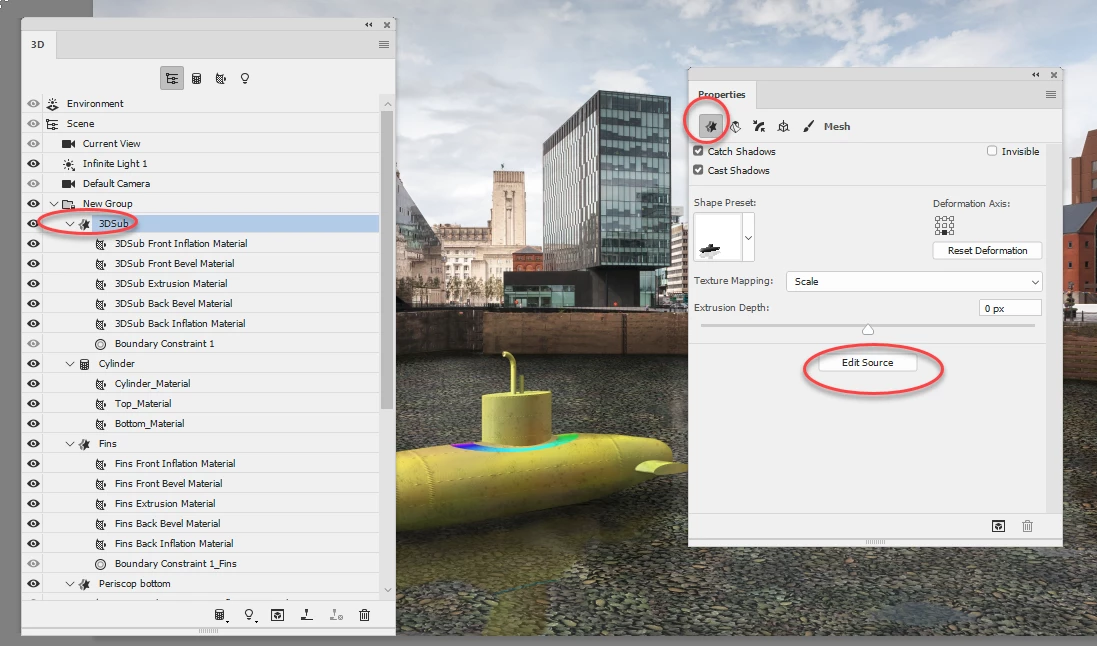
    In addition, if they are simply extrusions from paths or shapes you have drawn, then having them on one 3D layer is no barrier to keeping the shapes editable. You can click on the object in the 3D panel then go to the properties panel and click the Edit Source  button to open a psb document with the original path which you can edit.

    As an alternative you can render each 2D layer separately - but there will of course be no interaction between them so, for example, a glow from one object will not light another.

    Dave

    1 reply

    davescm
    Community Expert
    davescmCommunity ExpertCorrect answer
    Community Expert
    January 18, 2018

    We need a bit more information. Exactly how are you turning the 2D objects into 3D objects?

    You can have numerous objects in a single 3D scene and move them independently. They can share textures or have individual textures.
    You can make each layer into 3D individually then use Merge to bring them into one scene.

    In addition, if they are simply extrusions from paths or shapes you have drawn, then having them on one 3D layer is no barrier to keeping the shapes editable. You can click on the object in the 3D panel then go to the properties panel and click the Edit Source  button to open a psb document with the original path which you can edit.

    As an alternative you can render each 2D layer separately - but there will of course be no interaction between them so, for example, a glow from one object will not light another.

    Dave

    EdjabbAuthor
    Participant
    January 22, 2018

    Thank you so much! You have been very helpful

    davescm
    Community Expert
    Community Expert
    January 22, 2018

    You're welcome

    Dave