Adobe Community

- Home
- Photoshop Elements
- Discussions
- Move one photo to pin registered on top of another
- Move one photo to pin registered on top of another

Copy link to clipboard
Copied
I'm following a text that to expand the range of a photo you take the file, modify it, then save it. Then you open the same file, modify it, and use the move tool and the shift key to drag and drop the one on top of the other. Unfortunately it's not working. The author does not say what format to use for the first file, just to use Save As and rename it. Then adjust the image, open the first one saved under another name, Float All in Windows, hit V for the move tool, hold down the shift key and drag and drop it on top of the other. That's supposed to create a new layer, "pin-registered" on top of the other one, but it's not working. No new layer, no combination into one file. How do I make this work?
Thanks.


 1 Correct answer

I don't see anything in your screenshot that should keep you from dragging one photo to another.
You could reset the photoshop elements editor preferences by going to Edit>Preferences>General, clicking on
Reset Preferences on next launch and restarting the photoshop elements editor.

 9
Replies
9
9
Replies
9

Copy link to clipboard
Copied
What version of photoshop elements and operating system are you using?
Instead of Floating the Document Windows you could use Layout>All Column, then drag over you photo
Make sure you click on the photo to drag over and get the the Move Tool icon before dragging.


Copy link to clipboard
Copied
It's Photoshop Elements 2020 running on Windows.
I can't find Layout>Columns, but tried Windows>Image>Tile with the two files open so at the start it looked like your setup. Clicked Move, held down the Shift key and dragged one image on top of the other and let go. Nothing. Still two files and no level added.
The starting file is a DNG file. After making the changes in that one in saving it there was no option for DNG format, so I saved it as PSD. That should make it similar to your example of dragging a PSD file on top of a Nikon RAW file, but it just doesn't work.
Thanks for your reply.
Copy link to clipboard
Copied
Sounds like the files could be 16 bits/channel.
With both images open in photoshop elements go to Image>Mode and see if your able to click on 8 Bits/Channel
for each image, then try moving one image to the other.
Copy link to clipboard
Copied
The option for 8 bits/channel was greyed out for both files. Moving them still accomplished nothing.
Copy link to clipboard
Copied
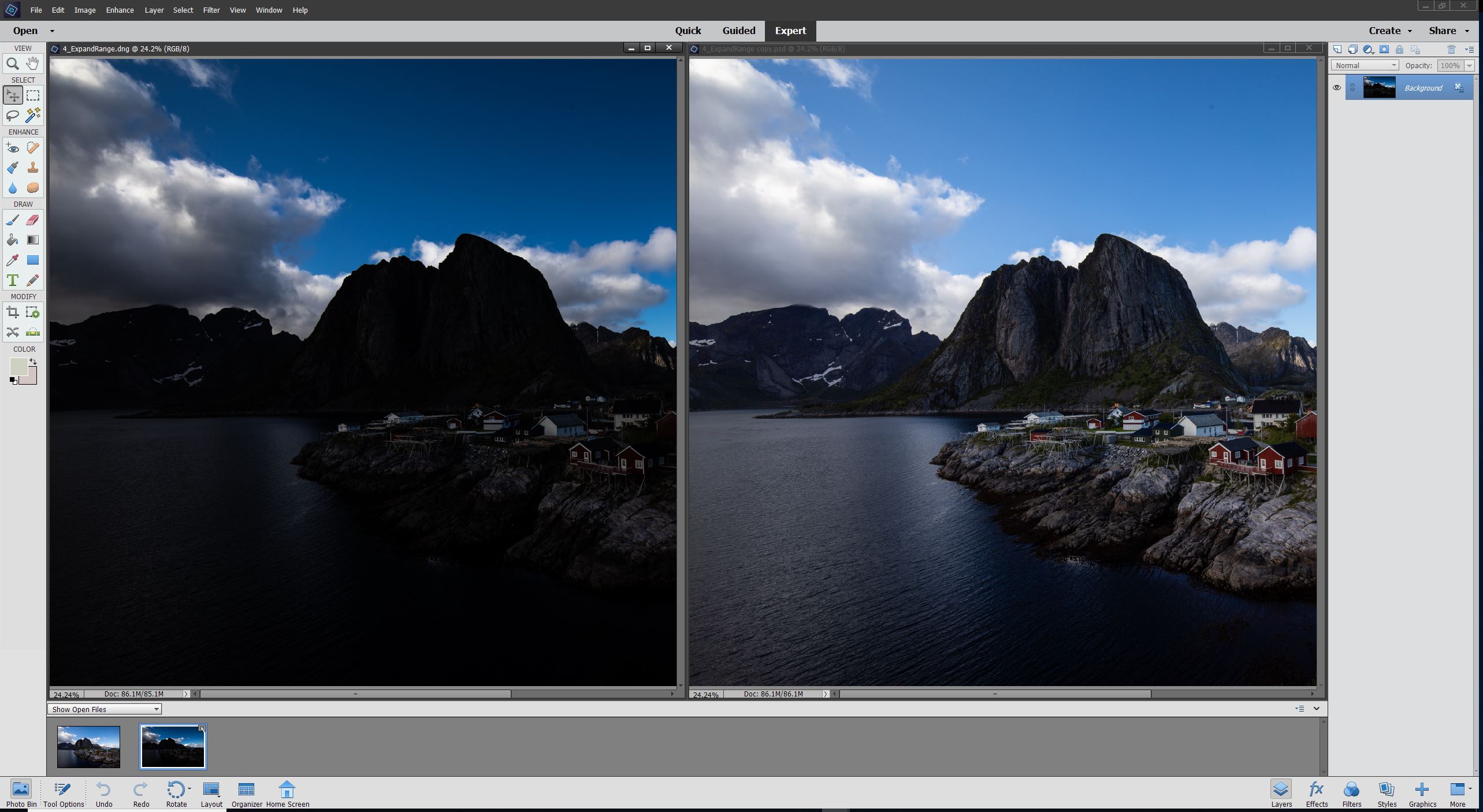
Can you post a screenshot with both images open side by side?
Copy link to clipboard
Copied
Copy link to clipboard
Copied
I don't know if it helps, but I picked two random photos of my own and tried to merge them like that. It didn't work. No new layer, no merged photo.
Thank you for your help.
Copy link to clipboard
Copied
I don't see anything in your screenshot that should keep you from dragging one photo to another.
You could reset the photoshop elements editor preferences by going to Edit>Preferences>General, clicking on
Reset Preferences on next launch and restarting the photoshop elements editor.
Copy link to clipboard
Copied
Bingo! Thank you so much for putting in the time to find the solution! That was it.


 AdChoices