

Walter_H
Legend
August 10, 2019
Answered

PSE 2019 Reconnect Scan Options?

  • August 10, 2019
  • 2 replies
  • 1609 views

Hello,

I am a brand new user to PSE 2019. After a few hiccups, I think it's running smoothly and I imported photos from my Pictures folder and one other folder on my C-drive. I am running PSE Elements on a Windows 10 Pro laptop with a 500 GB SSD and 32 GB of memory. It also has a WiFi connection to drives on my desktop PC.

The Organizer showed me that I had a BIG mess in the storeage folders in my Pictures folder with a LOT of dups. I proceded to delete files and folders. Some of the deletes were done within the Organizer and some were done in Windows Explorer. When I thought things were more organized, i started a "Backup Catalog" procedure.

The first thing that the Backup told me was that I needed to run "Reconnect" to find missing files. This Reconnect took F-O-R-E-V-E-R! It took close to 1 hour just to complete the Reconnect. I looked at the small widow that displayed while the Reconnect runs and saw that it was scanning network connected drives on my desktop PC. I've got nearly 10 TB (correction) of storage on my desktop PC but not all in use. I DO NOT NEED (or want) these drives scanned by PSE 2019.

Is there a way to tell the Reconnect scan to skip certain drives?? I've looked at Preferances but did not see an option to do this.

Thanks for your help!
    This topic has been closed for replies.
    Correct answer Somya_Agarwal

    Hi,

    Yes you can make the Reconnect functionality to scan a certain drive. Please follow the below steps for the same.

    1. Go to Preferences->Files. Turn OFF the 'Automatically Search for Reconnect Missing Files'

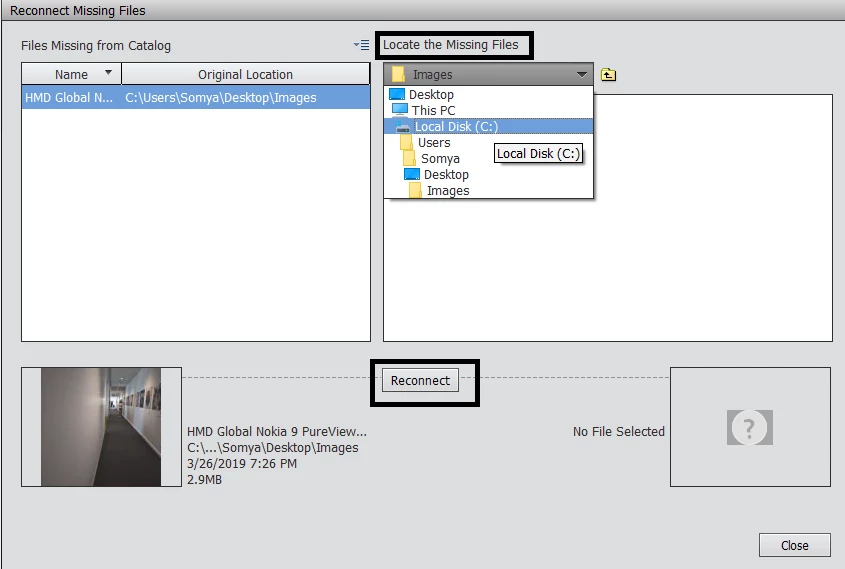
    2. When you backup your catalog, or perform any other functionality which requires all files to be connected, Organizer will not start searching for missing files automatically, rather a dialog box like below will appear

    3. You can select the drive you want to scan under 'Locate the missing files'

    4. Click on Reconnect

    5. Organizer will only scan the drive specified by you.

    Let me know if this solves the issue, or in case of any other queries.

    Thanks,

    Somya

    2 replies

    Somya_AgarwalCorrect answer
    Adobe Employee
    August 16, 2019

    Hi,

    Yes you can make the Reconnect functionality to scan a certain drive. Please follow the below steps for the same.

    1. Go to Preferences->Files. Turn OFF the 'Automatically Search for Reconnect Missing Files'

    2. When you backup your catalog, or perform any other functionality which requires all files to be connected, Organizer will not start searching for missing files automatically, rather a dialog box like below will appear

    3. You can select the drive you want to scan under 'Locate the missing files'

    4. Click on Reconnect

    5. Organizer will only scan the drive specified by you.

    Let me know if this solves the issue, or in case of any other queries.

    Thanks,

    Somya

    Walter_H
    Walter_HAuthor
    Legend
    August 18, 2019

    Somya_Agarwal  wrote

    ...

    Let me know if this solves the issue, or in case of any other queries.

    Thanks,

    Somya

    Hello Somya,

    Thanks, this DOES help!

    --Walter in Davie, FL
    Akash Sharma
    Legend
    August 12, 2019

    Hi Wchettel,

    Sorry that you're facing this time consuming and frustrating issue of reconnecting files in Photoshop Elements Organizer.

    Is there a way to tell the Reconnect scan to skip certain drives?? I've looked at Preferences but did not see an option to do this.

    I can't think of a specific way of doing this. Reconnecting the missing links to files using the File > Reconnect > All Missing Files menu is our best chance, You could do this by finding the images in selected drives only where you know majority of your images exists.

    Thanks,

    Akash

    Walter_H
    Walter_HAuthor
    Legend
    August 12, 2019

    So, there is NOT a way to tell Elements to scan or search LOCAL drives only?

    --Walter in Davie, FL
    Walter_H
    Walter_HAuthor
    Legend
    August 13, 2019

    Thanks for the update. Glad to know it helped

    ~Akash


    Hi Akash,

    I'm sorry to inform you that your suggestion does NOT work! So, I've undone the "Correct Answer" from this question.

    After my last reply, I thought everyting was ok as far as NO catalog links to my network drives. I then started to do some organizing in the Organizer. I moved some photos and deleted some photos and folders - ALL within the Organizer - I did not use the Windows Explorer for any of the moves or deletes. In other words, I used the Oraganizer to organize my Pictures folder in the catalog.

    At some point in my re-organizing, Elements decided that it needed to find "missing files" and prompted me to click OK to proceed. The scan for missing files took F-O-R-E-V-E-R! It was maybe an hour till I interupted it. It was again scanning my network drives which contain tens of thousands of PNG files that I don't want in the Elements Catalog.

    It seems like the only solution to this is to disconnect my network drives prior to starting PSE2019. This seems like a "don't force it, just use a bigger hammer" solution.

    I am a new user to Elements (2 weeks) and I'm still trying to grasp some basics and setup issues. I've seen that Elements is about 14 or 15 years old. To me, it's unbeleivable that something like this has not been worked out by now!

    --Walter in Davie, FL