


Participating Frequently
November 11, 2019
Answered

3D Cylinder lighting problem

  • November 11, 2019
  • 6 replies
  • 1412 views

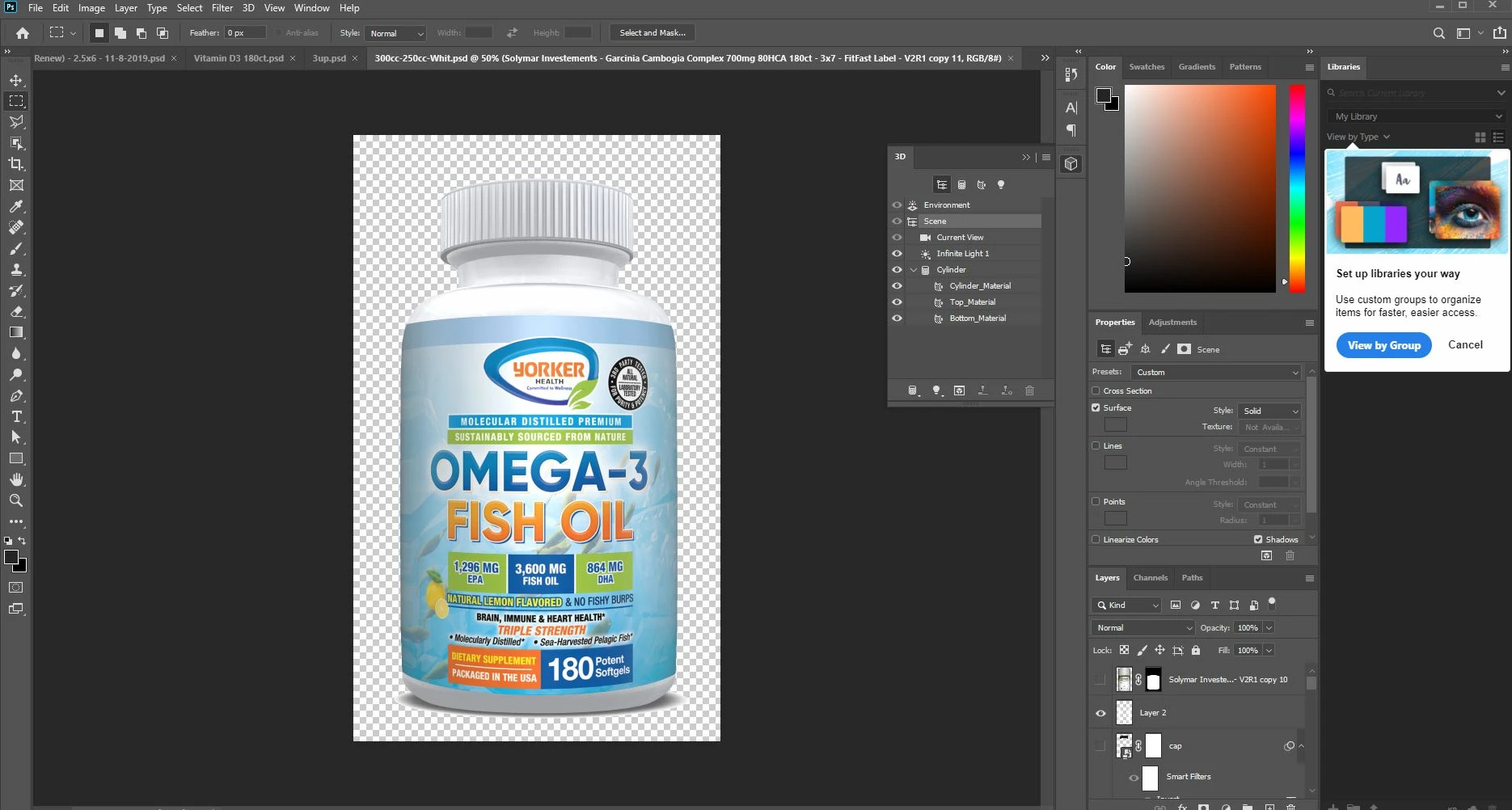
Hey guys, I've recently updated photoshop to the latest and now I seem to be having some 3D previewing issues. The first picture blow shows exactly how I like it before I start to turn the cylinder left or right.
After I double click the Cylinder_Material texture in the layers panel to put another graphic on this 3D cylinder. It comes out dark like so:
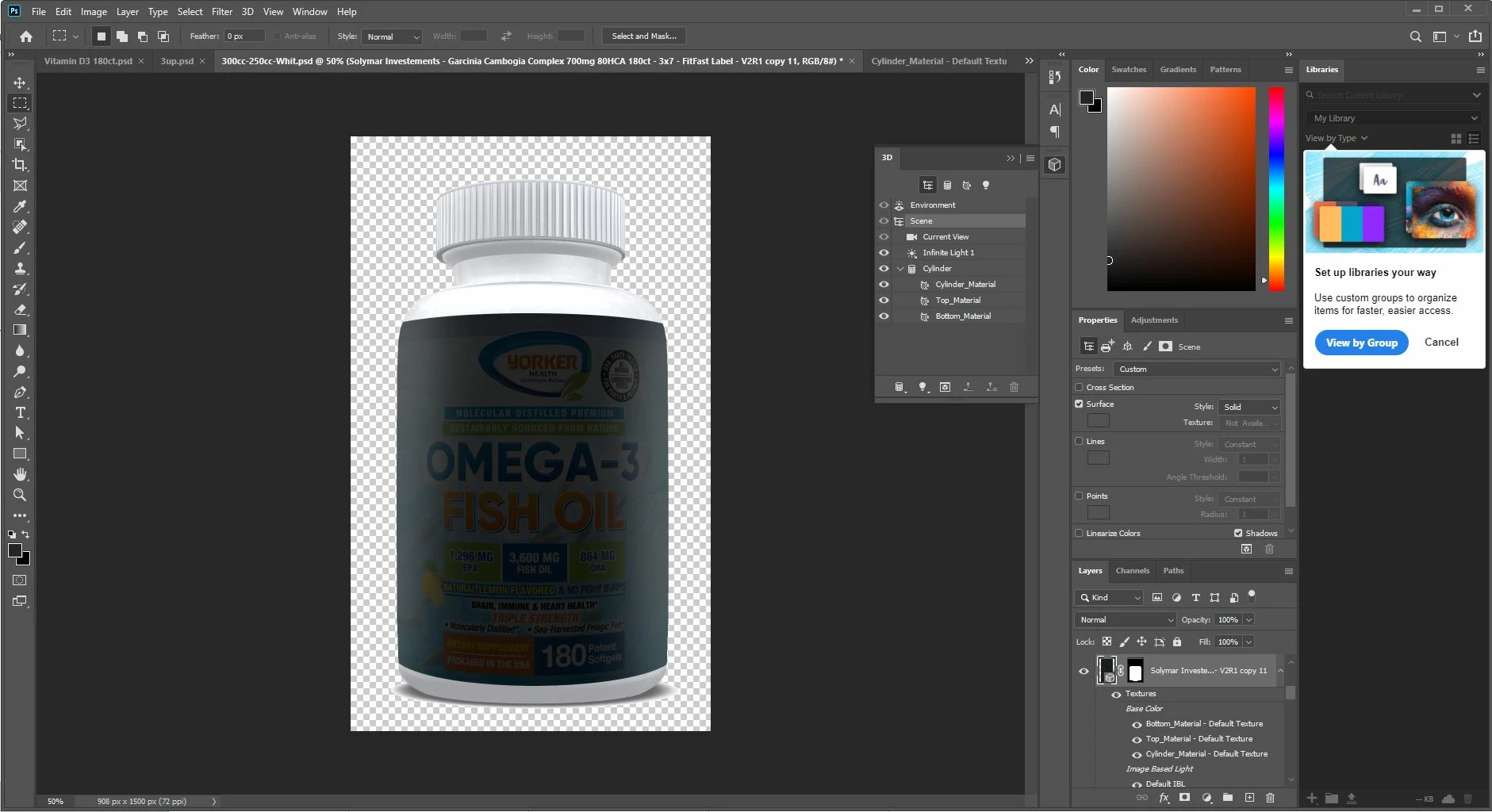
I tried resetting preferences, playing the lighting. Everything but no luck. Does anyone know what's going on here?

This topic has been closed for replies.
Correct answer davescm

For the initial issue, go to Scene properties and check remove backfaces.  That should get over the GPU black preview issue.


6 replies

davescm
Community Expert
davescmCommunity ExpertCorrect answer
Community Expert
February 14, 2020

For the initial issue, go to Scene properties and check remove backfaces.  That should get over the GPU black preview issue.


CorySouthpaw
Participating Frequently
February 14, 2020

@davescm wow thank you!  Opened this morning and did a quick 3D, sure enough looked really dark again.  Did your suggestion and it worked immediately!  Not sure I understand why anyone keep that feature enabled, would assume there's a good reason though. 

davescm
Community Expert
Community Expert
February 14, 2020

It shouldn't be needed, and was not needed in previous versions. It is really intended to cut down rendering by not calculating light paths to hidden faces. But in this version, the dark preview bug appeared and checking remove backfaces gets around it.


Dave

Ussnorway7605025
Legend
February 13, 2020

Photoshop has a known bug in their sniffer script for Gpu and the work around... as you know, is just shut it down and reload it

the issue you have is not the same as the op... the best fix is to force Photoshop to use the main Gpu on your system but to do that you need a Gpu driver that Microsoft can't replace whenever the mood hits them

CorySouthpaw
Participating Frequently
February 13, 2020

Having the same issue and it's frustrating!   My work PC was recently updated to Windows-10 seeing 7 is at end of life.  Rendering artwork for bottles the cylinder preset is great, but now for some reason in Photoshop 2020 when I enable the preset the artwork is incredibly dark.   Just like Phillip's image above, however this isn't after any graphic swapping.  It's the inital render when converting my flat artwork into a cylinder.   I think my old PC and sub-par graphics card are having issues with newer Apps like PSD-2020.   The only way I could solve is to close & re-launch Photoshop.  

Ussnorway7605025
Legend
November 23, 2019

it boils down to how much alike the two different images are... also things like Png vs Jpeg

Photoshop is not designed to rendor in real time guys... to some amount Dimension is better at that if you have a good system

Ussnorway7605025
Legend
November 22, 2019

after making a change you have to redo the lighting i.e, rendor again

Participating Frequently
November 22, 2019

Unfortunately that's the same conclusion I came to. 😞  Ah well, I got it figured out haha.

Mr_Bimg
Known Participant
November 22, 2019

I am having the same issue on my imac pro. When I update the texture the IBL scenario changes for some reason. I have to go into the IBL and adjust the lighting and intensity each time. I have tried editing the texture a few different ways and each time it changes the cylinder lighting back to dark as shown in this example. 


Is this a bug in the latest update?