



3D issue - mesh visible in thin objects when texture is semi-transparent
Hi,
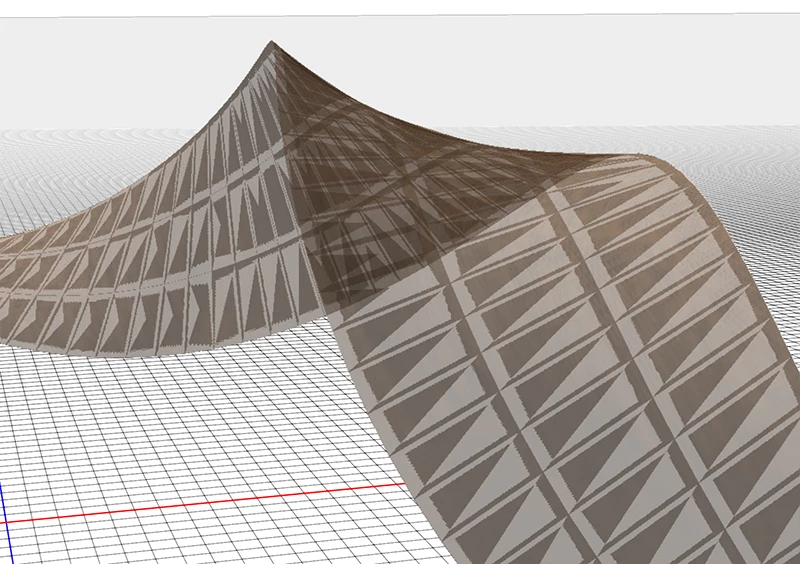
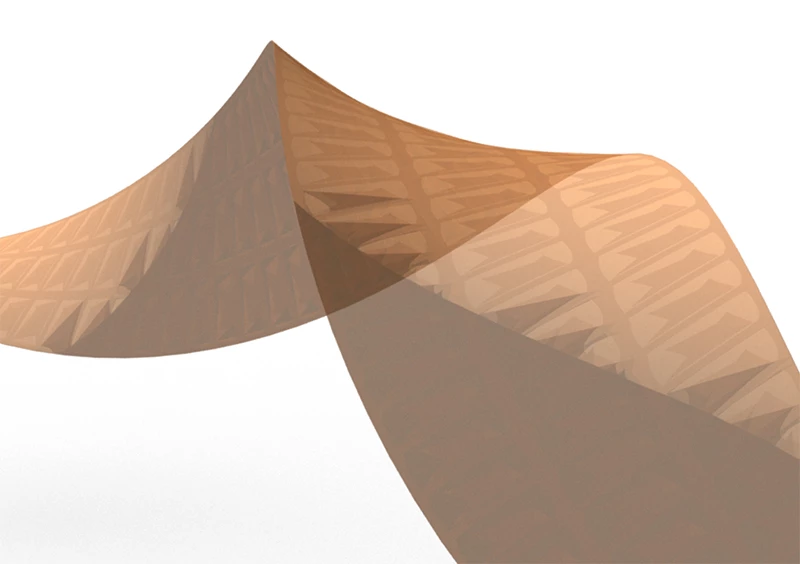
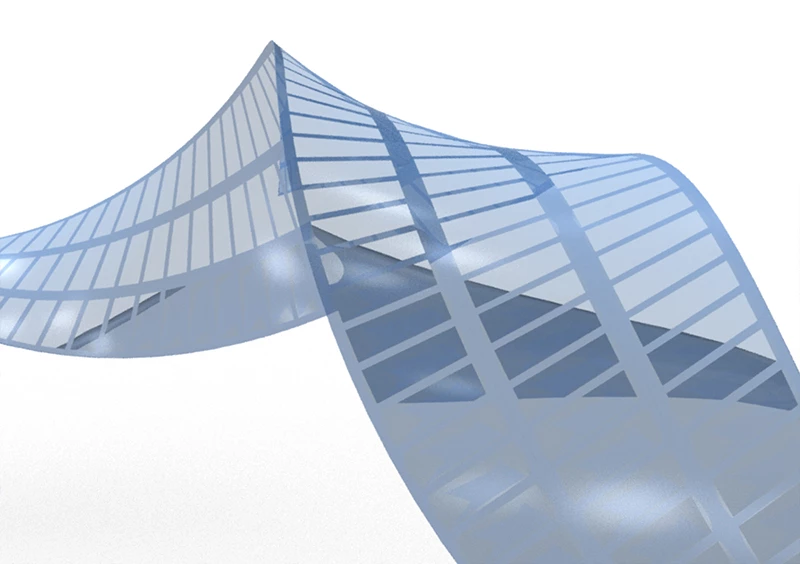
I have an issue with thin 3D objects that have a semi-transparent texture. The underlying mesh is visible, mixed with the texture, both in the normal workspace or after rendering. I've noticed this is the case only with very thin objects. I want to make a photography film look (with a twist) and so I create an extrusion from a 1px thin rectangle path/shape. Everyhting's fine up until I apply less than 100% opacity, whether directly in the material panel or with some transparency when I edit the texture.
See the images below so it's clear what is my issue:
1st image: in the workspace
2nd image: texture rendering (copper colored with some transparency)
3rd image: acrylic texture (from the included default textures)
This happens in the latest Photoshop update (19.1.3 from April 2018), but I haven't tried that effect in earlier versions.
After much head scratching, I've checked with different thicknesses and the problem gradually disappears the thicker it gets, depending on the twist and bending. With the image below, the mesh completely disappears at around 5px thick for 100px wide, but then my object is too thick for the intended use. Actually, even when I leave the extrusion completely flat, the mesh is somewhat visible (a big triangle across the whole extrusion); in that case, I could use a post card to avoid the issue, but once again, it's not what I want to do, as I want the twist.
Is there anything I can do to resolve that problem? It doesn't seem normal that this kind of stuff happens, is it?
At this point, I'd even settle for a tricky way to create that same effect, as long as it looks good with only my semi-transparent texture visible.
Any help will be greatly appreciated.
Michael
 AdChoices