


Best way to mass export AI files through Ps Save For Web?
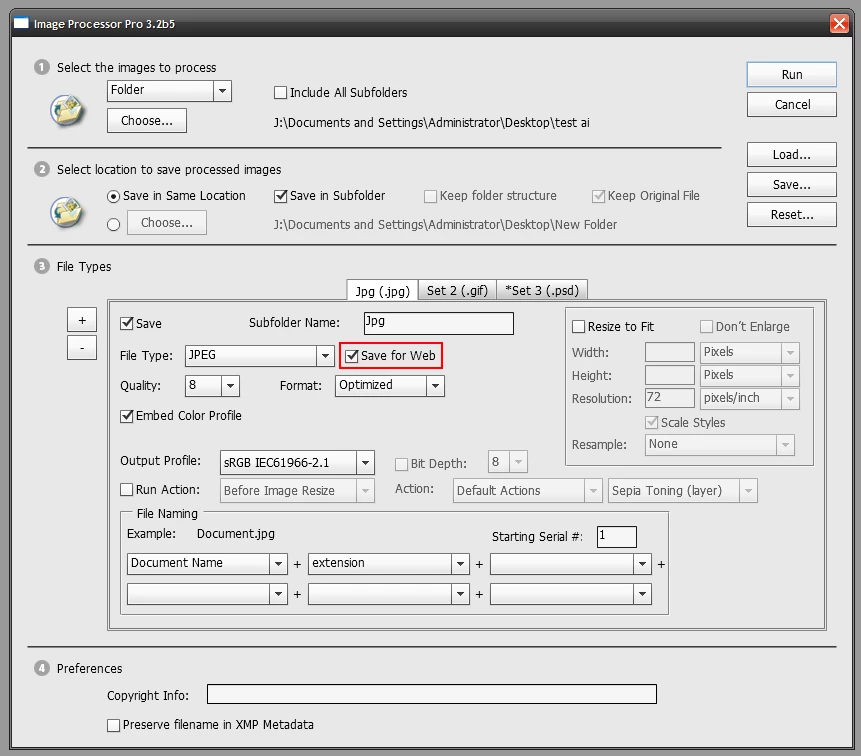
I have a bunch of AI files that need to be run through Photoshop's Save For Web to be exported as either JPG or GIF. I'm looking for a way to automate this with Actions. I have gotten this far...
- From Bridge select all the AI files and click Tools > Photoshop > Load Files Into Photoshop Layers. This takes some time, roughly a few minutes. And there is potential that this amount of time renders this process too lengthy. But ignoring that for now...
- Once all AI files are in a new Ps file as layers, I could fire off an Action that would do the following...
- All layers are visible and this needs to change as I need one visible at a time. So... Select all layers: (Win) Alt + Ctrl + A.
- Hide all layers: Layer > Hide Layers.
- Now none are visible, but also none are selected. To get around this... Make a new layer: (Win) Shift + Ctrl + Alt + N.
- NEW ACTION (explained why later) An empty layer is now at the top and needs to go... Delete layer: Layer > Delete > Layer. Need to click "Yes" but a tick box can be set so this won't be asked again.
- Now first of my AI files as layers is selected, and need to... Show Layer: Layers > Show Layers.
- Save For Web: Shift + Ctrl + Alt + S. Then I need to set the file format, quality and where it will be saved.
- Now we need to loop back to Step 4. where the layer is deleted, then the next layer is set to show, and then Save For Web is done again. This would ideally then loop for however long is needed, probably best triggered by me for each layer until all layers are done.
Only problem is the filename. Because at the very beginning we used Bridge to bring all the AI files into Ps as layers, this Ps file has no filename. So when we get to Save For Web and the JPG or GIF is saved, it's named "Untitled-1.jpg." So when the next one is due to come along there's a prompt to overwrite it, which obviously I do not want. Ideally I would like to have each JPG or GIF named after it's AI file, which is carried into Ps as the layer name. So maybe there's a way?
This has really done my head in, so I hope someone else has the mind for this and understood what I'm actually asking of!
EDIT: P.S. The old way I used to do this whole procedure is drag my AI files into Ps, then set a width or height value (usually somewhere between 20 and 30cm) and then Save For Web each file. Tedious. The Bridge process of bringing all the AI files in as Ps layers eliminates the window that asks me to set a width or height value. So without that prompt, there might be another way to automate this.

 AdChoices