

Inspiring
November 15, 2019
Answered

Clone Stamp Tool Not Working PS 2020

  • November 15, 2019
  • 4 replies
  • 9078 views

Hi everyone...I updated to PS 2020 the other day and since then my clone stamp tool is not functioning properly.


Anyone else having issues??


**UPDATE**....reseting the tool fixed it.  

This topic has been closed for replies.
Correct answer

Hi

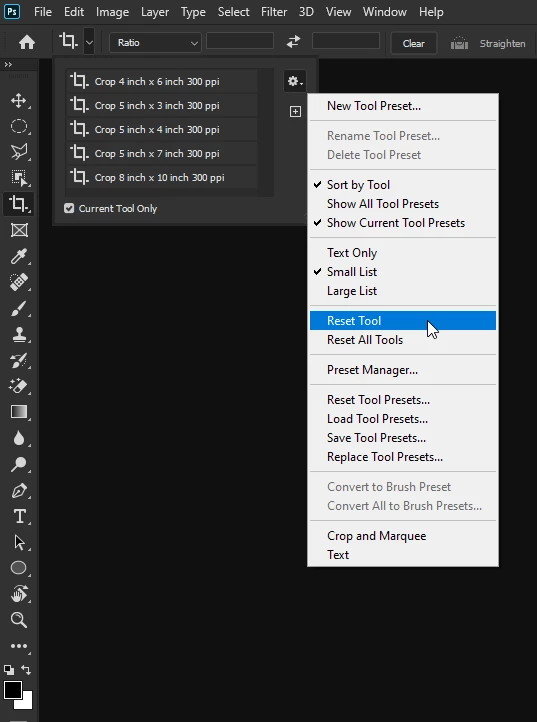
Did you try resetting the Crop Tool
 

4 replies

Inspiring
December 12, 2020

where can I find this new tool presets??

F.Quill
Inspiring
December 12, 2020

Hello Aimé:

Best answer is to refer to the string above.  What helped me was Ged Traynor's post above explaining how to "Reset" tools - (Not "Preset").   On the top bar, with a tool selected (from the side bar - which, when Selected, will display options on that top bar - brushes, crop, etc., .    When you click the tool panel to display the pop-out/drop-down options - then click on the "gear" ( ⚙︎ ).  That is where the Reset Tool options are.  (See above in this string - the post that is marked "correct answer" shows a screen-capture with the "Reset Tool" on the Crop tool.)

This "Reset" is now something that I check & use frequently, especially when using Brushes.

Hope that's what you needed!

If you are looking for "Presets", this is not the correct string.  Maybe try another search.

Inspiring
January 11, 2021

but this is all about a problem with PS 2020, My porblem is on PS current level 22.1 (PS 2021) the read background whil you are changing the size of the tool and opasity. so still no answer

lisab50241878
Participating Frequently
August 17, 2020

i might be an idiot or maybe someone needas to help explain more to me. But I am having the same issue.  But what or how does resetting the CROP tool have anything to do with the CLONE STAMP TOOL problem we are having? I am confused.  I need help obviously in fixing this problem in Photoshop 2020.

F.Quill
Inspiring
September 27, 2020

Hi Lisab50241878!

While I am sure that someone has already helped you out (I am a little late to this conversation), I just discovered the same fix, thanks to the answer from the Adobe Community Professional - Ged Traynor, above.  Thank-you, Ged!!

Although the screen-cap shown with crop tools, etc., does not make empirical sense, at first, I used the same solution with my brushes panel after spending an hour trying to figure it out, myself, and to no use at all.  

Then, thanks to Ged's answer to the posts above, by selecting "resetting all tools" from the pop-up - my Photoshop work-life went back to working the way it is supposed to!

I don't know why the tool(s) stopped working for me, either, but I do know that I was pretty frustrated, too!  So glad to know the fix!!

I am over it now and I hope everything is back to working well, for you, now!  

Just wanted you to know that you are not alone, ... .  🙂

This really is a great community - so many times these amazingly knowledgable people help!  


Participant
January 21, 2020

Same problem. Did you find a fix?

Correct answer
January 21, 2020

Hi

Did you try resetting the Crop Tool


Participant
January 21, 2020

Thanks for the reply. I've reset all tools but no luck.


Participant
November 15, 2019

Check on top  if "Curtent and below" is on.