Participating Frequently
November 11, 2017
Answered

Colors of the edited image looks different on Mac and Iphone, comparing to the same image on Photoshop and Web.

  • November 11, 2017
  • 4 replies
  • 61129 views

Hi guys!

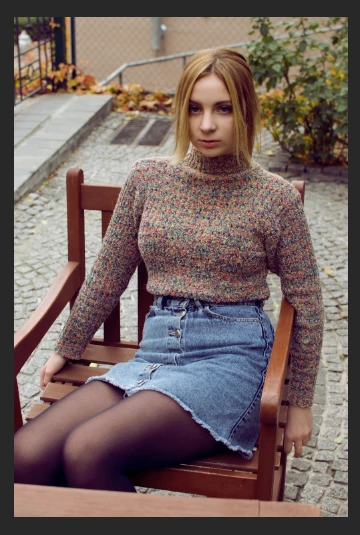
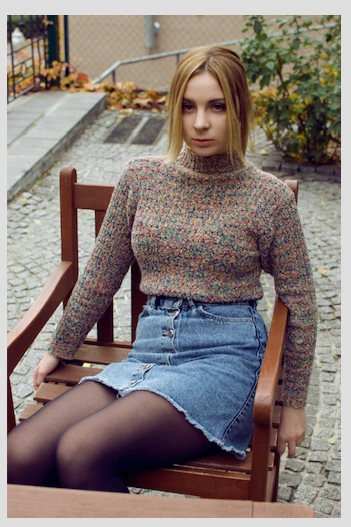
Desperately need your help on this one. So I edited my pictures, saved them (tried both "save as" and "save for web" options) on my Mac and colors aren't just there, same situation when I open those images on the Iphone. They look desaturated or something (please take a look, I made screenshots of how it looks in photoshop before saving and the other one is the same picture saved and opened with Preview). The tricky part is that when I upload the same pictures on a facebook or instagram and look at them using web browser on the same laptop - the colors are exactly as I intended them to be while editing on Photoshop. This drives me crazy, please advise on how this can be fixed.

Photoshop General Discussion

Correct answer NB, colourmanagement

Nothing on a phone is color managed.

A web browser on a computer can and usually has a color management engine, which reads both the document profile and the monitor profile, and converts the data from one into the other so that it displays correctly. Policies and implementation do vary a bit between different browsers, though.

Remember that for color management to work, you need all these three components:

  • a document profile that defines the colors in the file
  • a monitor profile that describes the monitor's characteristics (its native color space)
  • an application (program) that reads both these profiles and converts between them

If one of these is missing, the color management chain breaks down and the whole thing stops.

In Save For Web, you have different ways to preview the result. "Monitor Color" shows the file without any color management. "Use document profile" shows the file with full color management. The other two are hybrid settings of little use that can safely be ignored.


Hi

You write:

Does that mean the problem is with devices I use (all Apple devices in general)? Is that can be fixed somehow?”

Yes, but if your main computer screen is properly colourmanaged [vital] and you save files as sRGB, images should look fine on iPad and iPhone.

Wide gamut screens throw a spanner into the works for web viewing with non colourmanaged browsers. Currently that seems unfixable.

In the save for web windows you show, the lower one looks right because you selected use document profile NOT “preview = monitor colour”. You are using colourmanagement there.

I am guessing the upper “wrong” save for web preview probably matches the “viewer” you mentioned. That would be because neither are doing colourmanagement.

The reason your images look different in the “viewer” and photoshop is that the viewer doesn’t do colourmanagement.

Instagram?

Can’t really answer that one, but Instagram on iOS with sRGB files looks great to me.

Otherwise, it would depend on what device you’re viewing, I guess.

If its in a web browser on a pc or Mac, there’s that in play too.

You may find this intersting:

http://cameratico.com/tools/web-browser-color-management-test/

I hope this helps

if so, please do mark my reply as "helpful"

thanks

neil barstow, colourmanagement

4 replies

Participant
October 3, 2023

NB, colourmanagement
Community Expert
Community Expert
April 5, 2024

@Nitesh32682532tll6 HI, please give us some info? what are you after?


I hope this helps
neil barstow, colourmanagement net - adobe forum volunteer - co-author: 'getting colour right'
google me "neil barstow colourmanagement" for lots of free articles on colour management
Help others by clicking "Correct Answer" if the question is answered.
Found the answer elsewhere? Share it here. "Upvote" is for useful posts.

Participant
July 26, 2022

The bottom line is this: You have no idea what it's ACTUALLY going to look like on OTHER peoples' devices. The whole idea behind color management profiles is to hopefully have a standard to aim for. But you have no control over whether someone else's brightness on the computer screen or device is turned up or down, whether they've got True Tone or Night Mode turned on (on an Apple phone or iPad), and whether or not their screen left the factory exactly matching your screen. Or if they dropped their phone in the toilet or whatever and now something renders images slightly different on their end regardless of software attempting to match a profile. 
As the others have REPEATEDLY stated, but you seem to ignore with your repeated questioning, not all browsers or websites or devices will do anything with an embedded color management profile even when given those instructions. Maybe they "should" but the point is moot. Images are NOT always going to look identical across an array of many devices. Accept this fact and this problem maybe won't bother you so much. Both of the photos you posted look fine. 99% of people viewing won't see or care about the subtle differences. YOU do because it's YOUR photo and YOU have an idea in YOUR head of how it's "supposed" to look. Other people don't know what the original scene looked like. They weren't there, they have no reference point and it still looks good. I seems like you're obsessing over minor differences in how it gets displayed and you'll NEVER be able to control that on ALL DEVICES. It's out of your control for many reasons. Just enjoy the photo and let others enjoy it, too. 
if you really want to drive yourself nuts, let's talk about color dye-couplers used in clothing materials. Our eyes can see the enhancement those dyes make but camera sensors and film can not record the same gamut range so some articles of clothing will never be recorded accurately!  Oh, the horror!!!! 

NB, colourmanagement
Community Expert
Community Expert
July 27, 2022

tirmite, you make some excellent points there about device differences.

AND youre right that image makers should not be over concerned with others viewing their images (unless, of course, those others are paying the bill).

I feel it's worth mentioning, though, that IF, say, night mode is active ALL images on the user's machine are darker, maybe yellower, so they get used to it to some extent.

It never ceases to amaze me to see super-bright super-saturated colours some TV's are set  to, but of course, the viewers get used to it. [makes the real world seem a bit drab!!]

The producers of broadcast content just can't worry about those who like their screens set to "vivid"etc.

Those broadcasters still spend a fortune on reference displays and their calibration - also on the process of grading image appearance.

I would suggest that an image creator should not give up on attempting accuracy, working on a well-calibrated screen and saving images as sRGB [profile embedded] goes a long way to helping those images survive other people's equipment in my experience. 

Just my 2p


I hope this helps
neil barstow, colourmanagement net :: adobe forum volunteer:: co-author: 'getting colour right'
google me "neil barstow colourmanagement" for lots of free articles on colour management

NB, colourmanagement
Community Expert
Community Expert
November 13, 2017

Hi viktormelnyk

D. Fosse is right, this is why colourmanagement was invented.

His description is helpful for you I hope. I’ll try add a bit more explanation.

D. Fosse mentions the “Standard color spaces - sRGB, Adobe RGB and ProPhoto”

Those are “document colour spaces” (in “Adobe speak” images are documents).

An idea for you to try out:

In Photoshop, convert the original to sRGB [edit/ convert to profile] then save with the sRGB profile embedded.

[saving with the sRGB profile embedded is normally the default]

I have tested that with an image of my own:

If I put that image up online and view on an iMac using Firefox or Google Chrome browsers then they look very similar to the original image when viewed in Photoshop.

Here it is: http://www.colourmanagement.net/images/uploads/products/Profile_verificationMini.jpg

When I view that same website image on my iPhone using safari or google chrome the appearance is also very similar.

Issue with Firefox an large gamut screens:

I also have a large gamut Eizo screen connected to my Mac.

With such a large gamut device the colourmanagement is vital because without it colours can get boosted (over saturated).

D. Fosse writes:

“the application's color management module then converts (remaps) the original RGB numbers from the source color space, to the display color space, using both these profiles. The numbers are recalculated so that color appearance remains correct.”

That’s what colourmanagement does.

In Firefox the image colours appear enhanced (boosted), this means that in this case Firefox is not dealing with the colour properly (colourmanagement is not being used).

I hope this helps

if so, please do mark my reply as "helpful" and if you're OK now, please mark it as "correct" below, so others who have similar issues can see the solution

thanks

neil barstow, colourmanagement

Participating Frequently
November 14, 2017

NB, colourmanagement D Fosse

Thank you guys very much for spending time trying to help! I know, for some people it might be easy to understand, apparently I am not one of them. I went through a couple of articles on the internet, and one of the major points there was that color management is basically something you would need for printing your images with accurate colors (the ones you see in the Photoshop). In those articles, they refer to printers as "other devises". My "other devises" are my laptop and my phone. I tried different settings in "Color settings" section, even managed to see colors I wanted for my image in photoshop's preview while saving, using "save for web" option. Still, the image looks different when saved. I also tried the workflow you advised NB, colourmanagement, but unfortunately, it didn't help. I've made some screenshots of my workflow, maybe you could take a look at them and tell me what I do wrong? The screenshot with my settings also attached. Look forward to your reply. 

D Fosse
Community Expert
Community Expert
November 14, 2017

The basic confusion in much of this, what throws people off, is that color management is basically invisible - until it stops. And that's exactly what happens when you look at your jpegs in some arbitrary browser or photo viewer. When color management stops, in applications that don't do it, or perhaps because of a broken profile - then you see it.

And then people jump to the wrong conclusion. They say color management is broken. It isn't - it was just stopped dead in its tracks, not allowed to continue doing what it does.

This isn't a problem as long as you understand what's happening, and understand what you're looking at. It's perfectly possible to work with a mix of full color management and no co color management. You just need to take some basic precautions.

The most basic precaution of all is to convert to sRGB any material that is intended for non-color managed environments. Most monitors reproduce close to sRGB already, so if you feed such a system sRGB data, it will be roughly right even without color management. Not entirely correct, but close enough. Still, it's important to remember that there will never be a perfect match. That's normal and doesn't mean something's wrong.

D Fosse
Community Expert
Community Expert
November 11, 2017

This is why color management was invented.

I normally try to avoid "read-up-on-this"-answers, because it seems like a cop-out (what you're really saying is I know and you don't). Most things can be explained rather simply. But in this case the subject is just too large to cover in a forum post.

The Photoshop help files is actually a good place to start, and from there, there's a ton of good resources on the web. Just google "color management".

Just a tip: avoid those who try to make it sound complicated. They probably don't understand it. The functional principles are fairly simple.

D Fosse
Community Expert
Community Expert
November 11, 2017

...all right, I'll take a crack at it. This is just the general idea, not the specifics.

Photoshop has a color managed display path.

This means that

  • the RGB numbers in the file are defined by an embedded icc profile. An icc profile is a description of a color space. Standard color spaces are sRGB, Adobe RGB and ProPhoto.
  • the display has its own native color space, also described by an icc profile. This profile is normally made with a calibrator, measuring the displays's response, but the system will basically work with a generic profile that isn't too far off (although less accurate).
  • the application's color management module then converts (remaps) the original RGB numbers from the source color space, to the display color space, using both these profiles. The numbers are recalculated so that color appearance remains correct.
  • this is done by Photoshop on the fly, as you work, without any user intervention.
  • without this recalculation, without color management, different displays will display the very same RGB numbers unpredictably, in wildly different ways. As they do in your case.