


New Participant
August 7, 2019
Answered

Different layers, same layer style setting effects - Photoshop

  • August 7, 2019
  • 4 replies
  • 3159 views

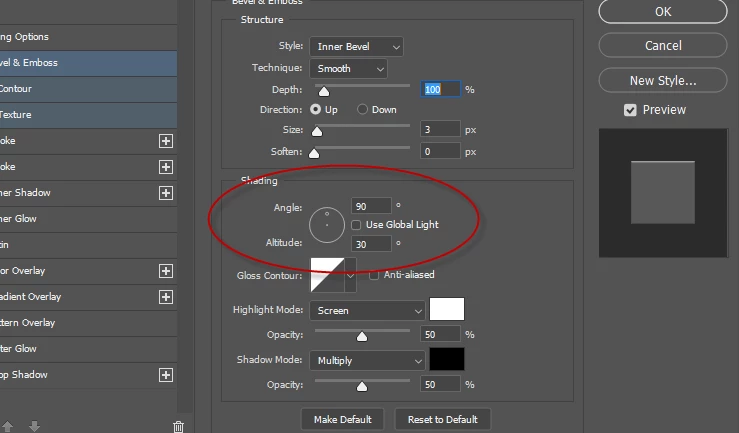
I have 2 smart object layers. I applied drop shadow and bevel/emboss effects to the first layer. When I apply a drop shadow or bevel/emboss effect to the second layer, the layer style settings are the same as the first layer. If I edit the layer style settings of one layer (angle, distance, etc.) those changes happen to the other layer. I don't want that to happen. How do I fix this so that when I edit drop shadow effects on one layer, it does not change the settings of the other layer?

These layers are not linked. I tried putting the layers in their own group folders. I tried rasterizing the layers, then applying effects. I tried pasting a jpg and drawing with the paint brush on a new layer, then applied a drop shadow, but the same thing happens. It makes all the drop shadows have the same settings.

Message was edited by: Sahil Chawla
This topic has been closed for replies.
Correct answer Ronald Keller

uncheck Use Global light

4 replies

New Participant
August 8, 2019

Unchecking global light worked—Thank you all so much!

jane-e
Community Expert
August 7, 2019

Hi

Ronald Keller​ is correct. Here is an article from Pariah Burke that explains Global Light — and also why you might want to think twice about turning it off.

Photoshop tip: Global Light | Macworld

~ Jane

Ronald KellerCorrect answer
Brainiac
August 7, 2019

uncheck Use Global light

Sahil.Chawla
Community Manager
Community Manager
August 7, 2019

Hi there,

That does not sound right, let's fix it.

As the changes are being applied to the other layer as well, could you please let us know the version of Photoshop you're working with?

Also, could you please share a screenshot of layers panel? As it would be helpful for us to troubleshoot further.

Regards,
Sahil

New Participant
August 7, 2019

Hi Sahil,

I'm using CC 2019 v 20.0.5 and here is my layers panel. Thank you!

Sahil.Chawla
Community Manager
Community Manager
August 7, 2019

Thanks for sharing the screenshot.
The issue might be happening because of clip masking as shown in the image below marked in red:

Try pressing the Alt Key and then click between the layers to remove the Clip mask from the layer you want to edit.