

Inspiring
July 22, 2017
Answered

draw light around a circle

  • July 22, 2017
  • 2 replies
  • 461 views

hello everyone i would like to draw bright light around the earth like on this pictures
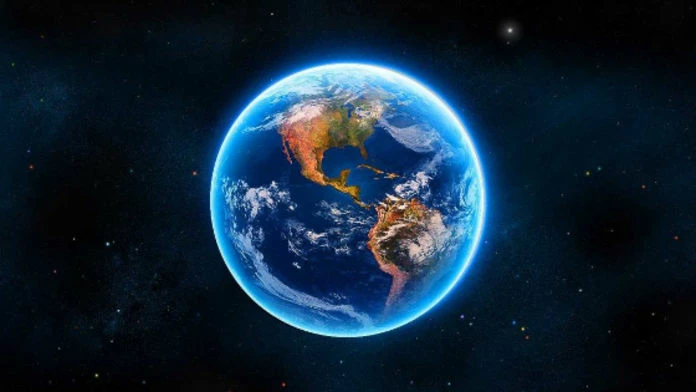
but i can find any technique to draw it

does someone have a tutorial or just an advise ? i would apreciate it

    This topic has been closed for replies.
    Correct answer Trevor.Dennis

    Or you could use a combination of both Inner and Outer Glow.  As with Dave's method, you need the globe to be on its own layer like so
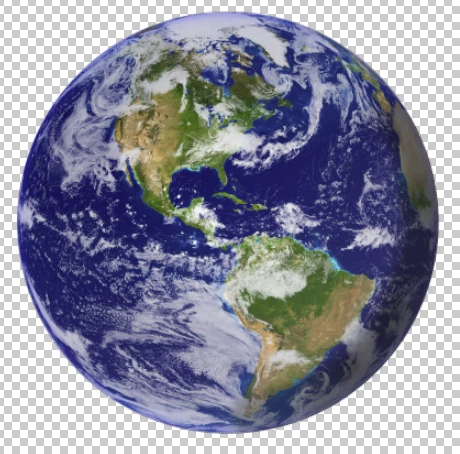
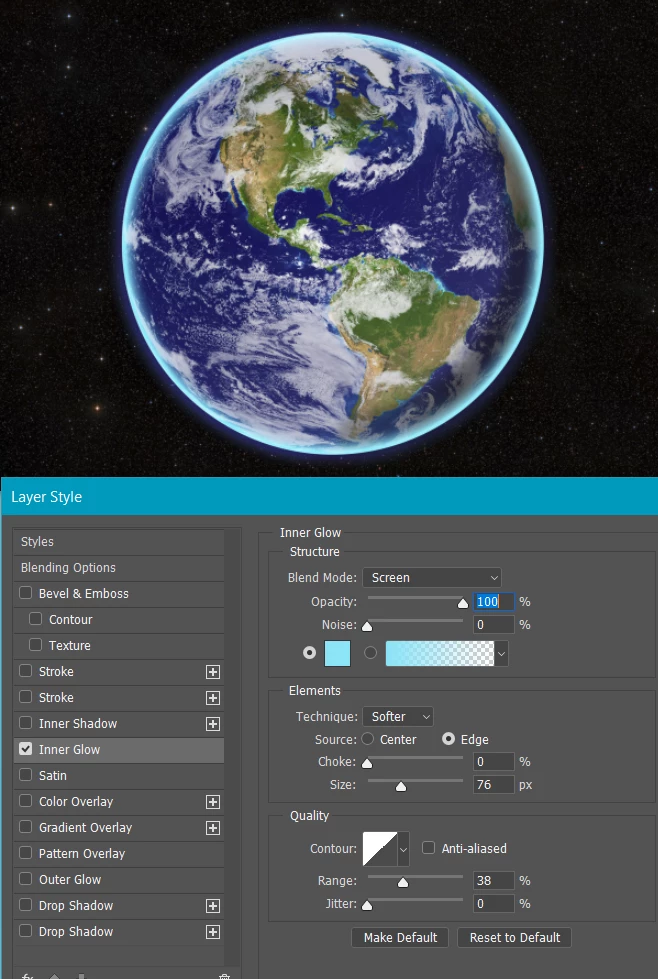
    Then use Layer Styles again starting with Inner Glow setting the colour to Cyan: (0,255,255)
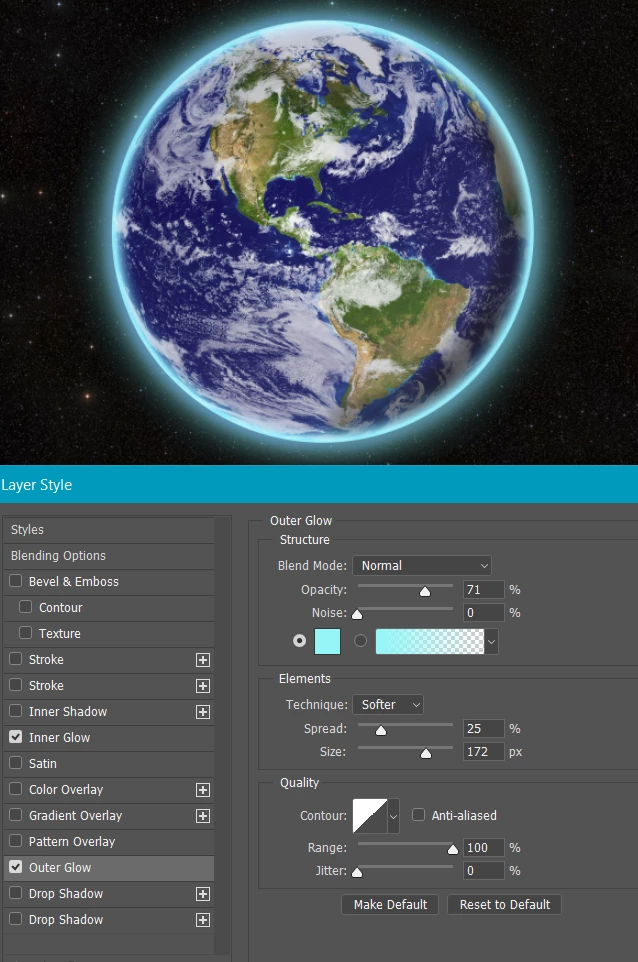
    And then add Outer Glow also with colour set to Cyan
    Sometimes we don't want to mess about with layer styles (Because we are lazy — Layer styles are non destructive and usually the best approach)  But we could just stroke and blur a selection.

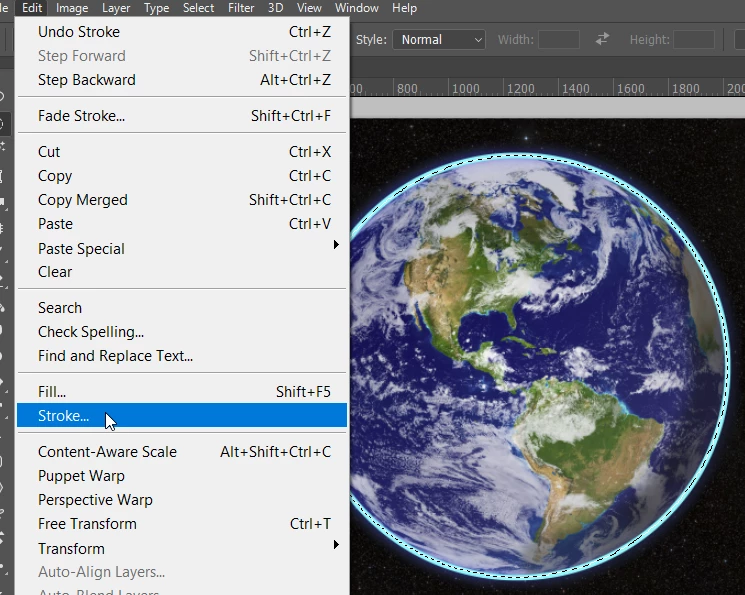
    Select the globe as before, and go Edit > Stroke on a new layer choosing Centre
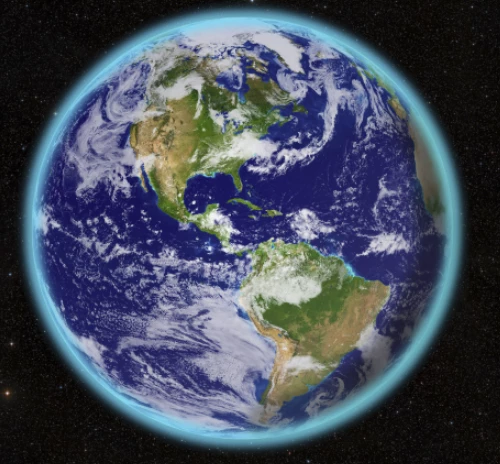
    Then turn off the selection (Ctrl D) and use some Gaussian blur.  I used a blur value of 20 here, but that left the glow a bit thin, so I just copied the layer.  The Layer Style methods work best though.
    2 replies

    smartiseAuthor
    Inspiring
    July 24, 2017

    that's exactly what i wanted thanks a lot

    davescm
    Community Expert
    July 22, 2017

    Hi

    I took this picture (free courtesy of NASA and NSSDC) and used the ellipse shape tool to draw a circle around it with no fill and 0px stroke around the earth. Hold down Shift and ALT for a perfect circle then release shift to get the slight oval required.

    I then right clicked on the ellipse layer in the layers panel and went to Blending Options.

    I added two layer effects

    a. A stroke set to a gradient as shown. You can click on the gradient to set the points :

    b. an outer glow as shown below :

    The result is below:

    I hope that gets you started

    Dave

    Trevor.Dennis
    Trevor.DennisCorrect answer
    Community Expert
    July 23, 2017

    Or you could use a combination of both Inner and Outer Glow.  As with Dave's method, you need the globe to be on its own layer like so

    Then use Layer Styles again starting with Inner Glow setting the colour to Cyan: (0,255,255)

    And then add Outer Glow also with colour set to Cyan

    Sometimes we don't want to mess about with layer styles (Because we are lazy — Layer styles are non destructive and usually the best approach)  But we could just stroke and blur a selection.

    Select the globe as before, and go Edit > Stroke on a new layer choosing Centre

    Then turn off the selection (Ctrl D) and use some Gaussian blur.  I used a blur value of 20 here, but that left the glow a bit thin, so I just copied the layer.  The Layer Style methods work best though.