

Participant
May 6, 2012
Answered

How to create parallel Diagonal lines easily in Photoshop?

  • May 6, 2012
  • 1 reply
  • 57867 views

Hi All,

I want to create some parallel but diagnol lines easily in photoshop or illustrator. A easy to follow tutorial will be fanastic. Please help me.

Thanks in advance.

    This topic has been closed for replies.
    Correct answer c.pfaffenbichler

    In Photoshop

    • create a Path in the direction you want with two clicks of the Pen Tool

    • command-alt-click and drag that Path to duplicate it as needed

    • use »Stroke Path with brush« (the second button from the left at the bottom of the Actions Panel) with the proper foreground color and Brush tip and settings selected

    Or in Illustrator

    • create a Path with the Pen Tool or the Line Segment Tool

    • Effect > Distort & Transform > Transform
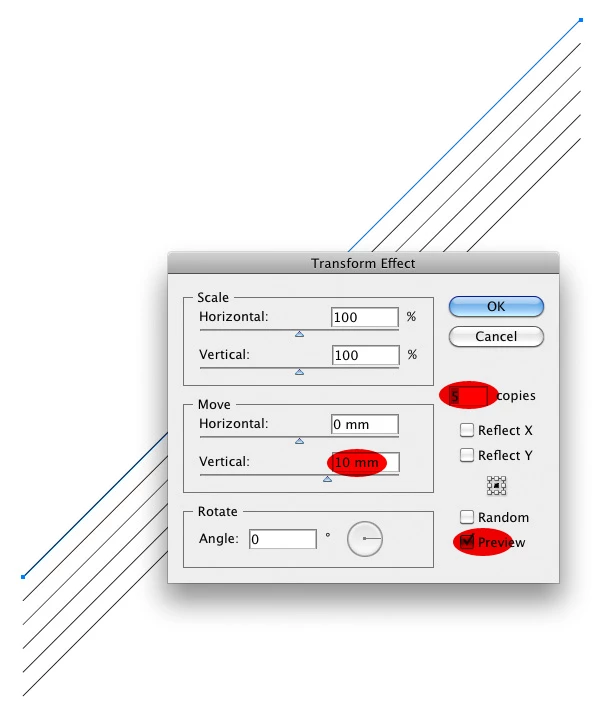
    1 reply

    c.pfaffenbichler
    Community Expert
    c.pfaffenbichlerCommunity ExpertCorrect answer
    Community Expert
    May 6, 2012

    In Photoshop

    • create a Path in the direction you want with two clicks of the Pen Tool

    • command-alt-click and drag that Path to duplicate it as needed

    • use »Stroke Path with brush« (the second button from the left at the bottom of the Actions Panel) with the proper foreground color and Brush tip and settings selected

    Or in Illustrator

    • create a Path with the Pen Tool or the Line Segment Tool

    • Effect > Distort & Transform > Transform

    Trevor.Dennis
    Community Expert
    Community Expert
    May 6, 2012

    I nearly always start an angled illustration element on the horizontal or vertical grid, and Free Transfor the angle after.

    If you need several lines then I would tend to use Free Transform step and repeat.

    • Show Grid and check that snap to grid is enabled.
    • Select Line tool and set thickness
    • Draw line in line with the grid
    • Free Transform, and move line to the required spacing using the grid as a guide.  Press Enter
    • Ctrl Alt Shift t  (or Cmd Opt Shift t) as many times as you need lines

    I would probably make them too long, and trim after any rotation or aother adjustments had been made.

    I don't have or use Illustrator.