
Known Participant
February 16, 2021
Question

How to crop a large batch content aware?

  • February 16, 2021
  • 4 replies
  • 3160 views

Hi, 

I am looking for a way where I can just crop content aware for a huge batch where each image is different, they are all scans with different post stamps on it, but I would like to only cut out the group of stamps out of it. So I don't want to cut the stamps out seperately per image, but keep the group together with less blank space around the stamps. For example:
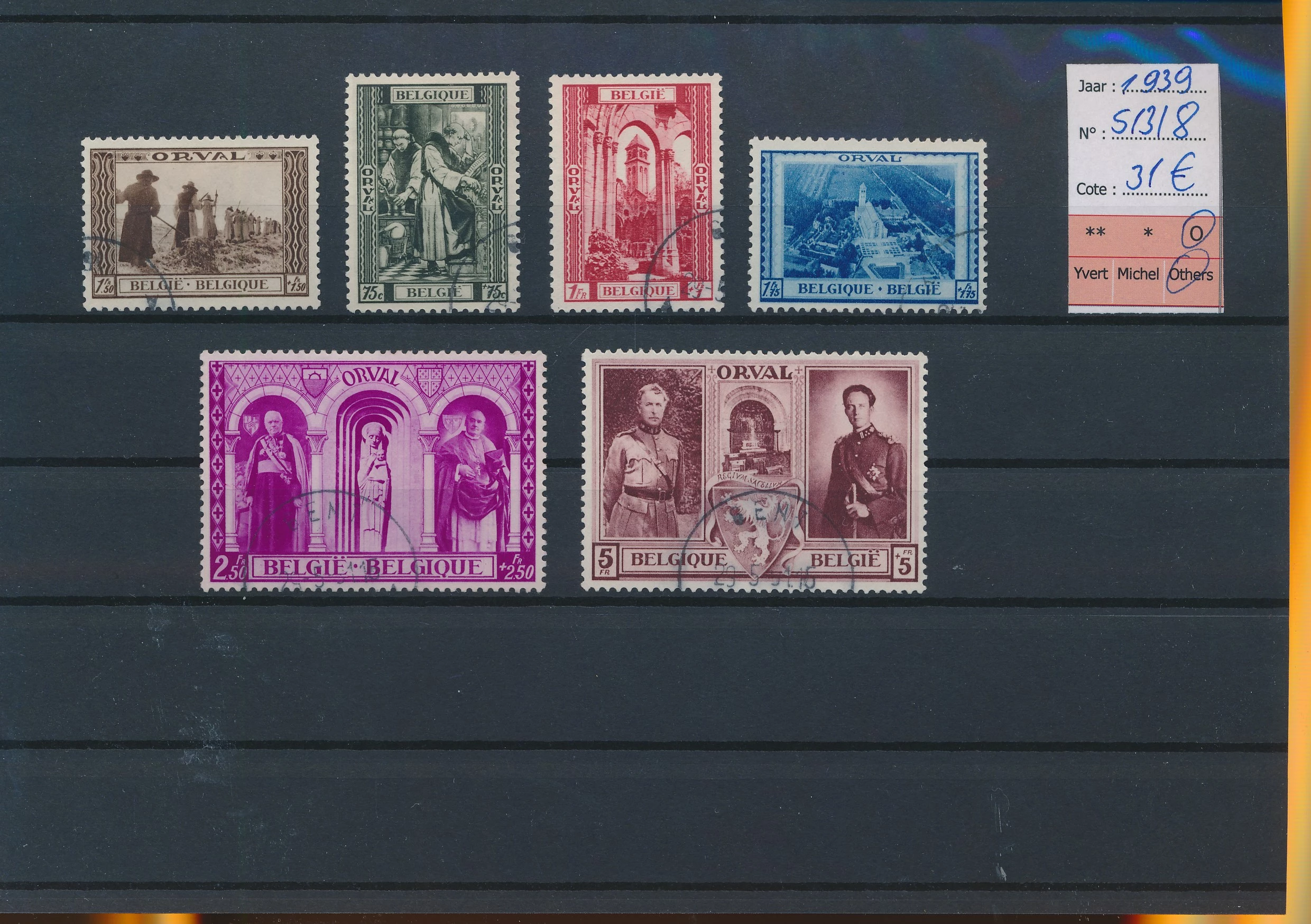
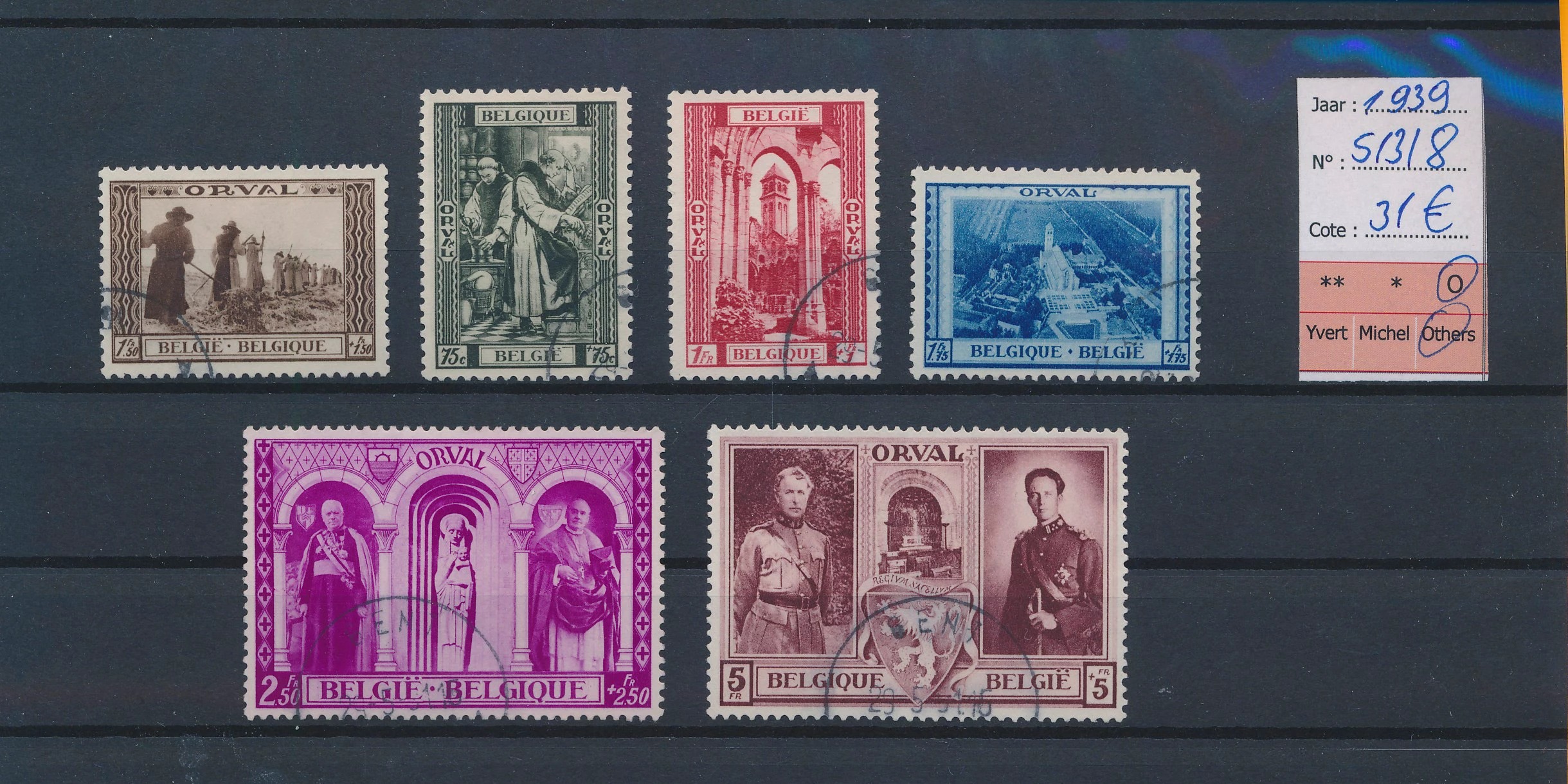
 

Thank you 

Eric

This topic has been closed for replies.

4 replies

c.pfaffenbichler
Community Expert
February 17, 2021

Could you please post a screenshot with the Actions Panel visible. 

Is there some problem when you try to run the Action via Batch or Image Processor? 

c.pfaffenbichler
Community Expert
February 17, 2021

»Now the thing is that my photoshop opens every action with raw and it doesnt save auto.«

What is that supposed to describe? Please post screenshots to clarify. 

JJMack
Community Expert
February 16, 2021

This Action works on the Image you posted. It could be batched if all scans are like the one you posted.

JJMack
c.pfaffenbichler
Community Expert
February 16, 2021

Good one! 

c.pfaffenbichler
Community Expert
February 16, 2021

I suppose if the images are reasonably similar an Action (or Script) could be created to roughly isolate the pertinent area. 

Is the background always that darkish paper/carton? 

Known Participant
February 16, 2021

Yes, possibly, but the content which is placed on the black paper is always different. Is there a possibility to do it content aware through action or script? 

c.pfaffenbichler
Community Expert
February 16, 2021

I see no option to employ Photoshop’s content-aware features for this (and Select > Subject does not seem to do well with this, either). 

But like I said an Action might be able to prodice fairly meaningful results, for example 

• Duplicate Layer

• Dust & Scratches 

• Curves 

• Color Range (Midtones)

• QuickMask Mode 

• Select All

• Contract Selection (to disregard the other background) 

• Invert 

• fill with black 

• exit Quick Mask Mode 

• Expand Selection 

• Crop 

• remove the filtered layer