Stig_03
Participant
April 21, 2017
Answered

Image Cropping to 3 Separate Photos for Print, in Photoshop

  • April 21, 2017
  • 2 replies
  • 18444 views

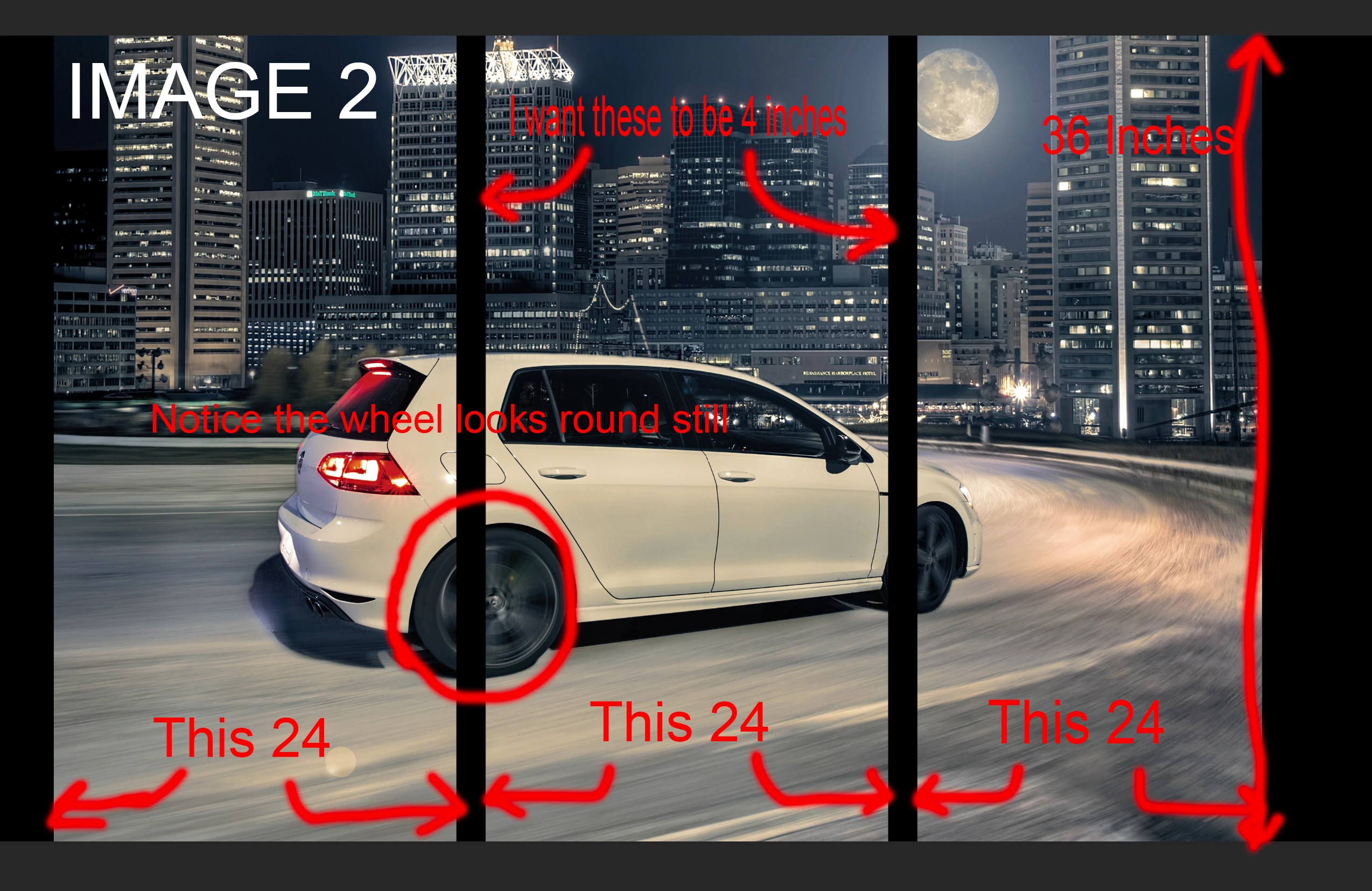
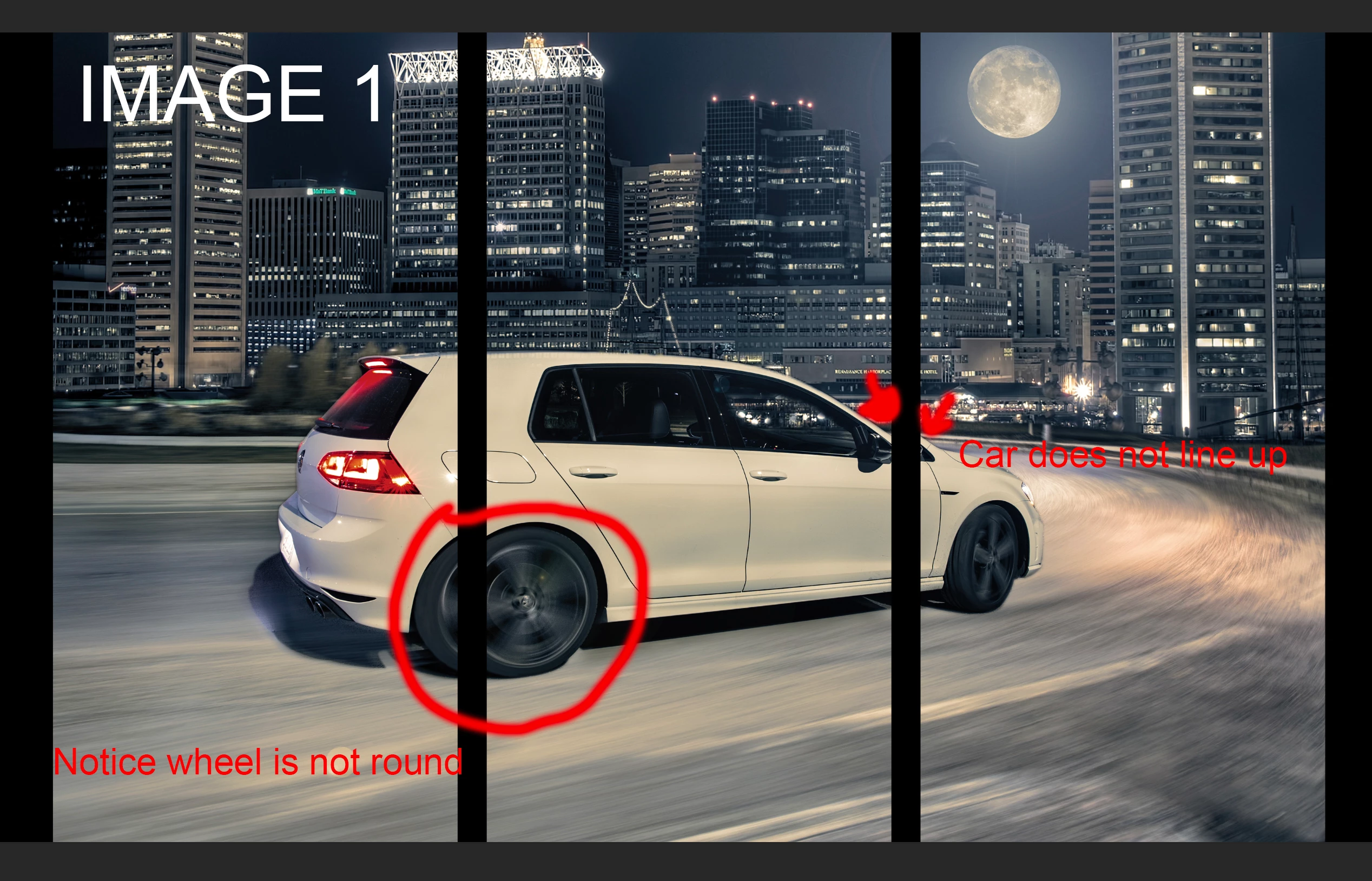
Bare with me here as it's a bit of a tough question to ask. I'm looking to split one photo into 3 separate photos to hang on a wall. I used the slice tool and split the image vertically into 3. Great! However.... When I go to hang these on the wall, it won't work. (See image 1).   Image 2 I managed to get the idea right however they are not equally spaced and the images are not the same size.

Here's what I want:

-One photo, printed 76 inches long (6 feet), and 36 inches high (3 feet).

-This photo to be split into 3 sections/prints, 24x36 inches each.

-Hung on a wall with a 4 inch gap between each of the pieces.

I have a local printing place, and I would love it if I could split the image myself and then send in 3 photos to get printed, then just pick them up and hang them up on the wall, with the desired measured distance between them. I thought about printing them on one huge photo and then just cutting it up, but then it makes my final photos smaller than 24x36. Also if I want a bigger one they might not be able to print that big of a photo in a single shot. Hopefully this all makes sense, and hopefully someone can help!

Thanks in advance!
Correct answer barbara_a7746676

I'm no math wizard, so maybe someone else can chime in with a better method, but this is how I would go about it.

  1. Make sure that your image and canvas size is 80 inches wide (72 + 4 + 4) by 36 inches high.
  2. In the View menu, make sure that Snap to > Guides and to document bounds is turned on.
  3. Select the rectangular marquee tool and in the control panel, set it to a fixed size of 24 inches wide.
  4. Click on the image and line up the left edge of the marquee with the left edge of the image.
  5. Put your cursor in the vertical ruler (View > Show Ruler if it is not showing), and drag a ruler guide to the right edge of the marquee.
  6. Click on the image again and line up the right edge of the marquee with the right edge of the canvas.
  7. Drag a vertical ruler guide to the left edge of the marquee.
  8. Change the width of the marquee to 28 inches.
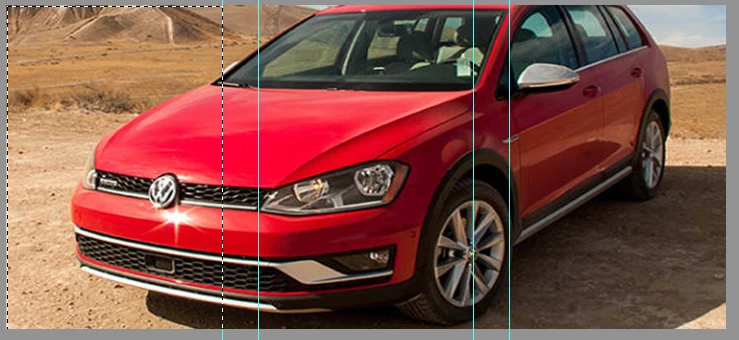
  9. Repeat the process, lining up the marquee and dragging vertical guides. Should look something like this:
  10. Image > Duplicate.
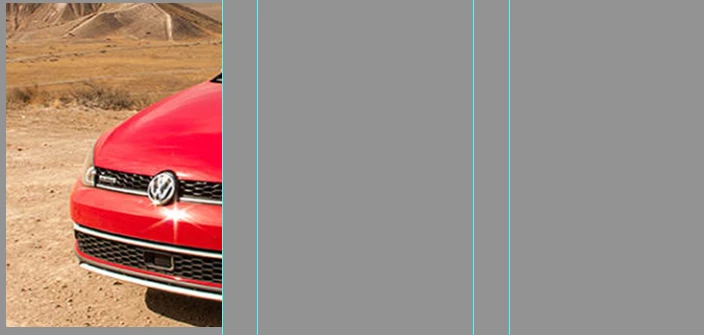
  11. In the duplicate image use the Crop tool to crop the first panel. Save the file as panel 1.
  12. Undo the crop and crop the center panel. Save as panel 2. Repeat the undo, crop and save for the third panel.

2 replies

D Fosse
Community Expert
Community Expert
April 21, 2017

Setting the guides for this is very simple using View > New Guide Layout. For the rest, as above.

Stig_03
Stig_03Author
Participant
April 23, 2017

Extremely helpful thank you so much!

barbara_a7746676
Community Expert
barbara_a7746676Community ExpertCorrect answer
Community Expert
April 21, 2017

I'm no math wizard, so maybe someone else can chime in with a better method, but this is how I would go about it.

  1. Make sure that your image and canvas size is 80 inches wide (72 + 4 + 4) by 36 inches high.
  2. In the View menu, make sure that Snap to > Guides and to document bounds is turned on.
  3. Select the rectangular marquee tool and in the control panel, set it to a fixed size of 24 inches wide.
  4. Click on the image and line up the left edge of the marquee with the left edge of the image.
  5. Put your cursor in the vertical ruler (View > Show Ruler if it is not showing), and drag a ruler guide to the right edge of the marquee.
  6. Click on the image again and line up the right edge of the marquee with the right edge of the canvas.
  7. Drag a vertical ruler guide to the left edge of the marquee.
  8. Change the width of the marquee to 28 inches.
  9. Repeat the process, lining up the marquee and dragging vertical guides. Should look something like this:
  10. Image > Duplicate.
  11. In the duplicate image use the Crop tool to crop the first panel. Save the file as panel 1.
  12. Undo the crop and crop the center panel. Save as panel 2. Repeat the undo, crop and save for the third panel.
Stig_03
Stig_03Author
Participant
April 23, 2017

Thank you so much for the help!

barbara_a7746676
Community Expert
Community Expert
April 23, 2017

You're most welcome.