


Mike_Gondek10189183
Community Expert
Community Expert
July 25, 2019
Answered

Merge curves with layer, values do not hold

  • July 25, 2019
  • 1 reply
  • 1844 views

https://drive.google.com/open?id=17dXr0Cx2Ee5WW8NhbDDPFrkDkWAp_4gL https://drive.google.com/open?id=1-UUeVPFILQS2VvWJY9pEIs6fAqRjM12A

Select these 2 layers and command E to merge selected
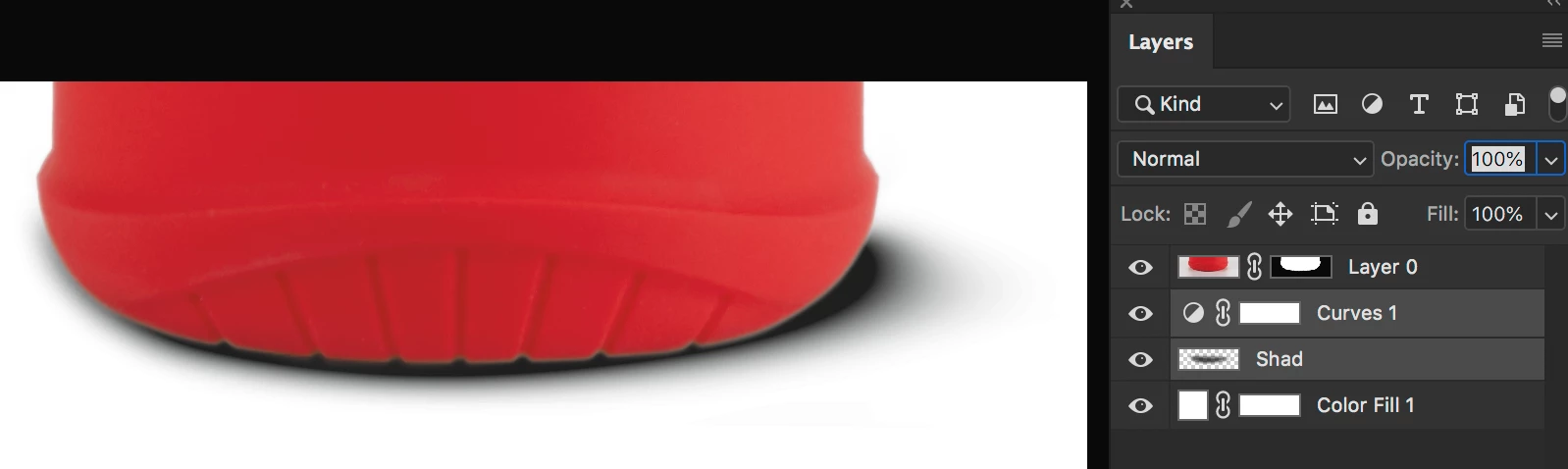
Why does the result look like the curves layer had no effect.
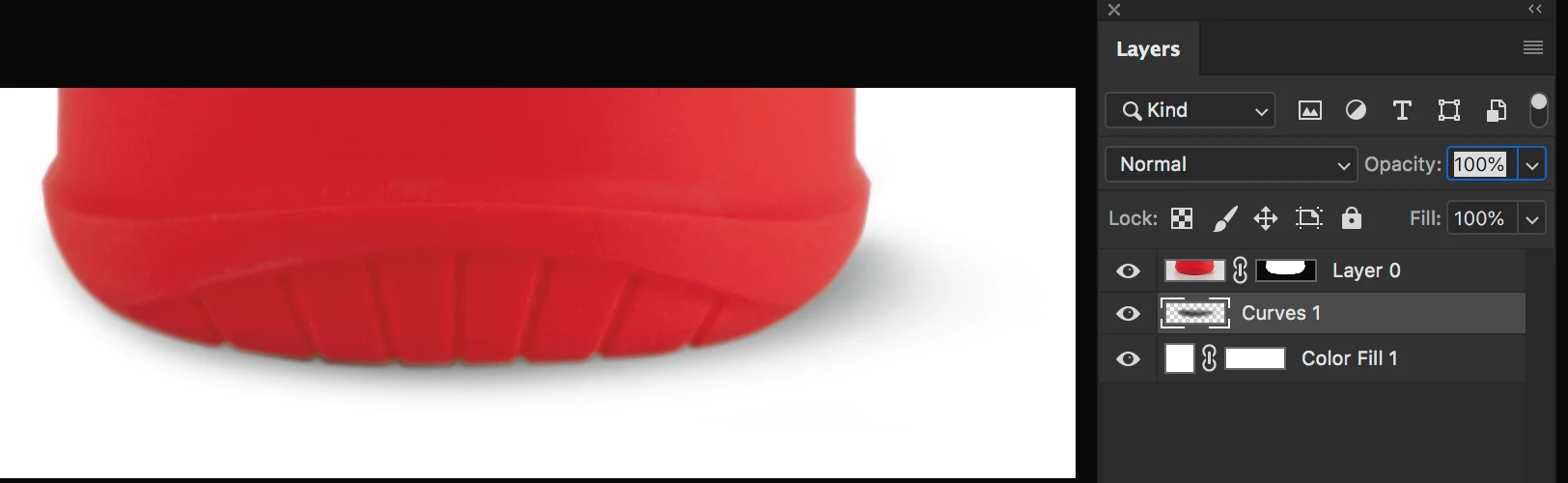
I turn off the layer with red bottle, use the Info palette and am expecting 100K  using a point sample in center, but instead get 95% which is close to original value.
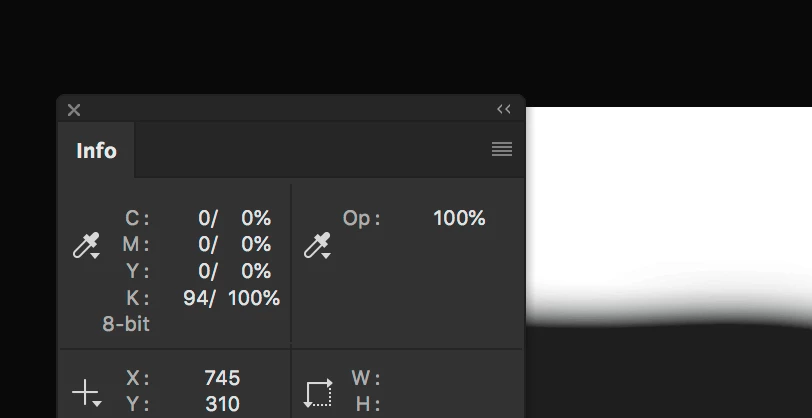
We have to merge layers before we send final files to printer, so need to find out why this is happening.

Also try toggling the color fill white layer, and the preview seems so off.
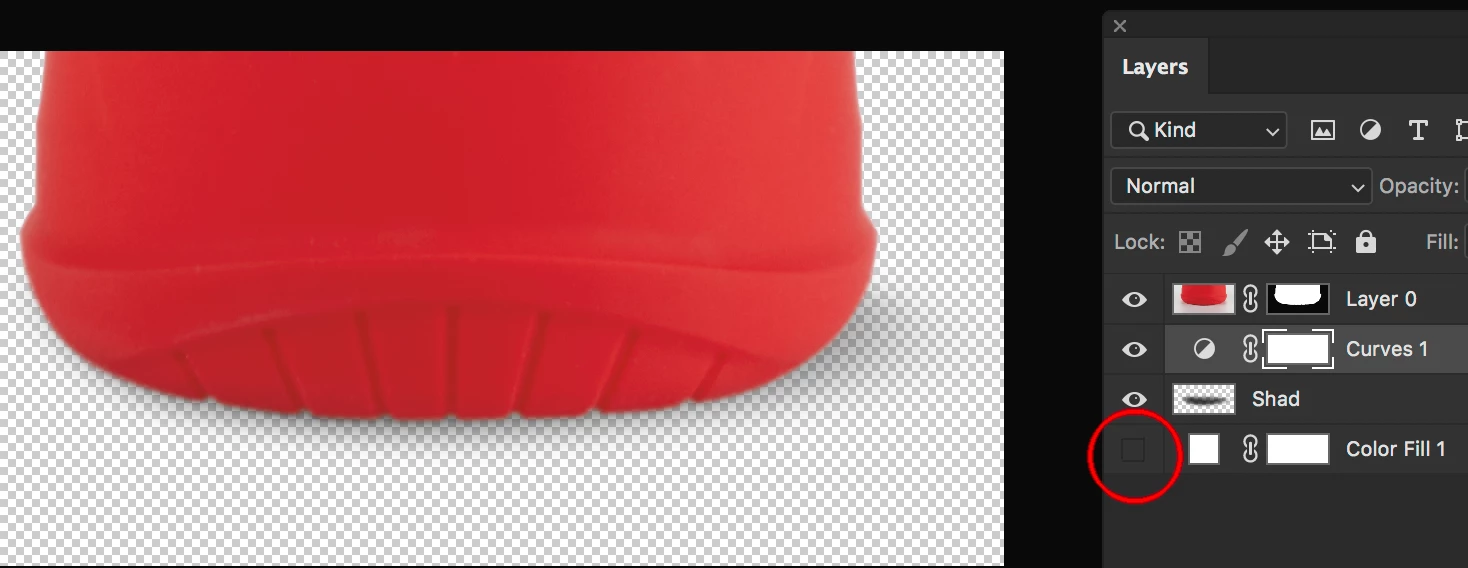
Feel free to try on whatever file you may have up also.

    This topic has been closed for replies.
    Correct answer davescm

    Hi Mike

    Your curves layer acts on the result (i.e. the greys )  of the semi transparent shadow layer and the white layer below it.


    Merging just the curve and shadow layer acts as if the curve layer was clipped to the shadow layer (and does not act on the white layer below). All the non transparent values on that layer are already K 100% so can't get any darker.

    Dave

    1 reply

    davescm
    Community Manager
    davescmCommunity ManagerCorrect answer
    Community Manager
    July 25, 2019

    Hi Mike

    Your curves layer acts on the result (i.e. the greys )  of the semi transparent shadow layer and the white layer below it.


    Merging just the curve and shadow layer acts as if the curve layer was clipped to the shadow layer (and does not act on the white layer below). All the non transparent values on that layer are already K 100% so can't get any darker.

    Dave

    Mike_Gondek10189183
    Community Expert
    Community Expert
    July 26, 2019

    Thankyou I see what is happening now. The problems starts with using a white layer and having a shadow made with 100k & transparency. In the future will use alternate methods to color correct or atleast clip the curves to the shadow layer.

    What would help is if there was a hot key to turn off transparency. I tried making an action with buttons that toggles this setting between none and medium, but ran into technical issues, where the setting changed, but the screen preview did not since this went through an action.

    By throwing in these extra commands forces this preview to transparency setting to update.

    So now these action buttons work and hope they will continue so

    The final thing taht concerns me is that there is not warning me taht your transparency setting is set to medium or none. I could be working and deceived into thinking my brush is wrong color and my mask is nto working or similar.

    Adobe you make us work so so hard to do basic core retoucher functions that Scitex & Crossfield used to do.