Participating Frequently
November 16, 2018
Answered

OpenGl Disabled

  • November 16, 2018
  • 3 replies
  • 11048 views

Photoshop believes OpenGL is disabled on my Windows PC.
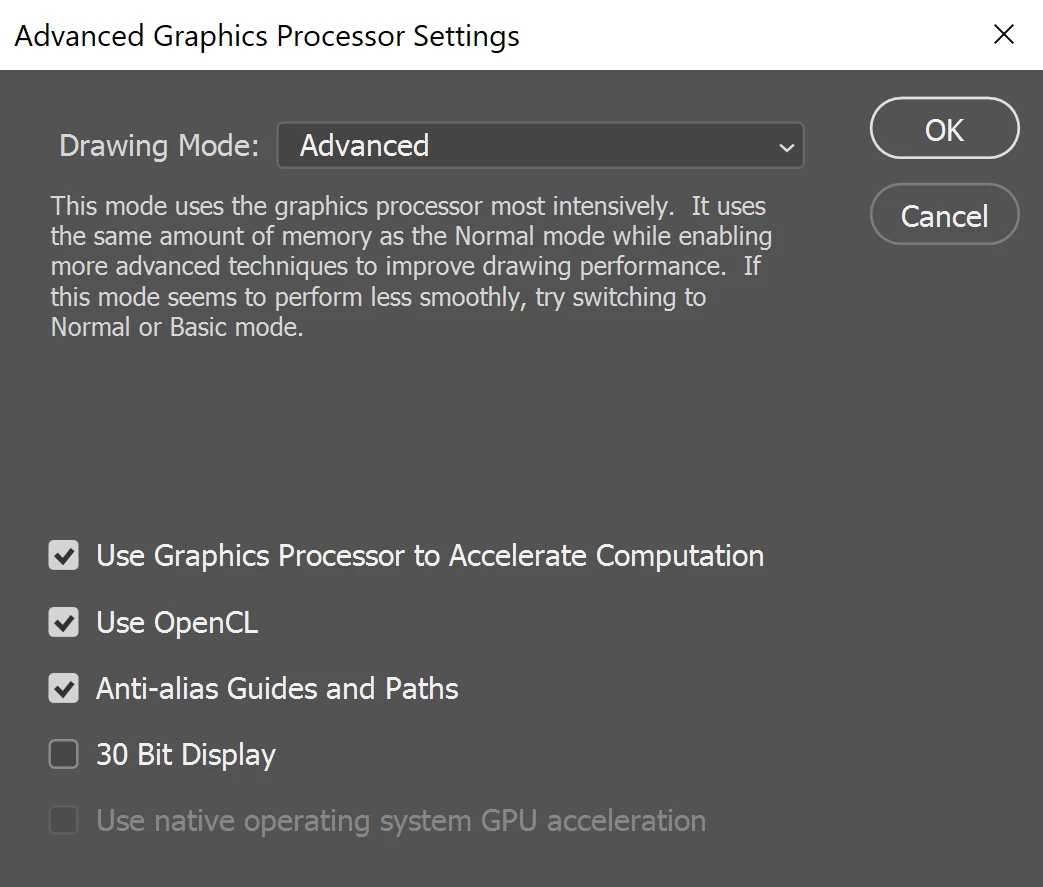
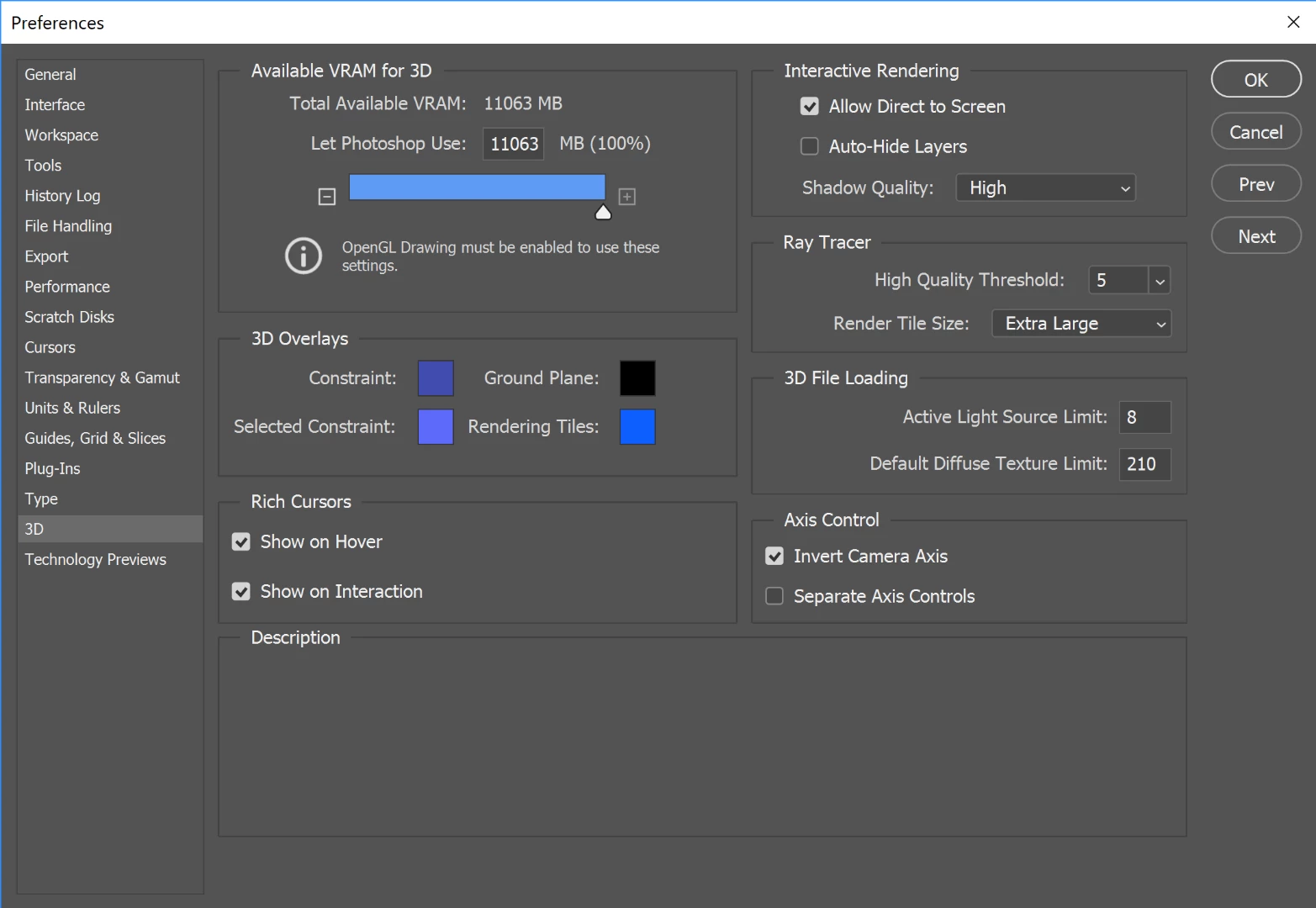
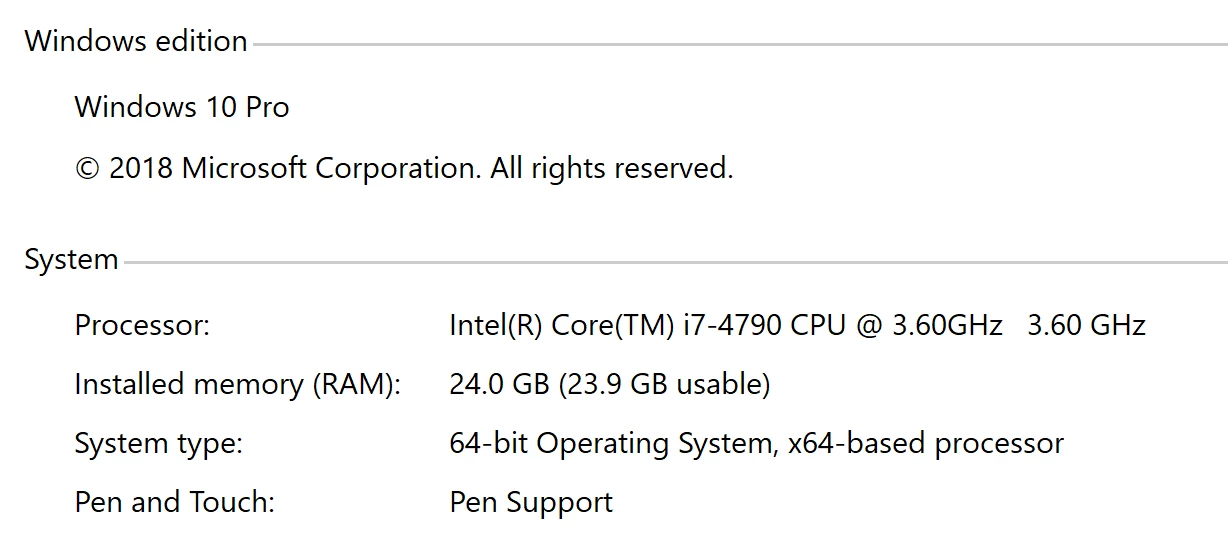
I have Win 10 (1803) with a Nvdia GTX 1080 ti. Here are the settings in the app currently:
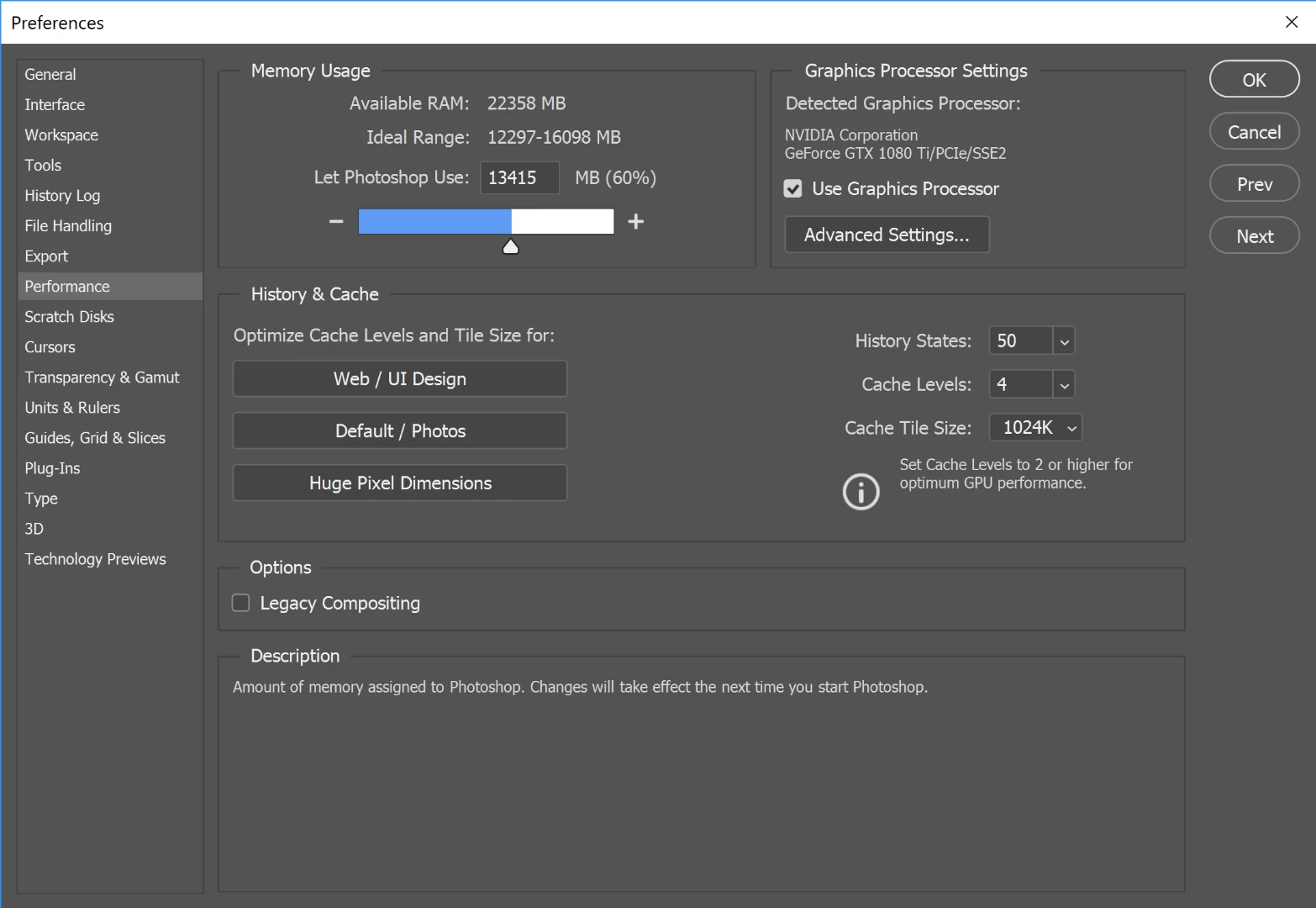
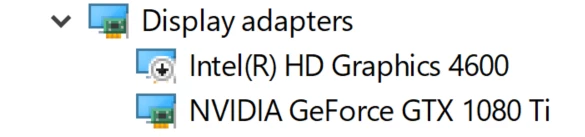
I updated Photoshop 2019 and the Nvidia drivers, just in case. I also disabled the onboard video, just in case:
Some basic specs for anyone curious
I ran the OpenGL test app and everything passed.

After updating everything and disabling the Intel video card I also rebooted the computer. Nothing changed.

Any ideas?

This topic has been closed for replies.
Correct answer

No change at 50 (or 75 or 25)


Just updated my post

Have you tried deleting the Adobe Photoshop CC 2019 Prefs file from this location

C:\Users\YourName\AppData\Roaming\Adobe\Adobe Photoshop CC 2019\Adobe Photoshop CC 2019 Settings

3 replies

KyleOlsonAuthor
Participating Frequently
November 16, 2018

Here's the sniffer output:

Tester="Photoshop"

snifferStart="2018-11-16_09:34:03"

AIFCoreInitialized=1

AIFOGLInitialized=1

OGLContextCreated=1

NumGLGPUs=1

glgpu[0].GLVersion="4.1"

glgpu[0].IsIntegratedGLGPU=0

glgpu[0].GLMemoryMB=11264

glgpu[0].GLName="NVIDIA GeForce GTX 1080 Ti"

glgpu[0].GLVendor="NVIDIA Corporation"

glgpu[0].GLVendorID=4318

glgpu[0].GLDriverVersion="25.21.14.1694"

glgpu[0].GLRectTextureSize=32768

glgpu[0].GLRenderer="GeForce GTX 1080 Ti/PCIe/SSE2"

glgpu[0].GLRendererID=6918

glgpu[0].HasGLNPOTSupport=1

glgpu[0].GLDriver="C:\Windows\System32\DriverStore\FileRepository\nv_dispi.inf_amd64_6992f55a2cc4b209\nvldumdx.dll,C:\Windows\System32\DriverStore\FileRepository\nv_dispi.inf_amd64_6992f55a2cc4b209\nvldumdx.dll,C:\Windows\System32\DriverStore\FileRepository\nv_dispi.inf_amd64_6992f55a2cc4b209\nvldumdx.dll,C:\Windows\System32\DriverStore\FileRepository\nv_dispi.inf_amd64_6992f55a2cc4b209\nvldumdx.dll"

glgpu[0].GLDriverDate="20181112000000.000000-000"

glgpu[0].CanCompileProgramGLSL=1

glgpu[0].GLFrameBufferOK=1

gputag.GL_SHADING_LANGUAGE_VERSION=35724

glgpu[0].glGetString[GL_SHADING_LANGUAGE_VERSION]="4.60 NVIDIA"

gputag.GL_FRAGMENT_PROGRAM_ARB=34820

gputag.GL_MAX_PROGRAM_INSTRUCTIONS_ARB=34977

glgpu[0].glGetProgramivARB[GL_FRAGMENT_PROGRAM_ARB][GL_MAX_PROGRAM_INSTRUCTIONS_ARB]=[65536]

gputag.GL_MAX_TEXTURE_UNITS=34018

glgpu[0].glGetIntegerv[GL_MAX_TEXTURE_UNITS]=[4]

gputag.GL_MAX_COMBINED_TEXTURE_IMAGE_UNITS=35661

glgpu[0].glGetIntegerv[GL_MAX_COMBINED_TEXTURE_IMAGE_UNITS]=[192]

gputag.GL_MAX_VERTEX_TEXTURE_IMAGE_UNITS=35660

glgpu[0].glGetIntegerv[GL_MAX_VERTEX_TEXTURE_IMAGE_UNITS]=[32]

gputag.GL_MAX_TEXTURE_IMAGE_UNITS=34930

glgpu[0].glGetIntegerv[GL_MAX_TEXTURE_IMAGE_UNITS]=[32]

gputag.GL_MAX_DRAW_BUFFERS=34852

glgpu[0].glGetIntegerv[GL_MAX_DRAW_BUFFERS]=[8]

gputag.GL_MAX_VERTEX_UNIFORM_COMPONENTS=35658

glgpu[0].glGetIntegerv[GL_MAX_VERTEX_UNIFORM_COMPONENTS]=[4096]

gputag.GL_MAX_FRAGMENT_UNIFORM_COMPONENTS=35657

glgpu[0].glGetIntegerv[GL_MAX_FRAGMENT_UNIFORM_COMPONENTS]=[4096]

gputag.GL_MAX_VARYING_FLOATS=35659

glgpu[0].glGetIntegerv[GL_MAX_VARYING_FLOATS]=[124]

gputag.GL_MAX_VERTEX_ATTRIBS=34921

glgpu[0].glGetIntegerv[GL_MAX_VERTEX_ATTRIBS]=[16]

gputag.AIF::OGL::GL_ARB_VERTEX_PROGRAM=69

glgpu[0].extension[AIF::OGL::GL_ARB_VERTEX_PROGRAM]=1

gputag.AIF::OGL::GL_ARB_FRAGMENT_PROGRAM=27

glgpu[0].extension[AIF::OGL::GL_ARB_FRAGMENT_PROGRAM]=1

gputag.AIF::OGL::GL_ARB_VERTEX_SHADER=70

glgpu[0].extension[AIF::OGL::GL_ARB_VERTEX_SHADER]=1

gputag.AIF::OGL::GL_ARB_FRAGMENT_SHADER=28

glgpu[0].extension[AIF::OGL::GL_ARB_FRAGMENT_SHADER]=1

gputag.AIF::OGL::GL_EXT_FRAMEBUFFER_OBJECT=81

glgpu[0].extension[AIF::OGL::GL_EXT_FRAMEBUFFER_OBJECT]=1

gputag.AIF::OGL::GL_ARB_TEXTURE_RECTANGLE=58

glgpu[0].extension[AIF::OGL::GL_ARB_TEXTURE_RECTANGLE]=1

gputag.AIF::OGL::GL_ARB_TEXTURE_FLOAT=53

glgpu[0].extension[AIF::OGL::GL_ARB_TEXTURE_FLOAT]=1

gputag.AIF::OGL::GL_ARB_OCCLUSION_QUERY=37

glgpu[0].extension[AIF::OGL::GL_ARB_OCCLUSION_QUERY]=1

gputag.AIF::OGL::GL_ARB_VERTEX_BUFFER_OBJECT=68

glgpu[0].extension[AIF::OGL::GL_ARB_VERTEX_BUFFER_OBJECT]=1

gputag.AIF::OGL::GL_ARB_SHADER_TEXTURE_LOD=47

glgpu[0].extension[AIF::OGL::GL_ARB_SHADER_TEXTURE_LOD]=1

NumCLGPUs=1

clgpu[0].CLPlatformVersion="1.2"

clgpu[0].CLDeviceVersion="1.2 CUDA"

clgpu[0].IsIntegratedCLGPU=0

clgpu[0].CLMemoryMB=11264

clgpu[0].CLName="GeForce GTX 1080 Ti"

clgpu[0].CLVendor="NVIDIA Corporation"

clgpu[0].CLVendorID=4318

clgpu[0].CLDriverVersion="416.94"

clgpu[0].CUDASupported=1

clgpu[0].CUDAVersion="10.0.132"

clgpu[0].CLBandwidth=3.40149e+11

clgpu[0].CLCompute=4482.78

NumNativeGPUs=0

snifferEnd="2018-11-16_09:34:04"

November 16, 2018

Have you tried deleting the Adobe Photoshop CC 2019 Prefs file from this location

C:\Users\YourName\AppData\Roaming\Adobe\Adobe Photoshop CC 2019\Adobe Photoshop CC 2019 Settings

If that doesn't help try decreasing the amount of available VRAM for 3D to something like 50% and restart PS

KyleOlsonAuthor
Participating Frequently
November 16, 2018

No change at 50 (or 75 or 25)

D Fosse
Adobe Expert
November 16, 2018

Dual graphics.

This is known to cause problems and Adobe specifically and officially warns against it. Disable the Intel adapter.

KyleOlsonAuthor
Participating Frequently
November 16, 2018

If you read the discussion (or look closely at the screen), you'll see I already disabled the onboard video, and then rebooted for good measure in case that wasn't enough.

D Fosse
Adobe Expert
November 16, 2018

oops, sorry...some questions come up again and again, so it tends to go on autopilot...

Mike_Gondek10189183
Adobe Expert
November 16, 2018

When exactly do you get this popup window, and how often?

How many monitors do you have connected?

How does your display control panel look?

Is your menu heading for 3D showing up properly in between filter and View?

If all is working well, would not worry too much.

KyleOlsonAuthor
Participating Frequently
November 16, 2018

(editing out the correct answer part, didn't understand how this forum worked, odd UI)

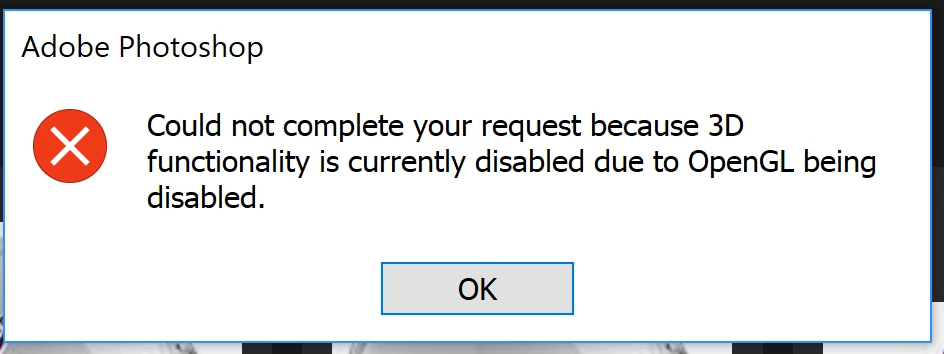
I have one monitor attached, and none of the 3D functions work. I get this message when I try to import an STL.

All is not well.

Mike_Gondek10189183
Adobe Expert
November 16, 2018

If you can see the heading for 3D, but most menus underneath are greyed out, that is normal. Once you for example  on a floating layer   "New 3D extrusion from layer" then you will see more menus available.

If the heading 3D is missing entirely then you have a problem..