New Participant
December 18, 2016
Answered

Scaling proportionally with shift doesn't work in CC

  • December 18, 2016
  • 20 replies
  • 40291 views

Normally holding the shift key down to resize an image or object constrains its proportions. But in my recently installed Photoshop CC on my brand new iMac , the shift key doesn't work to resize proportionally.  Is there a way to fix this problem or is there a new tool that replaces the shift key shortcut?

Please help me, I already tried resetting preferences and restarting.. Nothing works. It's a new iMac and Photoshop is also just installed.

I always work with photoshop, so I know how to use the shortcuts, never had problems with it, this never happened before.
This topic has been closed for replies.
Correct answer Trevor.Dennis

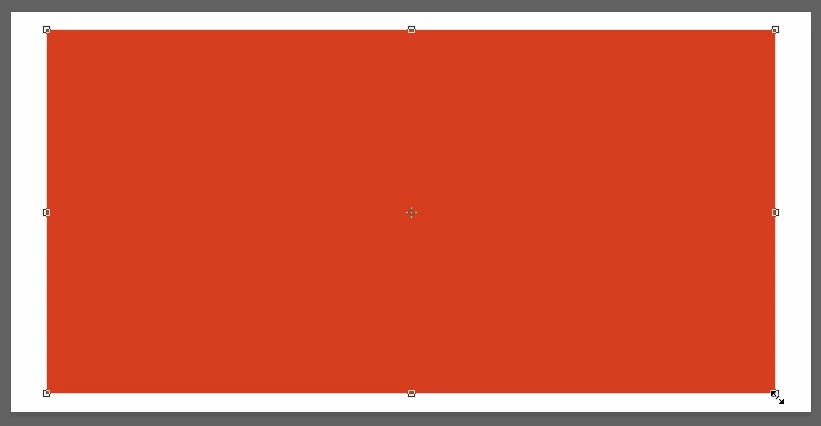
What is the aspect ratio of the object you are Transforming?  Holding down the Shift key forces height and width to change as a percentage of the initial value, so with a stretched out object like below, you do not get an equal linear reduction.

There any number of ways to get an equal gap top and sides.

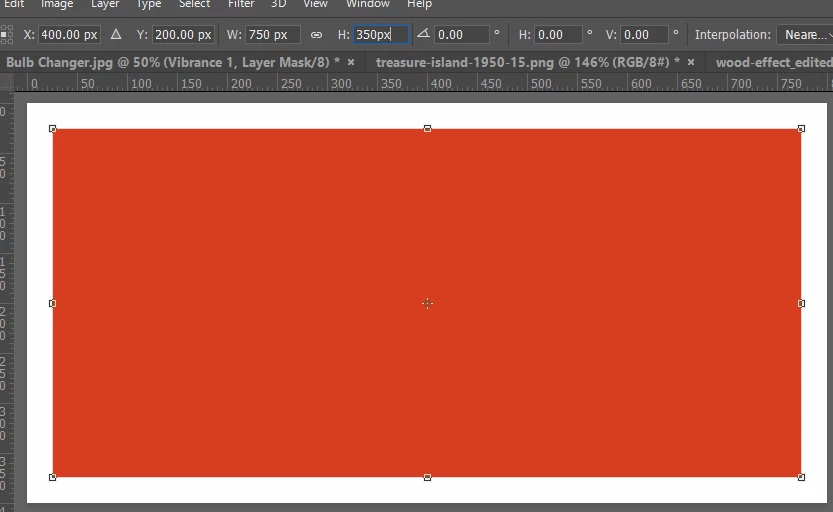
Enter values in the Options bar adding the Px to change from percentage to pixels:

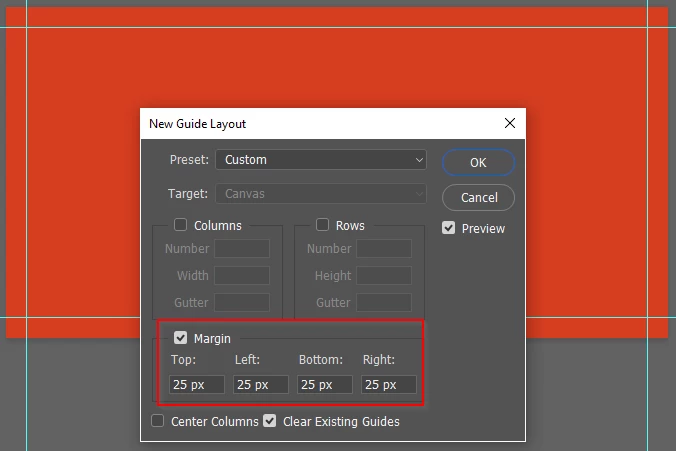
But I think my preferred method would to use View > New Guide Layout and with the upper fields empty, add margins as below.  This only works when the object fills the layer.

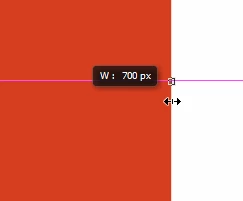
If the object does not fill the layer, zoom way way in, and use the heads up as below.  You will need to know the starting value, and you will need a steady hand and a half decent mouse, but if you are zoomed way in it is not hard to do.  Don't use the shift key, of course, but hold down the Alt key to force equal changes to the opposite edge.  It is actually pretty easy to do.

20 replies

jane-e
Community Expert
November 7, 2018

This thread was started in 2016 when there was a different answer. Please post in a new thread.

heinrichc40104961
New Participant
November 7, 2018

Hope this helps:

- CTRL + T the shape or object that needs scaling.

- drag the corners without using shift key: the object scales proportionally.

-make sure free transform is ticked.

Apparently in the latest PS cc update, holding shift and scaling leads to non proportional scaling while transforming directly with the corners(without holding shift) scales the object proportionally.

Hope this helps.

New Participant
November 1, 2018

They have changed it to the function Key which now works the same as shift when scaling in proportion. I am on windows 10 so not sure about the Mac. Would be nice if adobe stopped changing things for no apparent reason.

richardj64429267
New Participant
October 30, 2018

I noticed the same when updating photoshop and then i realized something so simple... Don't hold shift and drag from the corner. It will automatically scale proportionately.

deannap76191446
New Participant
October 30, 2018

Don't hold shift anymore!!! yay, thanks Richard! So simple and yet so confusing to figure out after all these years of holding the shift key!

Participating Frequently
October 29, 2018

It's a new intentional bug. Just because it's an intentional design choice by the developer doesn't mean it's not a bug for the user.

ronmanke
Known Participant
October 29, 2018

If Adobe decides to go along with standards that are used by EVERY other software developer, that is a good thing.

An "alt" shortcut is supposed to be used for something you do less often than not - not something you use every time you do something!

I realize it can take a bit of adjustment for those of us that are used to the "wrong way" to do things, isn't a good reason to keep doing it differently than anyone else.

I for one am ecstatic that they decided to go to industry standards.  Now, I can forget one more shortcut that I had to constantly use every single time I scaled an image!

Participating Frequently
October 29, 2018

I'm fine with the adjustment and we'll adapt quickly, but it's not based on any industry standard. Not sure what industry you are talking about. If it's graphics production then Adobe is the standard (I haven't used Quark Xpress since the late 90s so can't speak to that). Now they have changed their own standard so that it's not a standard at all. For some applications it's one way, for others it is the opposite. As for other industries such as 3D modeling (simpler CAD software packages, 3D graphics and animation, etc.) holding shift to constrain proportions is pretty universal. Microsoft is pretty standardized with shift to constrain (Word, Excel, Powerpoint, etc) altho they have also added a checkbox to either constrain or not. But pressing Shift constrains proportions whether this is checked or not. Productivity software on the Mac (Pages for example) also uses Shift to constrain. The graphing apps I've used (think LucidChart or OmniGraffle) use shift to constrain.

New Participant
October 29, 2018

I cannot scale proportionally my Lens Correction screen thus am unable to utilize the lower part of the screen below ANGLE -- unable to utilize SCALE option

New Participant
October 29, 2018

In the new photoshop cc 2018 update, we don’t need to hold shift to resize proportionaly, we just need to drag the corner.

Adobe have inverted the shift control, so if you wanna rezise not proportionally, you HAVE to hold shift.

Another problem that I had to solve, is the point of rotation, that have disappeard in my objects, so I had to find where to check and make this rotation point visible again.

Participating Frequently
October 29, 2018

I think Adobe will go back to the way it used to be unless they make this change across the board-- Indesign, Illustrator etc. Everywhere else even in Microsoft Apps behaves the opposite even Adobe's own apps. There is no consistency and feel more like a bad bug than a feature. I don't think we should put up with this.

The method below that's been posted, works very well on Windows 10. Please do this and save yourself the headaches!

How do I turn off the new proportional scaling by default behavior while transforming layers?

To revert to the legacy transform behavior, do the following:

  1. Use Notepad (Windows) or a text editor on Mac OS to create a plain text file (.txt).
  2. Type the text below in the text file:

    TransformProportionalScale 0

  3. Save the file as "PSUserConfig.txt" to your Photoshop settings folder:
    • Windows: [Installation Drive]:\Users\[User Name]\AppData\Roaming\Adobe\Adobe Photoshop CC 2019\Adobe Photoshop CC 2019 Settings\
    • macOS: //Users/[User Name]/Library/Preferences/Adobe Photoshop CC 2019 Settings/
New Participant
October 24, 2018

I have this exact same problem with Photoshop CC installed today. Proportional scaling works without pressing the shift key - so now it's back to front. Very irritating.

John Waller
Community Expert
October 24, 2018

It's back to front if you decide to live with the new behaviour.

Adobe has provided a workaround to revert to the old behaviour. I use it and it works fine.

Neon Tundra
Participating Frequently
October 23, 2018

Hey! I tried this and it worked for me: I scaled down and object without holding the shift key and guess what: it did it proportionally. I don't know if this is part of an update or something, but I think Photoshop guesses that one would, almost always, want to scale things maintaining its proportion, and it might want to ease the process. Not very intuitive in my opinion but I'm glad I solved it. Hope it works for the rest of you as well!

Luigi

TDRonline
Known Participant
October 23, 2018

I dislike it with a passion, went back a version.

Also running into odd issues with graphics cutting off when scaling. Say I have a perfect square, if I scale it proportionally and accept it will cut the top part off. Happens with Text and Smart Objects.

I didn't noticed one of my graphics was cut and when I printed it it actually printed cut... Odd stuff with that latest version.

LivDav
New Participant
October 22, 2018

THEY MADE IT OPPOSITE! I'm so incredibly frustrated by this. As long as under Edit > Transform, you've selected scale, all you have to do is click to size the photo. You no longer have to select shift in order to do so. Selecting shift and dragging the corner makes it lose its proportions. I am raging.

Why would Adobe think making this process opposite of how it used to be would make sense to its users. Omg.

New Participant
October 22, 2018

People are being displaced from their homes due to war, famine, disease, poverty and you're raging about a tiny change in Photoshop that you'll simply get used to in a month. You got some seriously screwed up priorities, dude...