Participating Frequently
January 16, 2021
Question

Screenshot has faded colors when pasted into Photoshop

  • January 16, 2021
  • 2 replies
  • 3944 views

Hello!


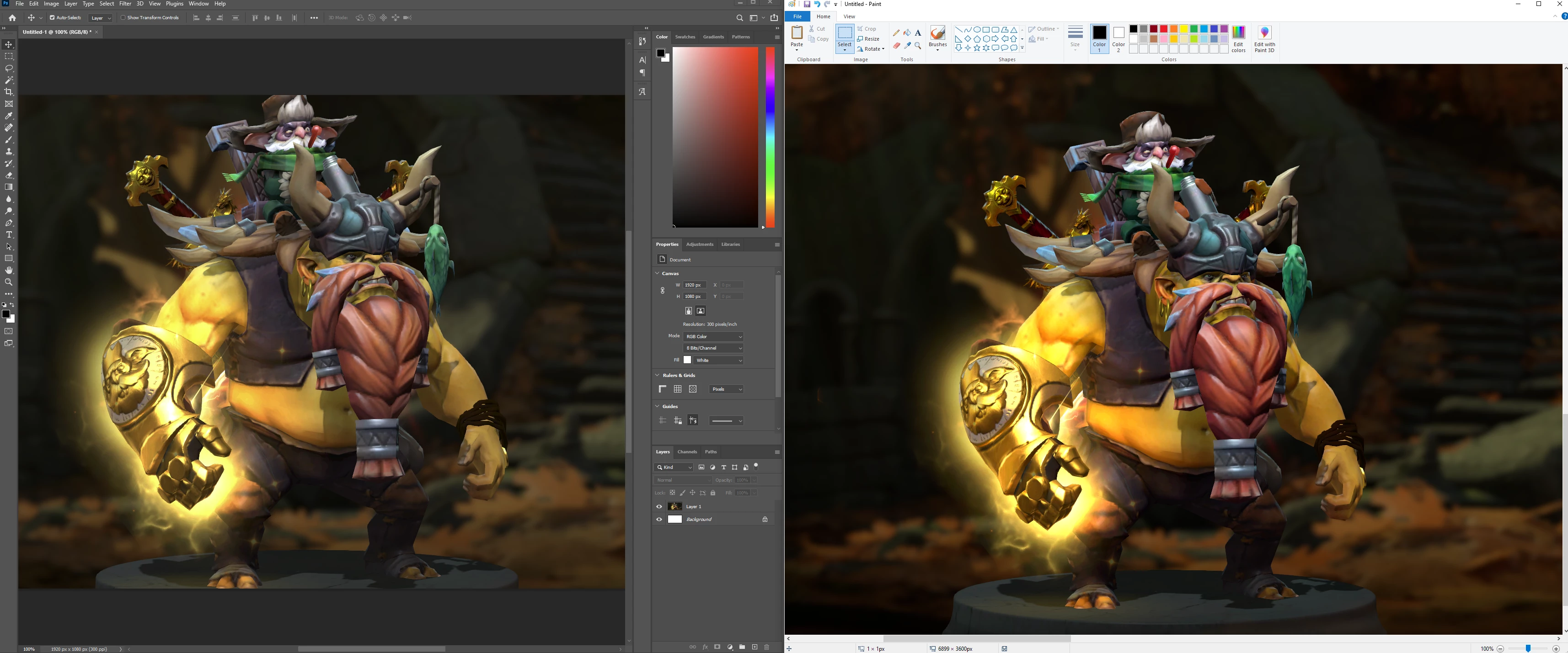
As the title says, when I take a screenshot and paste it into Photoshop, I get these messed up faded colors. See image below (left is what I get when I paste into Photoshop, right is what I get when pasted into MSPaint). I'm also attaching a screenshot with my picture settings (I tried fiddling around with the color profiles, but to no success).

Any advice>
This topic has been closed for replies.

2 replies

rob day
Community Expert
Community Expert
January 16, 2021

Rather than pasting the capture can you open it? On OSX screen captures are saved with the monitor profile assigned, so opening the capture maintains its appearance:


buru95Author
Participating Frequently
January 16, 2021

I tried opening it directly, same result. (I saved the screenshot in MSPaint as "screenshot.png", then opened it in Photoshop, colors are still faded). Keep in mind I am using Windows though, not MacOS, as previously mentioned.

D Fosse
Community Expert
Community Expert
January 16, 2021

Thank you for the quick reply!

I sort of understand what you are saying, but (as you might have guessed) I am not very technical when it comes to photo editing.

What exactly do I need to do to have the proper color space in Photoshop? I tried switching the color space around, but it seems to look the same no matter what I change it to. How can I tell which color space is the "correct" one for my screenshot? (i.e. the one that matches what I see in MSPaint, which in turn matches what I see on my monitor).


If you don't know, use sRGB. That's always safe. If you get to the point where you need other color spaces, you will also know why.


What you absolutely don't want, is to have no profile at all. Then everything will display randomly and unpredictably according to various outside factors.


Set the status tray in Photoshop like this:

If it reads sRGB IEC61966-2.1, you're good to go. If it says "untagged", you're in trouble and you need to assign sRGB. Never, ever, work with untagged files.


To assign the monitor profile, you use Edit > Assign Profile. If you don't know what your monitor profile is called, it's listed as Monitor RGB <your monitor profile>  in Color Settings > Working RGB. Don't change anything in there, just look it up if you don't know the profile name.


c.pfaffenbichler
Community Expert
Community Expert
January 16, 2021

Please read this (in particular the section titled "Supply pertinent information for more timely and effective answers”):

https://community.adobe.com/t5/using-the-community/community-how-to-guide-tips-amp-best-practices/td-p/11601738?page=1


What are your Edit > Color Settings? 

Maybe you ignored the screenshot’s Color Space which is very unlikely to be sRGB (which seems to be the image’s Color Space). 

buru95Author
Participating Frequently
January 16, 2021

Screenshot of Color Settings attached.

How can I tell what "the screenshot's Color Space" is? It's just a screencap taken by hitting the "Print Screen" button (on Windows).