
herba76288642
New Participant
February 2, 2018
Answered

Using keyboard arrow keys with rotate

  • February 2, 2018
  • 1 reply
  • 2483 views

I'm a newbie to Photoshop. My mouse skills are not the best so I was trying to find out if you can use the keyboard's arrow keys to help rotate a layer?

When in menu->edit->transformation-rotate I notice the arrow keys can move up, down, left and right. Is there away increment the rotation with the arrow keys or keyboard keys?
This topic has been closed for replies.
Correct answer Michael J. Hoffman

Hi Herb,

I'm going to move this to the Photoshop General Discussion, since this was originally posted in Adobe Photoshop Sketch (mobile app).

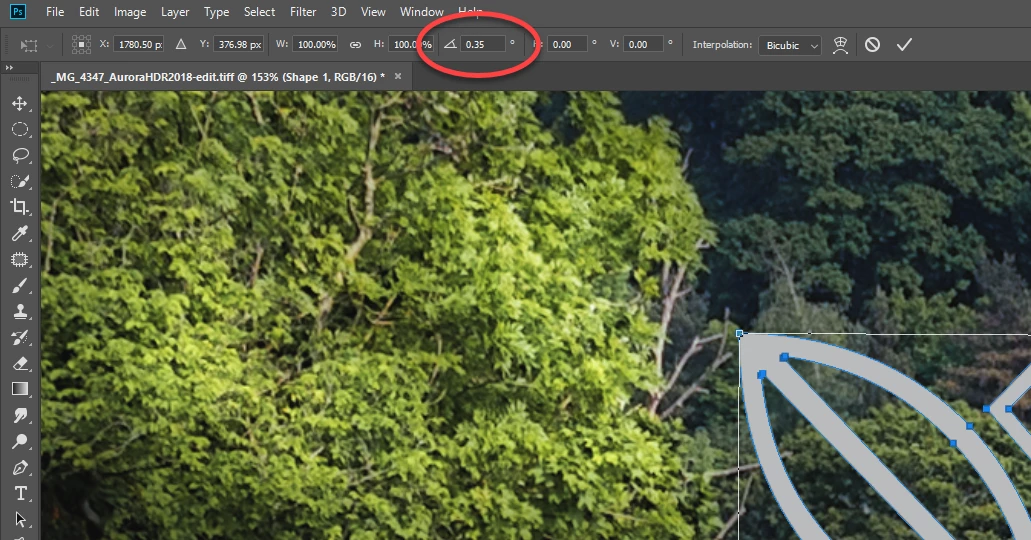
When you are using rotate (or free transform) you can place the cursor in the tool bar, in the angle field, and type in a value. You can also use the up and down arrow to fine tune the number. Scree shot below.

Note that using the arrow keys increment/decrement the angle in hundredths of a degree! But, you can add the shift key, and the increment will be tenths of a degree.

It's probably best to type in a starting value (like 45 degrees), then use Shift-arrow to nudge the object into approximately the right rotation, then finish with the arrow alone to fine tune the last little bit.

Mike

1 reply

Michael J. Hoffman
Michael J. HoffmanCorrect answer
Braniac
February 2, 2018

Hi Herb,

I'm going to move this to the Photoshop General Discussion, since this was originally posted in Adobe Photoshop Sketch (mobile app).

When you are using rotate (or free transform) you can place the cursor in the tool bar, in the angle field, and type in a value. You can also use the up and down arrow to fine tune the number. Scree shot below.

Note that using the arrow keys increment/decrement the angle in hundredths of a degree! But, you can add the shift key, and the increment will be tenths of a degree.

It's probably best to type in a starting value (like 45 degrees), then use Shift-arrow to nudge the object into approximately the right rotation, then finish with the arrow alone to fine tune the last little bit.

Mike

herba76288642
New Participant
February 2, 2018

Thank you Mike I will keep this in my notes!