


davidm6207557
Inspiring
December 20, 2016
Answered

Add border/outline to text

  • December 20, 2016
  • 6 replies
  • 35506 views

I'm new to Premiere Elements and can't find a way to do something I'd think would be simple: add an outline or border to a text box.  I do Text / Classic / Default, and drag the text box over; I can then adjust the letters but there isn't any button or setting for a border.

There's an option for Shapes, which can put a square around the text. From there, there might be something possible with Color Properties and/or Stroke but if even if I could figure something out, it seems enormously complex for such a simple task.

Am I missing something?
This topic has been closed for replies.
Correct answer Steve Grisetti

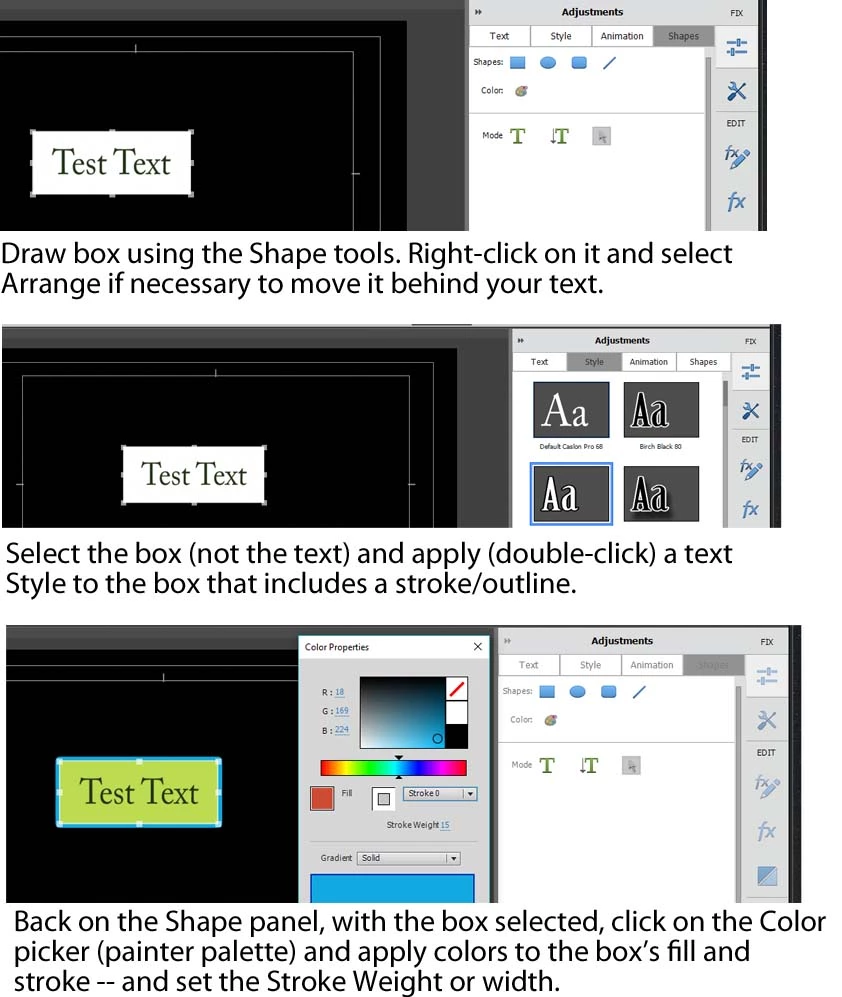
I don't know how else to explain it other than with this illustration, David.

6 replies

Brainiac
October 18, 2017

I've told you how to stroke (outline) a shape. To make the fill of this shape transparent, open its Color Properties, select Fill and then click the / button on the Color Picker.

New Participant
October 19, 2017

Thank you very much. I managed to do

Brainiac
December 23, 2016

FWIW my book is loaded with tips like this.

Happy  moviemaking!

Community Expert
December 23, 2016

Steve Grisetti wrote:

FWIW my book is loaded with tips like this.

Happy moviemaking!

I've not done that before and had no idea it could be done.  And it is so intuitive too!

I have your book from 11.  I should probably buck up and get the one for 15!

Bill

New Participant
October 18, 2017

Guys, I need some help.

Steve GrisettiCorrect answer
Brainiac
December 22, 2016

I don't know how else to explain it other than with this illustration, David.

davidm6207557
Inspiring
December 22, 2016

That's it! I see now the problem was that, after drawing the box and importing the Style, I went to Text rather than Shapes (which, I now realize, doesn't make sense, since what I was trying to work with was an object rather than text.)

Many thanks!

Brainiac
December 22, 2016

Maybe I'm not clear on something. What do you mean when you say "text box"?

Do you literally mean a box surrounding (or behind) the text, or do you mean the block of text? Are you trying to draw an outline about the box or the individual letters in the title?

You sound like you might be using something other than the standard use of the words "text box".

davidm6207557
Inspiring
December 22, 2016

A box surrounding or behind the text; an outline around the box, not around individual letters.

Your instructions got me to the point of having a box around the text – I just can't find a way of making any change to the box: changning its color or width, etc.

And as I mentioned, whatever effect "Flat Ribbon White" is would work too.

davidm6207557
Inspiring
December 22, 2016

You still around, Steve?  Can you tell me what I'm missing?

Brainiac
December 21, 2016

Do you want the stroke/border to surround the text or the box that the text appears in?

In either case, you need to apply a text Style with a border to either the text itself or, believe it or not, the rectangle you've drawn behind your title in order to color and widen this stroke.

davidm6207557
Inspiring
December 21, 2016

To surround the box that the text appears in.

Following your instructions as best I could, I got to Style (under "Graphics" I discovered just what I want: "Flat Ribbon White") but then it all fell apart, with options grayed-out everywhere.

davidm6207557
Inspiring
December 21, 2016

Okay, I’ll go through it step by step and hopefully you can show me where and how I’ve screwed up.

I make an edit, then to add “a border (stroke) to your text, you need to first go to the Style tab on the Title Adjustments panel…”  I assume that means the right-side panel and the “Text” tab.  I also assume it isn’t critical which of the text boxes I choose, just that the Style includes a border.

I double-click the text box ("Classic/Default/Default Text"), put it in a video timeline above the clip, double-click, and get the Adjustments options on the right.  I click Style and choose a font that includes a border: “Myriad Bold 60 Medium Border White Black”.  I apply the font, fill and stroke colors – all good.

But then it gets problematic: “You need to apply a text Style with a border to either the text itself or, believe it or not, the rectangle you've drawn behind your title in order to color and widen this stroke.”  I believe it, I just don’t know how to do it!

I click the arrow at the bottom of the Text Adjustments window and use that to “choose” the text box: it brightens and shows 8 points around its circumference so I’m pretty sure it’s active.  But I can’t figure out how to apply anything to the box itself.

I left-click and get various options, more or less mimicking what’s in the Text Adjustments window.  I imagine the most significant for my purpose is Color or Color Properties, but when I open that, everything I choose is reflected in the text itself, not the box surrounding it.  In fact, the Stroke option at the top isn’t clickable; either is “Stroke weight” or the three options at the bottom.

So the question is, how do I apply a text Style with a border to the rectangle?

By the way, in my desperate searches through everything in the right-hand toolbar, I found the perfect “thing”; I don’t know what to call it – a Style, a Text Adjustment?, I don’t even remember where I found it: “Flat Ribbon White”.  If I could somehow use that, I wouldn’t even need a text box.

Thanks so much for your help…

Community Expert
December 20, 2016

I'm not clear on exactly what you want to achieve. 

I don't know anything within Premier Elements that you are missing.   However, anything you create in Photoshop or other graphics program, can be used by adding it as media.   Such graphics can be stacked above the video track for creative control. 

davidm6207557
Inspiring
December 20, 2016

I want to put an outline or border around a text box; all I can see that can be done is change the colors of the letters inside the box, which means the viewer sees only the letters, not a border around them.

When I say "Am I missing something?", I don't mean the program could be missing something, I meant am I failing to see something obvious that could put an outline or border around a text box.

Brainiac
December 21, 2016

Thanks, very kind of you, but I can make a box outside Elements and import it. The problem is that I want to use a variety of outlines and borders, and it'd be so much easier to just create them inside the program. But, unless we hear from someone else, I guess that isn't possible. Thanks again...


As I show you in my books, in order to an a border (stroke) to your text, you need to first go to the Style tab on the Title Adjustments panel and apply a text style that includes a border. Then you can go back to the Text tab and apply your own font and fill and stroke colors.