As explained above, I used the Project Archiver method Steve explained in the third message in this thread. It moved the files, but then would not load them. Not only was the video I moved lost, so were all videos made before that. Fortunately they were mostly learning projects so not much was lost.
Now I try to remember to move the media file (the actual video file that came from the camera) to its final storage location before I start to edit it. This has worked for the one video I've made since the debacle -- I can load it again and again. The working files Premier makes are small so I don't mind leaving them of my SSD.
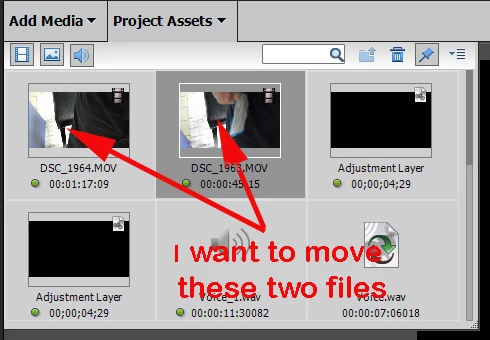
If I understand what you want to do, given this constraint you cannot. I feel sure is should work and don't understand why it didn't work for me, nor have I figured out how to recover the video. So, if you want to try to move the files I hope you have a recovery plan if it doesn't work.
As Steve Grisetti wrote, the way to move an entire project is normally with the archiver in the Files menu. There are a couple choices in that process that need to be correct to get the entire project and all its files on another drive or in another location.
There is another way. You can use your operating system and doing this will probably confuse Organizer. This will work to move the project to a more permanent location as well as to move files from a NAS to a Surface.
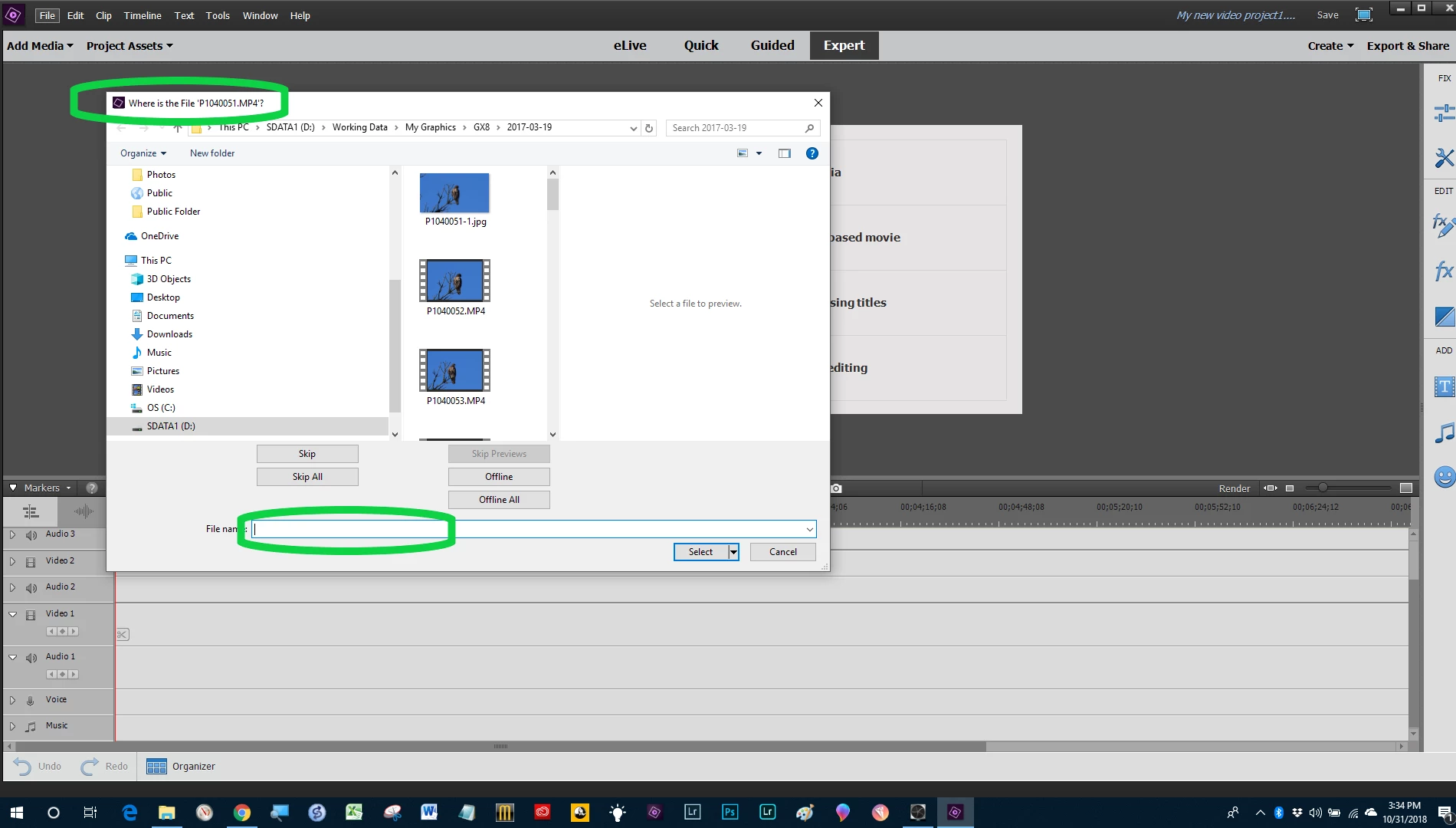
Create a folder where you want it. Use Explorer or Finder to move your assets to that folder. The next time you open the project you will get a screen that tells you to find the missing files. Navigate there and select one. The rest "will follow".
In the future, if you know you want to be moving projects around, especially on or off of an SSD laptop, create a dedicated project folder with an obvious name. When you open a new project, make sure it is in that folder. Put copies of your source files there. Check preferences and make sure your scratch disks are there too. Now you can move that folder anywhere for long term storage. If you want to work on it again, put it back on the original drive.
This is the screen you get when you open a project where the source files are missing:



 AdChoices